

An antivirus false positive happens when security software flags a clean, safe file as malware. If that just happened to you, do not restore the file and do not delete it yet. Leave it quarantined, then run through a short verification checklist to confirm whether the alert is accurate before you touch anything else.
TL;DR:
- Most false positives involve heuristic or behavioral detection engines, which are inherently prone to misjudging legitimate files sharing suspicious patterns.
- Verification steps should include checking the exact detection name, scanning the file on VirusTotal, and confirming its digital signature and origin before taking any action.
- When confirmed safe, files should be restored only from quarantine after re-scanning, and vendor submission should be made with detailed information to improve detection accuracy.
- A detection name referencing a known malware family or consensus across multiple major engines indicates a higher risk of genuine malware needing immediate removal.
- Power-user tools like PowerShell commands and careful documentation of exclusions streamline false positive verification and prevent unnecessary security gaps.
Table of Contents
- Antivirus False Positive Verification: A Quick Checklist
- Why Antivirus Software Flags Clean Files
- What To Do When It's a Confirmed False Positive
- When To Trust the Alert Instead
- Power-User Shortcuts For Faster Verification
- Why Verification Beats Panic Every Time
- Where to Report and Verify False Positives
- Sources
- FAQ
Antivirus False Positive Verification: A Quick Checklist
Before assuming the worst, or assuming nothing at all, work through this in order.
- Get the exact detection name. Open your antivirus product's quarantine or history log and copy the full detection string, not just "virus found." Names starting with Generic, Heur, or Behavior are heuristic guesses, not confirmed malware families, and they carry a meaningfully higher false positive rate than a specific named threat.
- Run the file through VirusTotal. Upload the file directly or paste its SHA-256 hash into VirusTotal and look at how many of the 60-plus engines flag it, and which ones. A single obscure engine flagging a file that Microsoft, Kaspersky, and Bitdefender all pass as clean is a strong signal you're looking at a false positive.
- Confirm the file's origin. Did it come from the developer's official HTTPS site, a verified distributor, or an app store, or did it arrive from a mirror, a forum link, or an email attachment? Compare the published checksum on the developer's site against your own file's hash if one is listed.
- Check the digital signature. A file signed with a valid Authenticode certificate tied to a known publisher is far less likely to be malicious than an unsigned or self-signed binary. Mismatched or missing signatures on software that's normally signed is itself a red flag worth investigating further.
- When in doubt, leave it quarantined. If any of the above steps come back ambiguous, don't restore the file. Report it to the vendor instead, which is covered in the remediation section below.
This checklist works whether you're dealing with a one-off Windows Defender alert or trying to figure out srbcontrol alternatives flagged by a third-party security suite. The steps don't change based on which antivirus software issued the alert.
Why Antivirus Software Flags Clean Files
Modern antivirus engines rely on four overlapping detection methods, and three of them are inherently guesswork rather than certainty. Signature-based detection matches a file against a known malware database and rarely misfires, since it's comparing exact digital fingerprints. Heuristic detection instead looks for code patterns that resemble malware behavior, and it's the single biggest source of false positive detection because legitimate software sometimes shares structural traits with malicious code.
Behavioral analysis watches what a program does at runtime, things like modifying system files, injecting into other processes, or making unusual network calls, and flags anything that looks suspicious even if the intent is benign. Machine learning models add another layer of probability-based scoring, which means they occasionally misjudge new or uncommon software they haven't seen before.
Specific triggers that push legitimate files into these traps include:
- Packed or obfuscated binaries, common in game trainers, license managers, and some legitimate compression tools
- Developer and debug utilities that request elevated system access
- Custom builds or modified installers that don't match a known, whitelisted signature
- Potentially Unwanted Application (PUA/PUP) flags, which are a softer classification than confirmed malware and often apply to bundled toolbars or adware rather than genuine threats
- Outdated virus definitions that haven't caught up with a legitimate software update, or overly aggressive definition sets pushed after a rushed vendor release
Behavioral and heuristic systems in particular increase false positives when legitimate software performs low-level operations, so developers distributing packed or unusual binaries should expect more flags than average, not fewer.
What To Do When It's a Confirmed False Positive
Once your verification checklist points to a false positive, follow these steps in order rather than jumping straight to restoring the file.
- Keep the file quarantined until you're fully confident. Don't restore it just because VirusTotal came back mostly clean, wait until you've also confirmed the source and signature.
- Restore only from your antivirus quarantine, not a fresh download, unless you have reason to think the original file itself was corrupted or tampered with.
- Re-scan the restored file immediately to confirm the antivirus no longer flags it, since some products update their local cache after a restore.
- If you suspect a corrupted or replaced original, re-download from the official publisher's site and repeat the hash comparison before installing.
- Add an exclusion only for that specific file or folder, never a system-wide exclusion, and write down what you excluded and why so you can review it later.
- Prepare a vendor submission with the file itself (or its hash), the exact detection name, and a short description of how to reproduce the alert.
- Submit through the correct channel. For Windows Defender, use the Microsoft Security Intelligence submission form or the Defender submissions portal. Third-party antivirus vendors maintain their own file-submission forms, usually linked from their support pages.
- Expect a response within roughly 24 to 72 hours for a well-documented submission, based on typical vendor turnaround reported by AV-Comparatives. Outcomes range from a definition update that clears the flag globally to a request for more information if the file's behavior is genuinely unusual.
Never disable your antivirus entirely to work around a suspected false positive. A scoped exclusion protects the rest of your system while you sort out one specific file.
When To Trust the Alert Instead
Some detections deserve immediate action, not a verification checklist. Broad consensus across major engines, meaning Microsoft, Kaspersky, ESET, and similar vendors all agree, combined with a specific named malware family rather than a generic label, is the strongest sign you're looking at real malware rather than a misfire.
Pay close attention to context, too:
- Files from unexpected email attachments, cracked or pirated software, or unfamiliar USB drives carry far more risk than software from an official vendor site
- A detection name referencing a known trojan, ransomware family, or worm by name (rather than "Generic.Trojan" or "Heur.Suspicious") suggests the vendor has seen and confirmed this specific threat before
- High-severity classifications paired with multiple independent engine hits should be treated as real until proven otherwise, not the reverse
- If verification remains genuinely unclear after working through the checklist, delete the file and re-obtain it from a verified source rather than risk restoring it
The asymmetry matters here: a false positive costs you a few minutes of inconvenience, while restoring genuine malware can cost you your entire system.
Power-User Shortcuts For Faster Verification
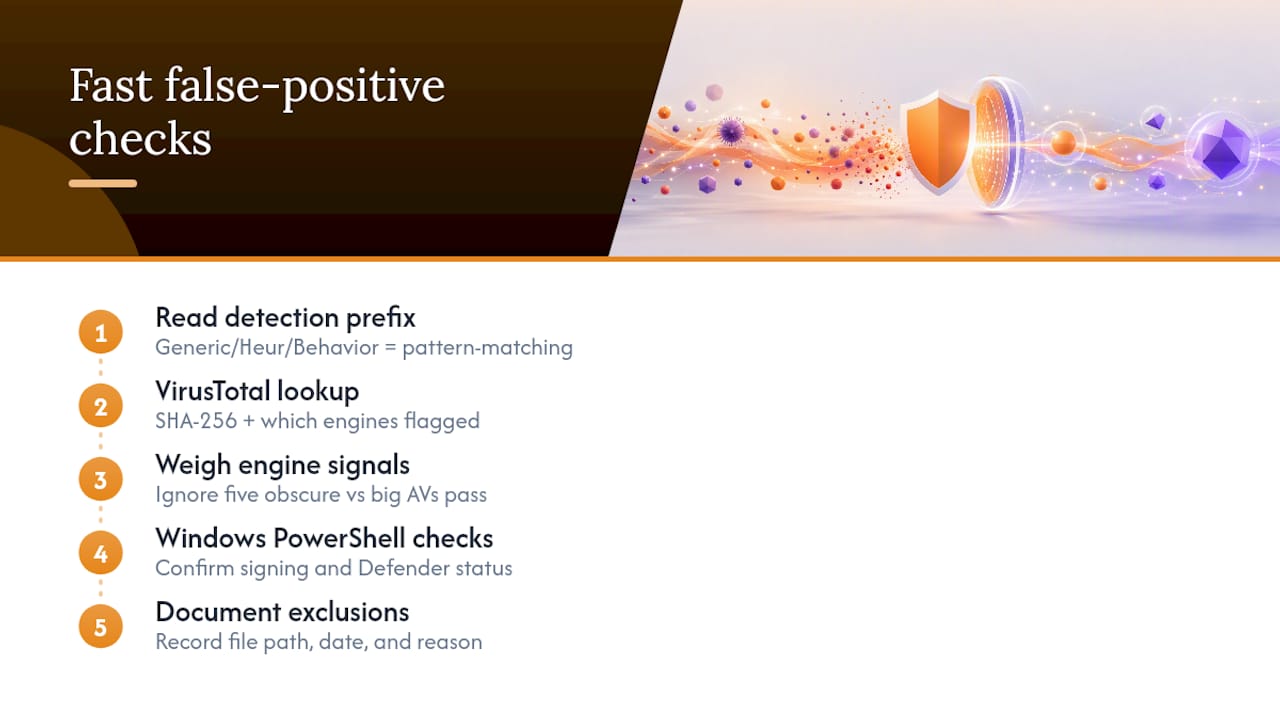
Experienced users skip a lot of guesswork by reading detection names literally. A prefix like Generic, Heur, or Behavior tells you the antivirus is pattern-matching, not confirming a known threat, and that alone should lower your alarm level before you check anything else.
Pairing a SHA-256 hash lookup on VirusTotal with attention to which specific engines flag a file, rather than just the total count, gives a clearer picture than a single number. If five obscure engines flag something that Microsoft, Kaspersky, and Google's engine all pass, weight that toward false positive.
For Windows systems, PowerShell offers more reliable answers than a toast notification. Running Get-AuthenticodeSignature against a file confirms its signing status directly, and Get-MpComputerStatus shows the real state of Windows Defender rather than relying on a popup that may be stale or misleading.
Pro Tip: Document every exclusion you add, including the file path, the date, and the reason. A six-month-old exclusion with no notes attached is a security gap waiting to be exploited, not a convenience.
Why Verification Beats Panic Every Time
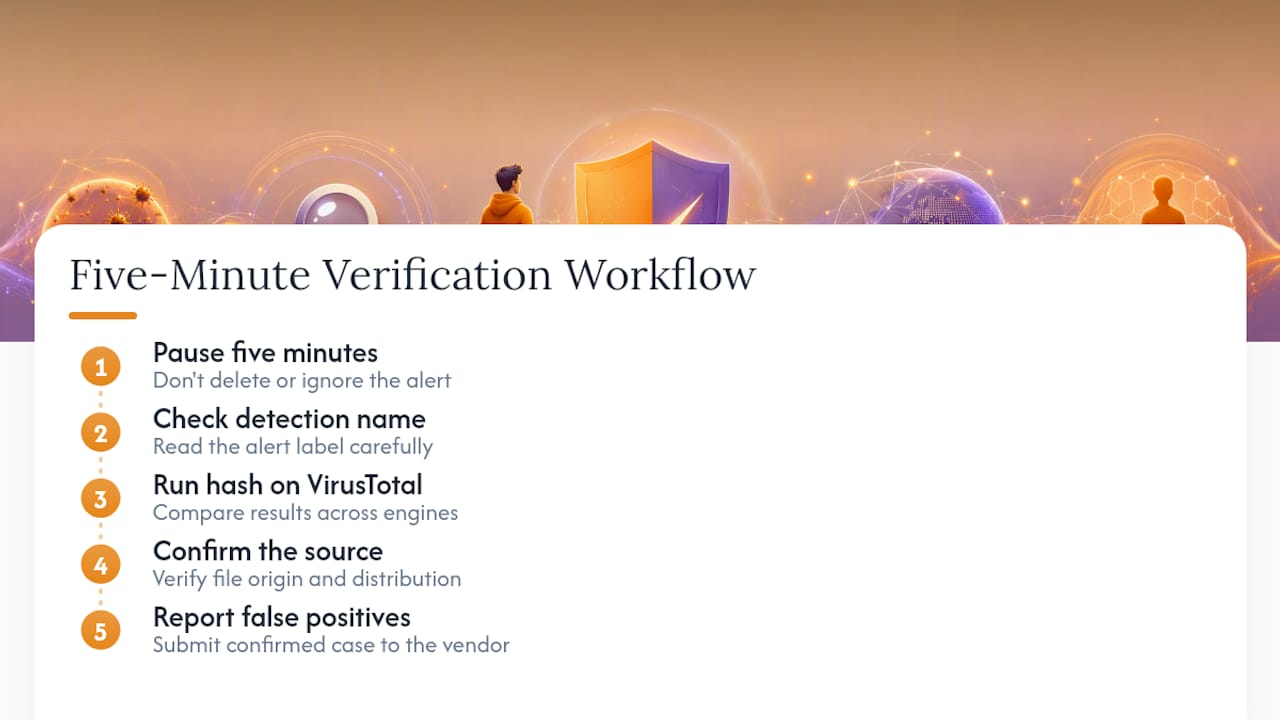
Most people either ignore antivirus false alerts entirely or delete everything the moment a warning pops up. Neither instinct serves you well. The five-minute verification habit, checking the detection name, running a hash through VirusTotal, and confirming the source, resolves the overwhelming majority of cases without guesswork.
Reporting confirmed false positives to the vendor is not just personal housekeeping. Every submission helps correct the underlying definition, which means the next person who downloads that exact file doesn't hit the same alarm. That is the entire feedback loop antivirus companies depend on to keep heuristic detection sharp without drowning users in noise. For readers who want to see how this kind of verification discipline applies to game data as well as security alerts, our verification process for Droid Tycoon data follows the same logic: check the source, confirm the method, then trust the result.
— Daniel
Where to Report and Verify False Positives
- Microsoft Security Intelligence file submission
- Microsoft Defender submissions portal
- VirusTotal multi-engine scanner
- NIST Glossary: false positive definition
Sources
FAQ
What causes false positive antivirus results?
Heuristic and behavioral detection engines flag files based on suspicious patterns or actions rather than confirmed malware signatures, which means packed installers, debug tools, and unusual but legitimate software often get caught by mistake.
How do I know if a virus is a false positive?
Check the exact detection name for a generic prefix like Heur or Behavior, upload the file's hash to VirusTotal to see how many engines agree, and confirm the file's digital signature and source match the official publisher.
How to remove false positive virus?
If verification confirms the file is safe, restore it from quarantine rather than a fresh download, re-scan it to confirm the alert clears, and submit the file to the vendor so the detection gets corrected for future users.
Does McAfee give false positives?
Yes. Every major antivirus vendor, including McAfee, generates false positives because heuristic and behavioral detection trade some accuracy for the ability to catch new, previously unseen threats.