
A compliant leaderboard overlay can help competitive Droid Tycoon players track progress and plan rebirths, but only when it relies on passive screen capture or Epic-supported UEFN methods. Memory reading, code injection, and automated inputs fall outside Fortnite's rules and carry real ban risk. For players who want a ready-made option built this way, Droidex Companion handles the tracking without the setup work.
TL;DR:
- Overlays should only use passive screen capture or Epic-supported native widgets to stay within Fortnite's rules and avoid bans.
- The capture process must involve only pixel recognition or public logs, with no game memory reading, code injection, or automation.
- Setup requires specific steps, such as running Fortnite in fullscreen at 1920x1080, consenting to capture, and sampling leaderboard regions at low frame rates.
- Only show personal data like current rank, session scores, and rebirth timers; avoid displaying or inferring information about other players.
- Droidex Companion offers a ready-made, compliant solution that tracks live stats without reading game memory or automating inputs.
Table of Contents
- How leaderboard overlays work: passive capture, pixel recognition, and native alternatives
- Safety and rules: Epic policy, tournament rules, and what overlays must avoid
- Step-by-step setup for a compliant Windows leaderboard overlay
- Tuning and best practices: what to show, refresh rates, and verification
- Why compliance-first overlays serve competitive play better
- Try Droidex Companion for ready-made, compliant leaderboard tracking
- FAQ
- Sources
How leaderboard overlays work: passive capture, pixel recognition, and native alternatives
A leaderboard overlay is a small window that sits on top of Fortnite and shows numbers: your current rank, session score, or rebirth countdown. The method behind that window matters more than the window itself.
Passive screen capture reads pixels from your own display or pulls data from public match logs. It never touches Fortnite's running process, never hooks into memory, and never injects code. That distinction is what separates a legitimate tracking tool from software that modifies gameplay.
Microsoft's Windows.Graphics.Capture documentation describes a system picker that lets an app request permission to capture a specific window. Once granted, a yellow border appears around the captured window, and the app receives frames through a capture API built for exactly this purpose.
For developers working inside Fortnite's own creative tools, UEFN and Verse offer a second compliant route: native HUD widgets built with Epic's own APIs, running inside the game rather than layered on top of it.
- Passive capture reads pixels or logs, never game memory.
- The system picker shows a visible yellow border during capture.
- UEFN and Verse widgets run natively, with no external capture needed.
Both paths avoid the behaviors that trigger anti-cheat flags: no process injection, no automated input, no hidden hooks.
Safety and rules: Epic policy, tournament rules, and what overlays must avoid
Epic Support states plainly that third-party software is not officially supported and that using it carries risk the player accepts. That single sentence should shape every design decision for an overlay tool.
Competitive rules go further. The Fortnite competitive master rules prohibit outside assistance that reveals the location or status of opponents not visible on your own screen. An overlay that shows only your own stats, pulled from what's already on your screen, stays on the right side of that line. One that pulls in information about other players does not.
One rule covers most of it: restricted hardware warnings are issued to devices or software that provide a competitive advantage, while Epic treats genuine accessibility tooling differently.
- Process only what appears on your own screen or in public logs.
- Never automate a gameplay action, input, or decision.
- Stop using any tool that triggers a hardware or anti-cheat warning and verify nothing on your system creates an advantage.
Treat the in-game leaderboard as the only authoritative source for standings. An overlay is a personal tracking aid, not a replacement for official results.
Step-by-step setup for a compliant Windows leaderboard overlay
Building or configuring a leaderboard overlay the right way takes a handful of deliberate steps, each aimed at keeping capture passive and readings accurate.
- Run Fortnite in fullscreen at 1920×1080. Fixed-coordinate recognition scripts assume this resolution, and the FA11y accessibility project notes that windowed or scaled modes cause misreads.
- Confirm you have consent to capture the display, since Windows will prompt for permission regardless.
- Open the GraphicsCapturePicker and select the Fortnite window. The system shows a yellow border once capture starts, confirming the session is active and visible.
- Create a Direct3D11CaptureFramePool and process incoming frames off the UI thread, so the overlay doesn't stutter while reading data.
- Sample the leaderboard region at a low cadence, around 1 to 2 frames per second, which is enough for numbers that change slowly.
- Calibrate the leaderboard region once, using manual markers to account for UI scale differences between setups.
- Render the overlay as a separate, topmost window with a transparent background and mouse passthrough, so it never intercepts clicks meant for the game.
- Test the setup across several casual matches, watching for in-game warnings or any drop in frame rate.
Pro Tip: Lock your display scaling to 100% before calibrating; Windows scaling changes shift pixel coordinates and break saved calibration markers.
Microsoft's own screen capture guidance recommends disposing of frames promptly and keeping heavy processing off the UI thread, which matters most during longer sessions where memory leaks or dropped frames become noticeable. Following that guidance keeps the overlay light enough to run alongside Fortnite without competing for GPU resources.

Tuning and best practices: what to show, refresh rates, and verification
Once the capture pipeline works, the next decision is what to actually display. Current rank, session top scores, rebirth timers, and session score deltas all qualify as personal tracking data pulled from your own screen. Anything describing other players' positions or status does not belong on the overlay, regardless of how useful it might seem.
- Show current rank, session scores, rebirth timers, and score deltas only.
- Apply light smoothing so a single misread frame doesn't flash a wrong number.
- Keep refresh cadence low to protect frame rate during matches.
- Use high-contrast fonts and a compact, configurable layout for quick glances.
Pro Tip: Position the overlay in a screen corner away from Fortnite's own HUD elements; overlapping text is the most common cause of recognition errors.
Before trusting any overlay in a competitive session, run a short verification pass: play several matches, confirm no warnings appear, and compare overlay readings against the official in-game leaderboard. Rebirth timers and scores shown through community statistics tracking give a useful second reference point for spotting drift. The design principles behind entertainment leaderboard tools, like the approach described in FPL's live standings tracker, apply here too: clarity and update frequency matter more than cramming in extra data points.
Why compliance-first overlays serve competitive play better
The temptation with any tracking tool is to push further: read more data, automate more decisions, shave off manual effort. That instinct works against competitive players rather than for them. A tool that stays passive, reading only what's already visible on screen, keeps a player's account safe while still answering the question that matters: am I improving?
The gap between a flashy overlay and a useful one isn't feature count. It's restraint. An overlay that shows rank, score trend, and rebirth timing gives a player everything needed to plan the next session, without crossing into territory that risks a warning or a ban. Players who treat the in-game leaderboard as the final word, and the overlay as a planning aid, get the benefit of data tracking without the downside.
— Daniel
Try Droidex Companion for ready-made, compliant leaderboard tracking
Setting up a capture pipeline, calibrating coordinates, and tuning refresh rates takes real time. Droidex Companion handles that work already, using local screen recognition to track live stats, manage rebirth planning, and display a customizable overlay without reading game memory or automating any input.
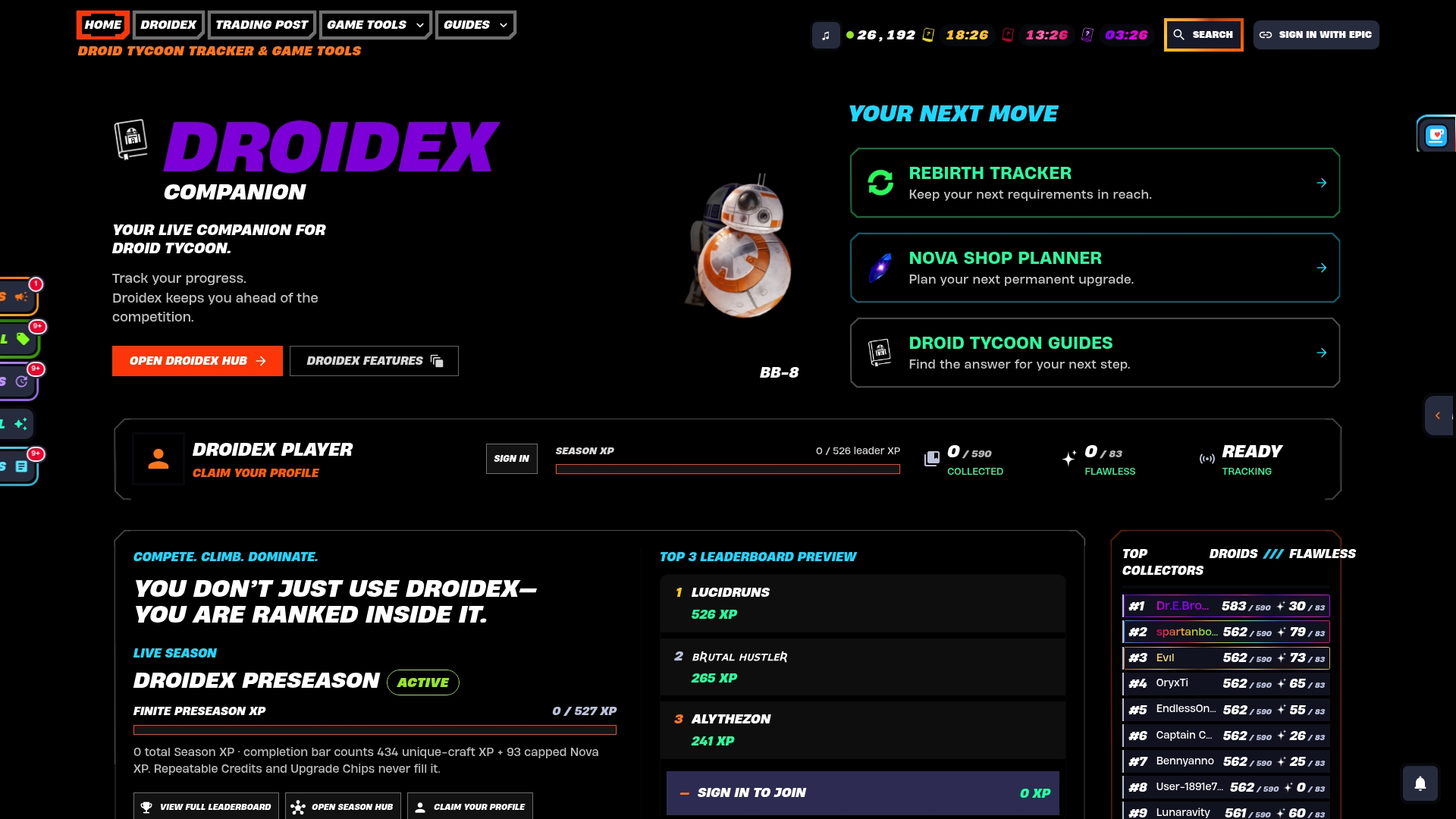
Players can track session scores alongside rebirth cycle timing and compare results against community-wide statistics, all from one app. Every main feature stays free to use. Download Droidex Companion and set up your overlay in the time it would take to calibrate a custom build.
FAQ
What does a leaderboard overlay actually display?
A leaderboard overlay typically shows your current rank, session scores, rebirth timers, and recent score changes, pulled from what's visible on your own screen. It does not show information about other players that isn't already on your display.
Is it against the rules to use a leaderboard overlay in Fortnite?
Epic Support does not officially support third-party software and treats its use as the player's own risk. Overlays built on passive screen capture, which only read your own display, avoid the behaviors that competitive rules and anti-cheat systems target.
How do I set up a screen-capture overlay on Windows?
Use the GraphicsCapturePicker to select the Fortnite window, start a capture session through a Direct3D11CaptureFramePool, and sample the leaderboard area at a low frame rate. Microsoft's screen capture documentation covers the full API and the consent flow required.
How much does Droidex Companion cost?
Droidex Companion's main features are free to use, with no published price for the app itself. Details are available on the download page.
Can an overlay show accurate rankings, or should I trust the in-game leaderboard more?
The in-game leaderboard is the official source for standings, and overlay readings should be checked against it rather than treated as a replacement. An overlay pulling from your own screen gives a useful running estimate between the moments you check the official results.
Sources
- Will I be banned if I use third-party software with Fortnite? - Fortnite Battle Royale Support
- Fortnite competitive master rules
- Screen capture - Windows.Graphics.Capture documentation
- GreenBeanGravy/FA11y