
Keep fullscreen optimizations enabled by default. Disable the setting only as a targeted, per-game step when you have measured a repeatable performance regression, like a locked GPU usage ceiling or worse frame-time consistency in a specific title. For most games on modern hardware, the feature costs nothing and adds alt-tab speed plus overlay support. The next sections cover why, and exactly where to test.
TL;DR:
- Fullscreen optimizations convert exclusive fullscreen into a borderless window using flip-model presentation, improving alt-tab speed and overlay compatibility without performance loss on modern hardware.
- Disabling this feature is only recommended if a specific, repeatable stutter or significant GPU utilization drop is measured in a game, especially older titles that struggle with flip-model.
- Testing should involve multiple runs with performance metrics like frame-time variance, GPU utilization, and frame times rather than a single benchmark, preferably using tools like PresentMon.
- Per-game toggle is safest and most effective; global registry changes should only be used as a last resort due to their broad impact.
- Overlays from Steam, Discord, or GPU vendors and Game DVR can cause conflicts; disabling unnecessary overlays and recording features often resolves performance issues instead of turning off fullscreen optimizations.
Table of Contents
- What Fullscreen Optimizations Actually Do to Your Games
- Where Fullscreen Optimizations Help and Where They Hurt
- When It's Worth Testing Fullscreen Optimizations Off
- How to Enable or Disable Fullscreen Optimizations
- How to Test Fullscreen Optimizations Changes Properly
- Isolating Overlays, Game DVR, and Driver Issues
- Why the Blanket "Just Turn It Off" Advice Is Bad
- Where to Verify This Yourself
- Sources
- FAQ
What Fullscreen Optimizations Actually Do to Your Games
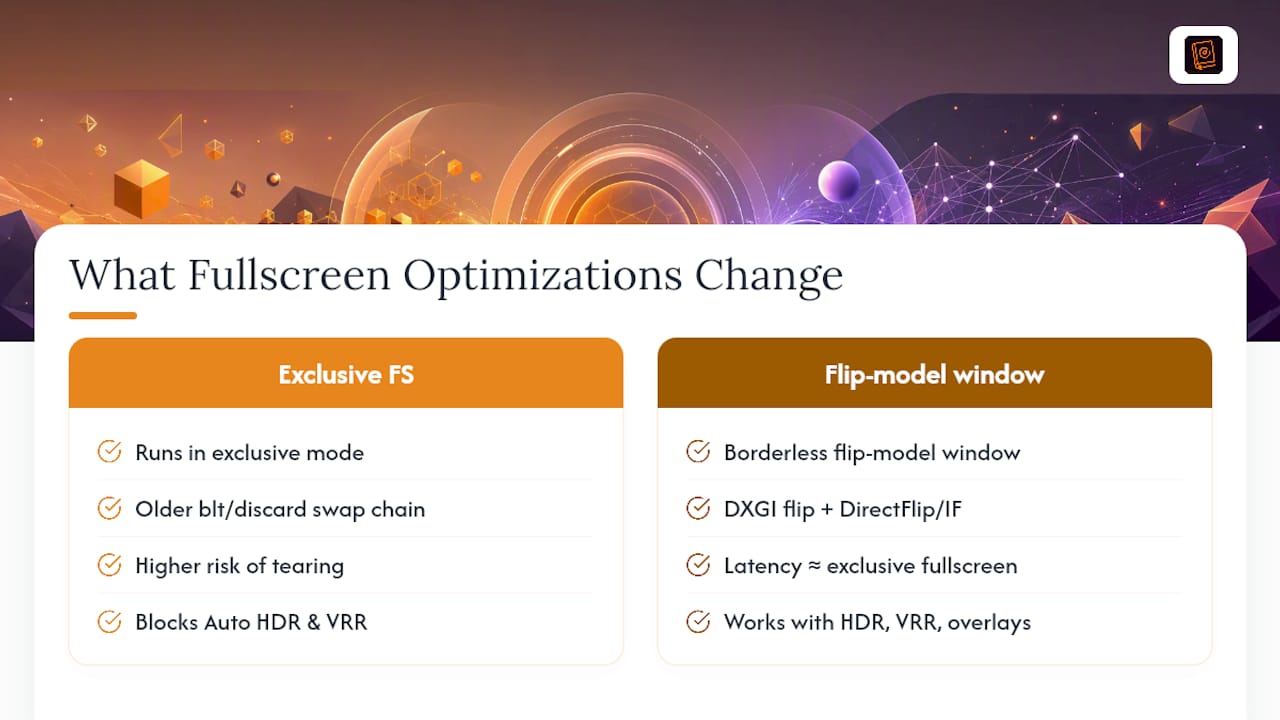
Fullscreen optimizations take a game running in exclusive fullscreen and convert it into a flip-model borderless window instead. Windows accomplishes this with the DXGI flip model, a presentation method that replaces the older "blt" or "discard" swap chains that used to cause tearing, especially on laptops with hybrid GPUs.
The technical trick that makes this work without a performance penalty is something called DirectFlip, and its more advanced cousin, Independent Flip. When Independent Flip engages, the Desktop Window Manager can essentially step aside and let the game present frames straight to the display, closely matching the latency of true exclusive fullscreen. That is the entire premise behind fullscreen optimizations: give you the compatibility of a windowed game without asking you to pay for it in frame times.
Windows pushes this feature for practical reasons beyond convenience. Flip-model presentation is what makes Auto HDR, variable refresh rate, and modern overlay rendering behave correctly. Older exclusive-fullscreen games that grab the display directly tend to fight with these features, causing black screens on alt-tab or HDR flicker. Fullscreen optimizations exist to route around those conflicts.
Where Fullscreen Optimizations Help and Where They Hurt
Fullscreen optimizations solve real problems for most PC gamers, but the trade-offs vary by title and hardware.
Where it helps:
- Alt-tabbing in and out of a game becomes instant instead of triggering a resolution renegotiation with your monitor.
- Overlays render properly. Discord, Steam, RTSS, and Nvidia's overlay all depend on a compositor being present, which exclusive fullscreen bypasses.
- On modern flip-model hardware, performance parity with true exclusive fullscreen is common once Independent Flip engages.
Where it hurts:
- Some titles, particularly older DirectX 11 games or those built on engines that never adopted flip-model presentation cleanly, show micro-stutter once optimizations are active.
- GPU usage can get capped below its expected ceiling in specific overlay and driver combinations, leaving performance on the table.
- A smaller subset of players report input-latency regressions, usually tied to a specific overlay stacking on top of the optimization layer.
Community testing backs this up: pairing fullscreen optimizations with a heavy overlay stack, like Steam plus a GPU vendor overlay running simultaneously, has been shown to reduce GPU utilization and introduce stutter in certain games. The more compositors and overlays stacked on top of a game, the more surface area there is for something to go wrong.
Pro Tip: If a game feels inconsistent rather than uniformly slow, suspect an overlay conflict before blaming fullscreen optimizations directly. Stutter that comes and goes usually points to a rendering layer fighting for frame ownership, not a flat performance ceiling.
When It's Worth Testing Fullscreen Optimizations Off
Not every stutter or frame dip means you should flip the switch. Reserve the test for cases with a clear, repeatable symptom.
- Persistent stutter in an otherwise smooth scene. If frame pacing breaks in the exact same spot every run, on a title that should have no trouble hitting your target frame rate, that consistency is worth investigating.
- GPU usage stuck well below expected utilization. If your card sits at 70% usage on a scene that should push it to 95% or higher, something upstream is throttling the pipeline.
- Worse 99th-percentile frame times than 1% lows suggest. Average FPS can look fine while the worst frames are dragging the experience down.
Older DirectX 11 titles and engines that never fully adopted flip-model presentation are more likely to show a measurable change when you toggle the setting. Competitive players chasing the lowest possible input latency should weigh that against losing quick overlay access for Discord or a stat tracker.
Pro Tip: Test one game at a time, and only after establishing a baseline with the setting on. Switching blind and judging by "feel" is how false positives spread across gaming forums.
How to Enable or Disable Fullscreen Optimizations
The safest and most reversible method is per-game, not global. Windows gives you three levels of control, and you should work from the narrowest outward.
Per-game toggle (Windows 10 and 11):
- Right-click the game's executable file, not a shortcut, and select Properties.
- Open the Compatibility tab.
- Check Disable fullscreen optimizations.
- Click Apply, then launch the game to test.
Windows 11 system-level toggle:
- Go to Settings, then System, then Display, then Graphics.
- Find Optimizations for windowed games, a setting Microsoft documents as linked to Auto HDR behavior, since enabling Auto HDR for a title can silently re-enable optimizations for it.
- Under the same Graphics page, select individual apps and assign a custom Graphics performance preference if you want per-app control without touching the executable's properties.
Global registry changes exist but should be a last resort. The GameDVR_FSEBehaviorMode value under HKEY_CURRENT_USER\System\GameConfigStore controls fullscreen optimization behavior system-wide, and some tweak guides recommend editing it directly. Skip this unless you have a specific reason, because a global change affects every game at once, making it impossible to isolate which title actually needed the fix.
To revert, uncheck the Compatibility box or flip the Settings toggle back. If you find a genuine regression tied to fullscreen optimizations in a specific title, Microsoft's feedback channels exist for exactly that; reporting reproducible cases helps the fix land in a future driver or OS update rather than staying a permanent workaround.
How to Test Fullscreen Optimizations Changes Properly
A single benchmark run tells you almost nothing. Frame-time data across multiple passes is what separates a real regression from normal variance.
Metrics worth recording:
- Average FPS, as a baseline reference only.
- Frame-time variance across the whole run, not just the average.
- 99th-percentile frame time, which exposes the worst stutters an average conveniently hides.
- GPU utilization, watched for unexpected ceilings.
- An input-lag proxy, such as click-to-photon testing tools if you have access to one, or at minimum a consistent subjective feel check across identical scenarios.
Tools that do this well:
| Tool | What it measures | Best for |
|---|---|---|
| PresentMon | Present mode (Independent Flip, Legacy Flip, Composed), frame timing | Confirming whether flip-model optimizations are actually engaging |
| MSI Afterburner + RTSS | GPU usage, FPS, frame-time overlay | Real-time monitoring during test runs |
| Windows Game Bar | Quick FPS and GPU checks | Fast sanity checks, not deep analysis |
PresentMon is the tool Microsoft itself points to for inspecting presentation modes, and it can show you directly whether a game is landing on "Hardware: Independent Flip," the state that gives fullscreen optimizations their best-case performance.
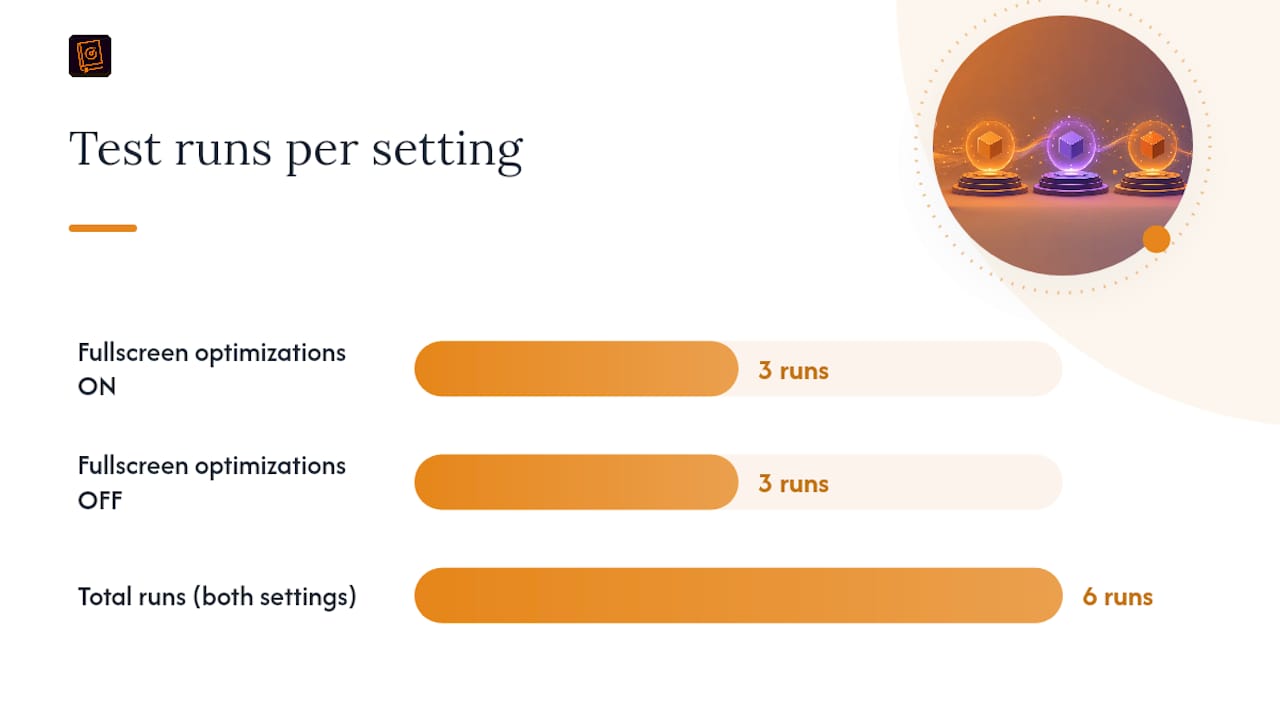
Testing protocol: Pick a repeatable scene or built-in benchmark, close every non-essential overlay, and run at least three passes with the setting on, then three passes with it off. Compare full frame-time graphs, not single average FPS numbers, since a stutter that spikes for 200 milliseconds barely dents an average but ruins the moment it happens.
Isolating Overlays, Game DVR, and Driver Issues
Fullscreen optimizations and Game DVR get blamed for each other's problems constantly, and they are not the same thing. Game DVR is the background recording feature tied to the Xbox Game Bar, and it consumes GPU encoder time whether or not you actively record. Disabling Game DVR is a safe, near-universal win if you never use its clip-recording feature, since it removes encoder overhead without touching how the game presents frames.
Work through causes in this order before concluding fullscreen optimizations are the culprit:
- Disable the Steam overlay for the affected game and retest.
- Disable the Discord overlay and retest.
- Disable your GPU vendor's in-game overlay (Nvidia, AMD, or Intel) and retest.
- Turn off Game DVR entirely if you do not use clip recording.
- Update your GPU driver, since presentation-mode bugs get patched regularly.
- Check your power plan; a balanced or power-saver profile can throttle GPU clocks in ways that mimic a fullscreen optimizations regression.
- Test with variable refresh rate on and off, since VRR and flip-model presentation interact closely.
- If problems started right after a driver update, consider rolling back to isolate the driver as the variable.
Pro Tip: Change one variable at a time. Disabling three overlays simultaneously and seeing an improvement tells you one of the three fixed it, not which one.
Why the Blanket "Just Turn It Off" Advice Is Bad
The instinct to disable fullscreen optimizations the moment a game stutters is understandable, but it treats a diagnostic step like a cure. Most of the time the setting is not the problem. The overlay stacked on top of it is.
The real skill here is measurement discipline. Establish a baseline with PresentMon or Afterburner before touching any setting, change one variable, and record what actually moved. Flip the setting per-game, never globally, because a registry-level change removes your ability to tell which title benefited and which one you just broke.
If you play competitively and care about shaving milliseconds off input latency, that is a legitimate reason to test disabling it on a specific title. But test first. Keep a short log of what you tried and what changed, and if you find a genuine, repeatable regression, report it with your PresentMon data attached instead of just a forum post saying a game "feels off."
— Daniel
Where to Verify This Yourself
Read Microsoft's own DirectX team explanation of how fullscreen optimizations work for the flip-model internals covered here. The DXGI flip-model performance guidance explains why flip-model presents outperform older swap chains. Microsoft's support page on optimizations for windowed games documents the Windows 11 settings path. For hands-on measurement, PresentMon remains the reference tool for inspecting presentation modes.
If you also want a companion that keeps your Droid Tycoon stat tracking, rebirth planning, and overlays organized while you tune your display settings, Droidex Companion runs locally on screen recognition and stays free to use, with development supported by optional donations rather than mandatory fees.
Sources
- Demystifying Fullscreen Optimizations - DirectX Developer Blog
- Optimizations for windowed games in Windows 11 - Microsoft Support
FAQ
Is it good to disable fullscreen optimizations?
Not by default. Leave it enabled unless you have measured a specific, repeatable regression in a particular game, since most titles gain alt-tab speed and overlay support at no performance cost.
What does fullscreen optimization do?
It converts an exclusive-fullscreen game into a flip-model borderless window, letting the game keep near-exclusive-fullscreen performance while gaining instant alt-tab and working overlay compatibility.
Should I disable fullscreen optimizations for Fortnite?
Only if testing with tools like PresentMon or MSI Afterburner shows a repeatable stutter or GPU utilization drop specific to that game. Most players see no benefit from disabling it and lose overlay convenience by doing so.
Should fullscreen optimizations be on or off in CS2?
Test both states with a consistent scene before deciding. Competitive shooters are exactly the case where a measured latency improvement might justify disabling it, but only after you have data showing an actual difference, not a hunch.