
Disable every other overlay, switch Droid Tycoon to borderless or windowed mode, then press Shift+F2 to open the Droidex overlay manager and re-enable only the widgets you need. Most players see the HUD stabilize within a minute. If the overlay still flickers or disappears after that, the conflict runs deeper than a single app and needs the isolation steps below.
TL;DR:
- Disabling other overlays like Discord, Nvidia, AMD, and screen recorders before launching Droid Tycoon reduces conflicts that cause flickering or missing HUD elements.
- Running the game in borderless or windowed mode prevents most overlay conflicts because exclusive fullscreen blocks third-party hooks from accessing the render pipeline.
- Isolating conflicting overlays involves closing one application at a time and testing the Droidex HUD after each change to identify the exact culprit.
- Using the Droidex overlay manager hotkeys allows quick adjustments of widgets and layout locking to maintain stability during gameplay.
- Reporting persistent issues with detailed steps, screenshots, and system specs accelerates fixes, especially when conflicts appear after game updates.
Table of Contents
- What Causes a Game Bar Overlay Conflict?
- Quick Checklist Before You Troubleshoot Further
- How Do You Isolate the App Causing the Conflict?
- Using the Droidex Overlay Manager to Fix Conflicts on the Fly
- Less Obvious Culprits Behind Overlay Clashes
- How to Reproduce the Issue and Report It
- A Developer's Note on Overlay Stability
- Download Droidex Companion and Keep Your Overlay Stable
- Quick Reference Links
- Sources
- FAQ
What Causes a Game Bar Overlay Conflict?
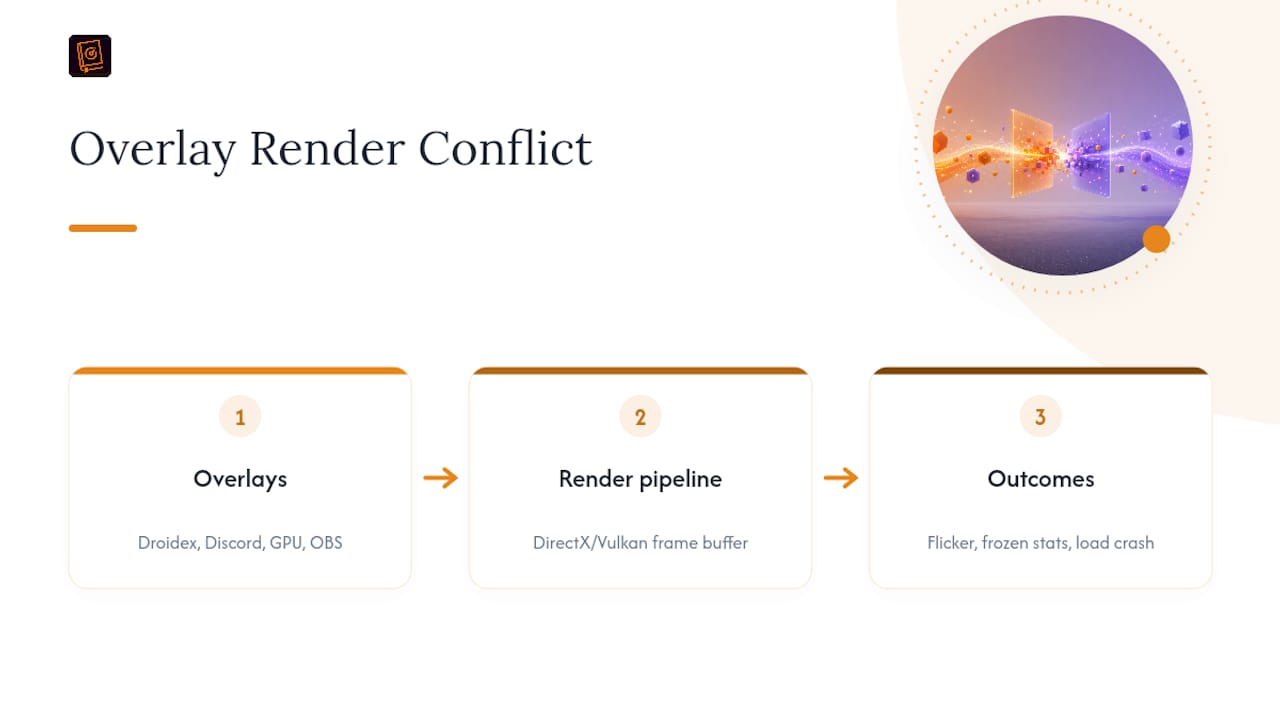
Overlay conflicts happen when two or more programs try to hook into the same rendering pipeline at once. Droid Tycoon runs on DirectX, and Droidex draws its HUD by injecting into that same render process. So does Discord's overlay, so does an Nvidia or AMD overlay, so does OBS if you're recording. When multiple hooks fight for the same frame buffer, the result is a flickering HUD, a frozen stat panel, or in worse cases a crash during a loading screen. Microsoft's own troubleshooting guidance confirms this is a known pattern across DirectX and Vulkan titles, not a Droidex-specific bug. The fix is almost always the same: strip the render pipeline down to one overlay at a time until the clash reveals itself.
Quick Checklist Before You Troubleshoot Further
Run through this before touching any settings deep inside Droid Tycoon. It takes two to five minutes and rules out the most common causes.
- Quit Discord's overlay, Nvidia GeForce Experience or AMD's overlay, and any screen recorder or FPS monitor sitting in your system tray.
- Switch Droid Tycoon to borderless or windowed mode. Exclusive fullscreen blocks most third-party overlays from drawing at all.
- Press Shift+F2 to open the Droidex overlay manager and temporarily disable any HUD element you don't need for this session.
- Restart Droid Tycoon and try to reproduce whatever went wrong.
If the Droidex HUD renders cleanly after these four steps, you've likely found your culprit already. If not, move to full isolation.
How Do You Isolate the App Causing the Conflict?
A quick checklist rules out the obvious suspects. Isolation finds the exact one if the checklist doesn't work. BugFreeGG's overlay troubleshooting guide recommends a stepwise shutdown and restart process, and it applies directly to Droidex users running a crowded system tray.
- Close every nonessential overlay and capture tool: OBS, RTSS or MSI Afterburner, any GPU vendor overlay, RGB or peripheral control software, and cloud sync clients like Dropbox or OneDrive.
- Restart Droid Tycoon after closing each category, not all at once. Check whether the Droidex overlay behaves correctly after each restart.
- Once the game runs clean with everything closed, re-enable one overlay per session. Launch, test, close, then try the next one.
- When the conflict reappears, you've found the pairing. Write down exactly what was running.
This one-at-a-time method takes longer than shutting everything off and hoping, but it's the only way to identify the actual pairing instead of guessing. Power users often skip the RGB and peripheral software step because those apps look idle in the taskbar, yet they frequently keep a hook active in the background long after their window closes.
Pro Tip: Keep a running note of every overlay you disable and re-enable, with a timestamp for each test. If you end up filing a bug report, that log turns a vague "it's broken sometimes" into a reproducible sequence a developer can actually act on.
Record the exact moment the conflict returns: what you clicked, what appeared on-screen, and any error text. That detail is what separates a fast fix from a support thread that goes nowhere.
Using the Droidex Overlay Manager to Fix Conflicts on the Fly
You don't need to restart the game every time a widget misbehaves. Droidex Companion builds overlay control directly into two hotkeys, and learning them saves real time during a session.
- Shift+F2 opens the overlay manager, where you can toggle individual widgets, adjust opacity, and drag elements to a new position.
- Shift+F10 locks or unlocks the overlay layout, so once your stat panel and rebirth tracker are positioned where you want them, a stray click doesn't shift everything again.
- Disable one widget at a time rather than the whole overlay. A stuck leaderboard panel doesn't mean your live stat tracker needs to go too.
- After repositioning, lock the layout with Shift+F10 before you keep playing. An unlocked overlay is far more likely to drift or reset mid-session.
Droidex is built to auto-hide its overlay the moment you leave Droid Tycoon, whether that's the lobby, a menu, or another island entirely. That behavior is automatic and expected. If the HUD stays visible where it shouldn't, or won't reappear once you're back in Droid Tycoon, that's not normal wear. It signals a stuck hook, and the fix is to force-close the companion app through Task Manager and relaunch it fresh from the companion manager rather than trying to nudge it back to life with more hotkey presses.
Less Obvious Culprits Behind Overlay Clashes
Some conflicts have nothing to do with an overlay you'd think to check first.
- Exclusive fullscreen mode frequently blocks third-party overlays from drawing at all, since the game claims full control of the display buffer. Borderless or windowed mode hands that control back and is the lower-risk setting for anyone running a HUD.
- GPU vendor overlays and screen capture utilities hook the same render APIs Droidex uses. Check your Nvidia or AMD control panel and disable its in-game overlay specifically for testing, even if you rarely open it.
- Background services that look inactive can still cause problems. RGB lighting software and cloud sync clients sometimes keep a rendering hook alive well after their window closes, which is why they get missed during a quick shutdown pass.
- If one specific combination always breaks things, no amount of reordering fixes that pairing reliably. Document it, leave the conflicting overlay off for Droid Tycoon sessions, and move on rather than burning another hour retesting the same clash.
How to Reproduce the Issue and Report It
A useful bug report follows a specific sequence, not a vague description of "it stopped working." Write down each step: launch Droid Tycoon, perform the action that triggers the issue, press Shift+F2, then note exactly what you observe. Mention whether the problem happens every time or only occasionally.
Include this with any report:
- A screenshot or short video of the overlay behaving incorrectly.
- Your Droid Tycoon build number and Windows build.
- GPU model and driver version.
- Your Droidex Companion version, checked against the current release notes.
While you wait on a fix, the temporary workaround stays simple: disable the conflicting overlay, run borderless mode, and relaunch the companion through its manager if the HUD gets stuck. Check the Droid Tycoon patch notes too. A conflict that appeared right after a game update is often already flagged and fixed in a companion update you haven't installed yet.
A Developer's Note on Overlay Stability
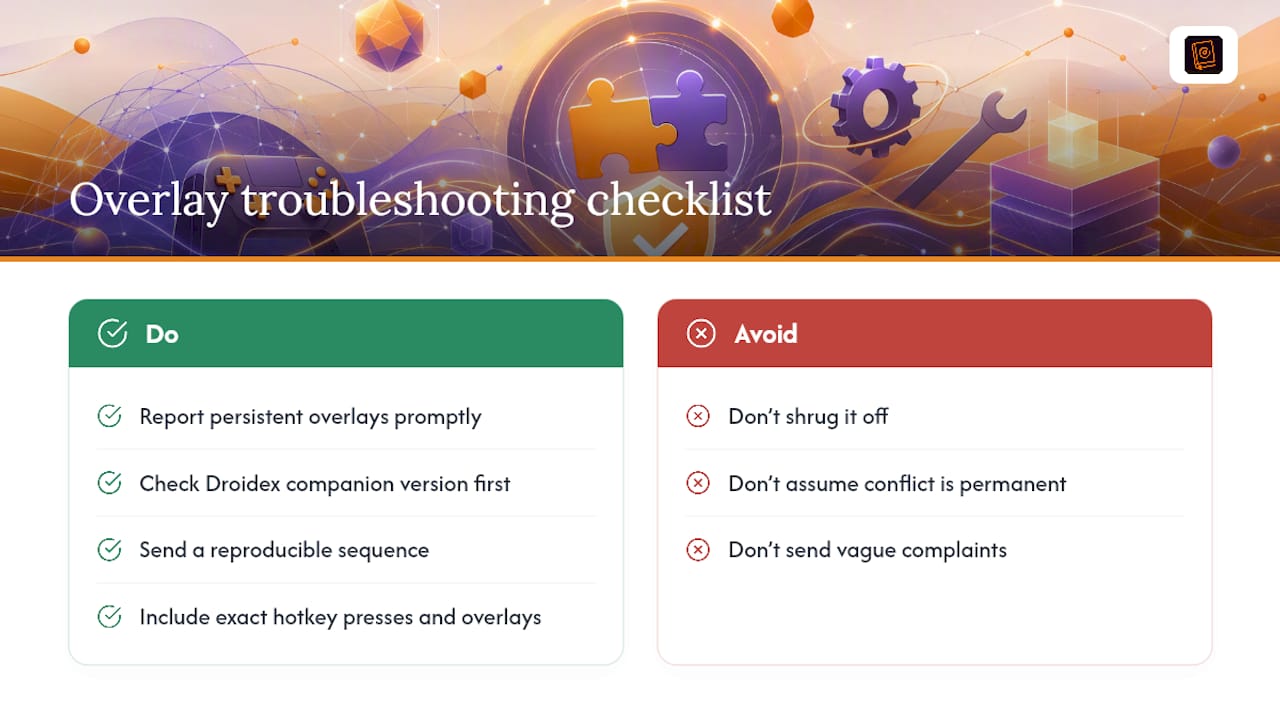
Droidex is designed to get out of the way the instant you're not playing Droid Tycoon. That auto-hide behavior isn't a workaround bolted on after complaints. It's a deliberate design choice, and it's why a persistent overlay outside the game is worth reporting rather than shrugging off. The Droidex tracker repository shows how frequently the tool gets updated alongside Droid Tycoon patches, which is exactly why checking your companion version before assuming a conflict is permanent saves you time.
What actually gets a fix shipped faster isn't a longer complaint. It's a reproducible sequence, your exact hotkey presses, and the other overlays running at the time. Send that, and you're doing half the diagnostic work already.
— Daniel
Download Droidex Companion and Keep Your Overlay Stable
Droidex Companion uses local screen recognition to track your live stats and provides an overlay manager to control widgets individually.
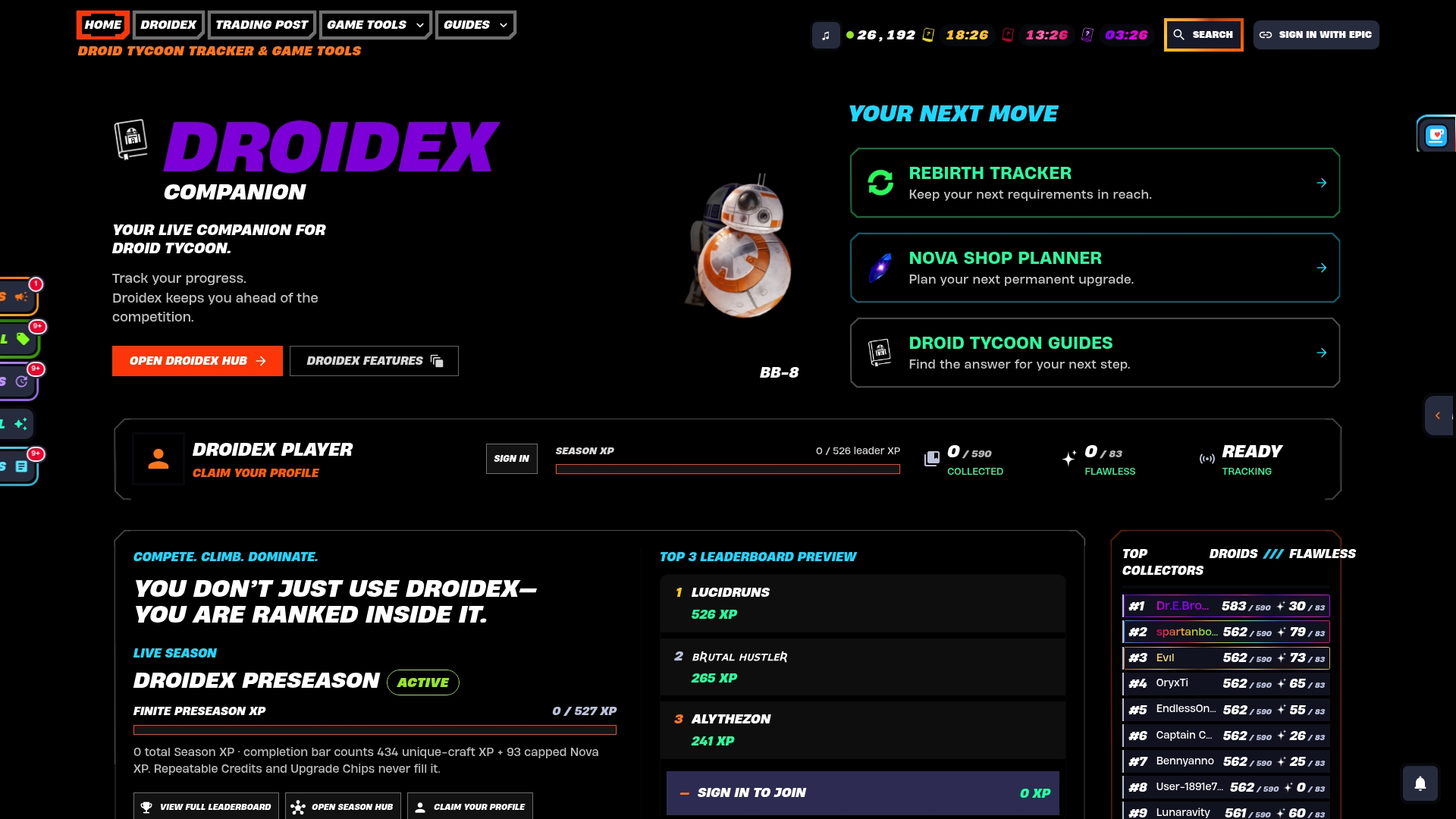
The app is free to download from the Droidex landing page, where you'll find the overlay manager, rebirth planning tools, and a full droid catalog in one install. If you're chasing a specific conflict, check the latest release notes first since many overlay fixes ship quietly between major updates. Players managing rebirth cycles alongside their HUD can also pull up the rebirth cycle tracker directly from the companion. Development is supported entirely through optional donations on Ko-fi, so every core feature, including the overlay manager, stays free. Download it, run the four-step checklist above, and get your HUD back where you left it.
Quick Reference Links
For the technical background behind render-API conflicts, see Microsoft's Q&A on display issues. For Droidex-specific data, variant tracking, and issue history, check the Droidex GitHub repository and the Droid Tycoon Tools page.
Sources
- Can I get help fixing display issues with apps? | Microsoft Q&A
- How to Disable Overlays That Cause Crashes (Steam, Discord, NVIDIA, AMD, Xbox Game Bar) | BugFreeGG
- Droidex Companion - Desktop App on Overwolf
- droidex (GitHub)
FAQ
Why Does My Droidex Overlay Disappear or Flicker?
This usually means another program is hooking the same render process Droidex uses, like a GPU vendor overlay or a screen recorder. Disable other overlays one at a time and switch to borderless mode to isolate the cause, following the standard overlay isolation approach.
What Do Shift+F2 and Shift+F10 Do in Droidex?
Shift+F2 opens the Droidex overlay manager, where you toggle widgets and adjust opacity or position. Shift+F10 locks or unlocks the current overlay layout so it stays put once you've arranged it.
Should I Use Fullscreen or Windowed Mode With Droidex?
Borderless or windowed mode is the safer choice, since exclusive fullscreen often blocks third-party overlays from rendering at all. This is a common fix across overlay-based tools, not something unique to Droid Tycoon.
The Overlay Stays Visible Outside Droid Tycoon. What Now?
Droidex is designed to hide its overlay automatically outside active Droid Tycoon sessions, so a persistent overlay in the lobby or another island signals a stuck hook. Force-close the companion app and relaunch it through the companion manager to clear it.
Is Droidex Companion Free to Use?
Yes, all core features including the overlay manager, live stat tracking, and rebirth planning are free. Development is supported through optional donations on Ko-fi rather than a paid tier.