
Simple stat overlays like FPS counters and clock displays cost almost nothing on modern hardware. Recording, filters, and instant replay are the features that actually pull frames from your GPU or CPU, because they add compositing and encoding work on top of the game. The real overlay performance impact depends on which feature you have running, which API the game uses, and how much headroom your rig has. Isolate the feature, then test.
TL;DR:
- Basic stat overlays like FPS counters and clocks have negligible performance impact on modern hardware, but recording and filters can cause small to moderate FPS drops depending on features used.
- Recording features rely on encoding, which shifts load to either hardware-accelerated chips or CPUs, with software encoding causing more FPS reduction, especially on CPU-limited systems.
- Overlay performance varies significantly with game API, driver version, and hardware architecture, and issues are often specific to API quirks or repeated toggling in certain titles.
- To troubleshoot FPS drops, disable active recording, filters, and per-game overlays step-by-step, ensuring consistent scene conditions for accurate comparisons.
- Lightweight overlay apps that read screen data locally can provide real-time stats without affecting frame rates, especially useful for players seeking minimal performance impact.
Table of Contents
- What Drives Overlay Performance Impact: Resource Costs By Feature
- How Overlays Actually Work Under the Hood
- How To Test Overlay Impact On Your Own PC
- What Benchmarks And Community Reports Actually Show
- Fixing Overlay-Related Performance Problems
- Droidex Companion And The Case For Lightweight Overlays
- Battery Life And Thermal Impact Of Running An Overlay
- GPU Architecture And Driver Version Differences
- Should You Keep Overlays Running?
- Track Your Stats Without The Overlay Overhead
- Sources
- FAQ
What Drives Overlay Performance Impact: Resource Costs By Feature
Not every overlay function costs the same. A passive counter and an active recording session touch completely different parts of your system, and that difference explains most of the confusion around overlay fps drop reports online.
Basic stat displays, FPS counters, clock widgets, and network graphs read data and draw a few characters on screen. That work is trivial for a modern GPU. It happens once per frame and doesn't touch the encoder, so there's effectively nothing to measure against a baseline run.
Recording, filters, and instant replay are a different story. These features capture the entire frame buffer, sometimes apply a shader pass for a filter effect, then hand the result to an encoder. That encoder can be hardware-accelerated (NVENC, AMD's AMF, or Intel Quick Sync) or software-based. Hardware encoders move most of the load onto a dedicated chip separate from your render pipeline, which is why recording rarely tanks FPS the way people expect. Software encoding leans on your CPU instead, and that's where you'll see the bigger hit if your processor is already the bottleneck.
Quick reference: overlay feature cost profile
| Feature | Resource touched | Typical cost |
|---|---|---|
| Stats counter (FPS, ping) | Minimal draw call | Negligible |
| Performance graphs | Minimal draw call, memory | Negligible |
| Instant replay buffer | Encoder + memory | Small, ongoing |
| Live recording | Encoder + storage I/O | Small to moderate |
| Filters/effects | GPU shader pass + encoder | Moderate |
Statistic: TechSpot's benchmarking found the Nvidia Statistics Overlay had no measurable performance impact across multiple games, while recording and game filters produced small but measurable FPS reductions in the same test runs.
One detail that trips up a lot of testers: a widget can stay loaded in memory without doing any active rendering. Hidden overlay elements often sit idle, consuming a small memory footprint but no compositing cycles. The performance cost only shows up once you actually open a panel or trigger a recording, which is exactly why "overlay on vs. overlay off" is too blunt a test to trust.
How Overlays Actually Work Under the Hood
Understanding the plumbing explains why one overlay feature is free and another isn't, and why the same overlay behaves differently from one game to the next.
Most overlay software injects itself into a running game process through a hook, intercepting calls to the graphics API before the frame reaches the screen. Some tools instead use API-level hooks tied specifically to DirectX, OpenGL, or Vulkan. That distinction matters because Vulkan and DirectX 12 handle frame submission differently than older APIs, and an overlay hook written for one doesn't always behave identically on another. This is a big reason certain overlay bugs show up in one engine and never in another.
The capture path generally runs in three stages:
- Hook: the overlay intercepts the frame before or after the game renders it.
- Composite: the overlay draws its own elements (text, graphs, filters) on top of or alongside that frame.
- Encode: if recording or streaming is active, the composited frame gets pushed to an encoder, hardware or software.
Compositing adds GPU work because it's effectively another render pass layered onto the game's own pipeline. Shader-based filters are heavier still, since they process every pixel of every frame rather than drawing a handful of text glyphs. Encoding adds a separate load entirely, either on a dedicated encoder chip or on your CPU if hardware acceleration isn't available.
This is also where upscaling complicates the picture. DLSS and FSR generate additional interpolated frames that never went through the game's full render pipeline. Tom's Hardware notes that Steam's newer overlay now separates those generated frames from actual rendered frames, which matters enormously when you're trying to figure out whether an overlay is costing you real performance or you're just looking at inflated frame counts from upscaling.

How To Test Overlay Impact On Your Own PC
A clean test isolates one variable at a time. Skipping steps is how most "my overlay is killing my FPS" reports turn out to be something else entirely, like a driver issue or a background app.
- Run a baseline with every overlay disabled. Close Discord's overlay, disable Steam's in-game overlay, close GPU vendor apps. Play the same scene or benchmark loop for at least two minutes and log frame time, average FPS, and 1% lows.
- Enable one passive counter. Turn on just an FPS counter or stats display. Rerun the identical scene. Compare frame time distribution, not just the average.
- Add recording or instant replay. Enable one active feature at a time. Rerun again. This is where you'll usually see the first real movement in your numbers.
- Add filters last. If your overlay supports visual filters or effects, test those separately from recording, since they stack additional GPU cost on top of whatever the encoder is already doing.
- Use Steam's performance monitor for upscaled games. Steam's overlay reports average, minimum, and maximum FPS alongside CPU, GPU, and RAM usage, and it separates generated frames from real rendered frames, which keeps DLSS or FSR from masking an actual overlay cost.
- Reproduce known edge cases deliberately. If you're on Proton or a Vulkan title, try rapidly opening and closing the overlay several times in a row rather than once. Some of the worst reported stutters only appear under repeated toggling, not a single open.
Keep the scene, input sequence, and settings identical across every run. A single stray difference, a different area of the map, a different weather state, will contaminate your comparison more than the overlay itself does.
Pro Tip: Frame time and 1% lows tell you more than average FPS ever will. A game holding 120 average FPS with ugly 1% lows will feel worse to play than one holding a steady 90, even though the average number looks better on paper.
What Benchmarks And Community Reports Actually Show
Published tests and real-world bug reports paint two different pictures, and both are true at the same time. The trick is knowing which one applies to your situation.
Controlled benchmark testing tends to be reassuring. TechSpot's overlay testing found statistics overlays sitting at effectively zero measurable cost, with recording and filters producing small, consistent drops across the games tested. That's the typical case for most players running a modern GPU with hardware encoding available.
Community and issue-tracker reports tell a messier story, and they're not wrong, they're just describing edge cases rather than the norm.
- Some players have reported severe stutter or FPS drops tied specifically to Vulkan and Proton titles when the Steam overlay is opened and closed repeatedly.
- Older reports flagged large FPS losses from a simple overlay counter in specific titles, tied to how that game's render API handled the hook rather than the overlay itself being heavy.
- Discord has documented that overlay behavior varies by game implementation, and recommends disabling the overlay per-title when users see crashes or lag, rather than assuming a global fix.
A GitHub issue thread on the Steam for Linux repository documents users seeing intense stutter specifically when rapidly toggling the Steam overlay in certain Proton/Vulkan configurations, a pattern that's reproducible in those specific setups but doesn't generalize to most games.
The gap between "overlays are basically free" and "this overlay tanked my FPS" almost always comes down to title-specific API quirks, not a universal overlay tax. There's no single number that describes overlay fps impact across every game, every API, and every driver version, and treating outlier reports as the norm will send you chasing the wrong fix.
Fixing Overlay-Related Performance Problems
Work through triage before you touch anything else, since most overlay complaints resolve at the first or second step.
- Disable active features first. Turn off recording, instant replay, and filters before touching anything else. If your FPS recovers, you've already found your culprit.
- Hide, don't just disable, unused widgets. Some overlay panels keep rendering in the background even when minimized. Close them fully rather than leaving them tucked away.
- Turn off the overlay per-game if the issue is title-specific. Steam, Discord, and most GPU vendor overlays let you disable the overlay for a single game without affecting every other title.
- Update your GPU driver and overlay client separately. Overlay bugs get patched on independent schedules from GPU drivers, so an outdated client can carry a bug that's already fixed upstream.
- Toggle hardware acceleration and compare. If your encoder-based recording still costs frames after updating drivers, try switching between hardware and software encoding to see which is actually the bottleneck.
- Log the exact reproduction steps if you report a bug. Note your client build number, driver version, the render API in use, and the precise sequence of keypresses that triggers the drop.
Pro Tip: If you stream or record competitively, test your capture tool with a title like the workflow described in Virew's F1 26 lap analysis guide, which walks through isolating capture settings so filters and recording don't quietly eat into your frame budget.
Competitive players should lean toward the minimal setup: a stats counter at most, everything else off. Casual players and content creators have more room to run recording and filters, since a few percentage points of FPS rarely matter when you're not chasing frame-perfect inputs.
Droidex Companion And The Case For Lightweight Overlays
Droid Tycoon players face a version of this same tradeoff. You want live stat tracking, rebirth planning, and a customizable overlay, but you don't want a tool sitting on top of your game eating frames.
Some companion apps approach this with local screen recognition rather than deep game hooks, reading what's on screen instead of injecting into the render pipeline. Overlay widgets render only when you turn them on, and background processing stays minimal when you're not actively pulling stats. That design mirrors the same principle covered above: passive tracking costs little, and only active features carry real weight. The 1.2.9 release notes detail the overlay compatibility work behind that approach, and the verification page explains how tracked data gets checked for accuracy.
Battery Life And Thermal Impact Of Running An Overlay
On a laptop, overlay performance impact shows up as heat and battery drain before it shows up as a frame counter, and it's worth watching separately from FPS.
A passive stats overlay draws almost no extra power, since it's not triggering additional GPU work each frame. Recording and filters are a different story on battery. Hardware encoding keeps CPU load low, but the encoder chip itself still draws power, and sustained recording sessions on a laptop will shorten battery runtime measurably compared to the same session without capture running.
Thermally, the concern isn't the overlay's draw calls, it's what runs alongside it. A recording session running through a software encoder pushes CPU utilization up, and sustained CPU load raises fan speed and case temperature faster than GPU load alone. On thin laptops with limited cooling headroom, that can trigger thermal throttling that costs you more FPS than the overlay itself ever would.
If you're gaming unplugged, the practical move is the same triage from earlier: keep passive counters, drop recording and filters. That single change tends to buy back both battery runtime and thermal headroom, since the encoder and the extra shader passes are the actual drain, not the on-screen numbers.
GPU Architecture And Driver Version Differences
Overlay performance impact isn't fixed across hardware generations. Newer GPU architectures generally handle overlay compositing and hardware encoding more efficiently than older ones, since dedicated encoder blocks have gotten faster and less contentious with the render pipeline across successive generations.
Driver version matters just as much as the silicon underneath it. GPU vendors patch overlay-related bugs, compositing quirks, and encoder efficiency improvements between driver releases, and an overlay that ran clean on one driver version can develop new stutter after an update, or vice versa. This is part of why community reports about the same overlay feature vary so widely. Two players on the same GPU model but different driver versions can have genuinely different experiences, and neither report is necessarily wrong.
Cross-vendor differences add another layer. Hardware encoder implementations differ enough between GPU makers that a recording feature costing 2% on one architecture might cost noticeably more on another, particularly on older or lower-tier cards without a dedicated encoder block. If you're chasing a specific overlay bug, checking your driver version against known issues before assuming the overlay itself is broken saves a lot of wasted troubleshooting time.
Should You Keep Overlays Running?
Keep overlays for diagnostics or content capture, since the actual cost sits almost entirely in active features, not passive ones. Competitive players should trim overlays to a stats counter at most, or nothing. Streamers and content creators can run recording confidently if hardware encoding is enabled. The verdict holds: simple counters are effectively free, recording and filters are where FPS actually goes, so test before you blame the overlay.
— Daniel
Track Your Stats Without The Overlay Overhead
Most overlay tools force a tradeoff between useful information and frame cost, but Droidex Companion sidesteps that fight by reading your screen locally instead of hooking into the game's render pipeline. For Droid Tycoon players, that means live stat tracking, rebirth planning, and a fully customizable overlay without the encoder and compositing overhead that recording tools typically carry.
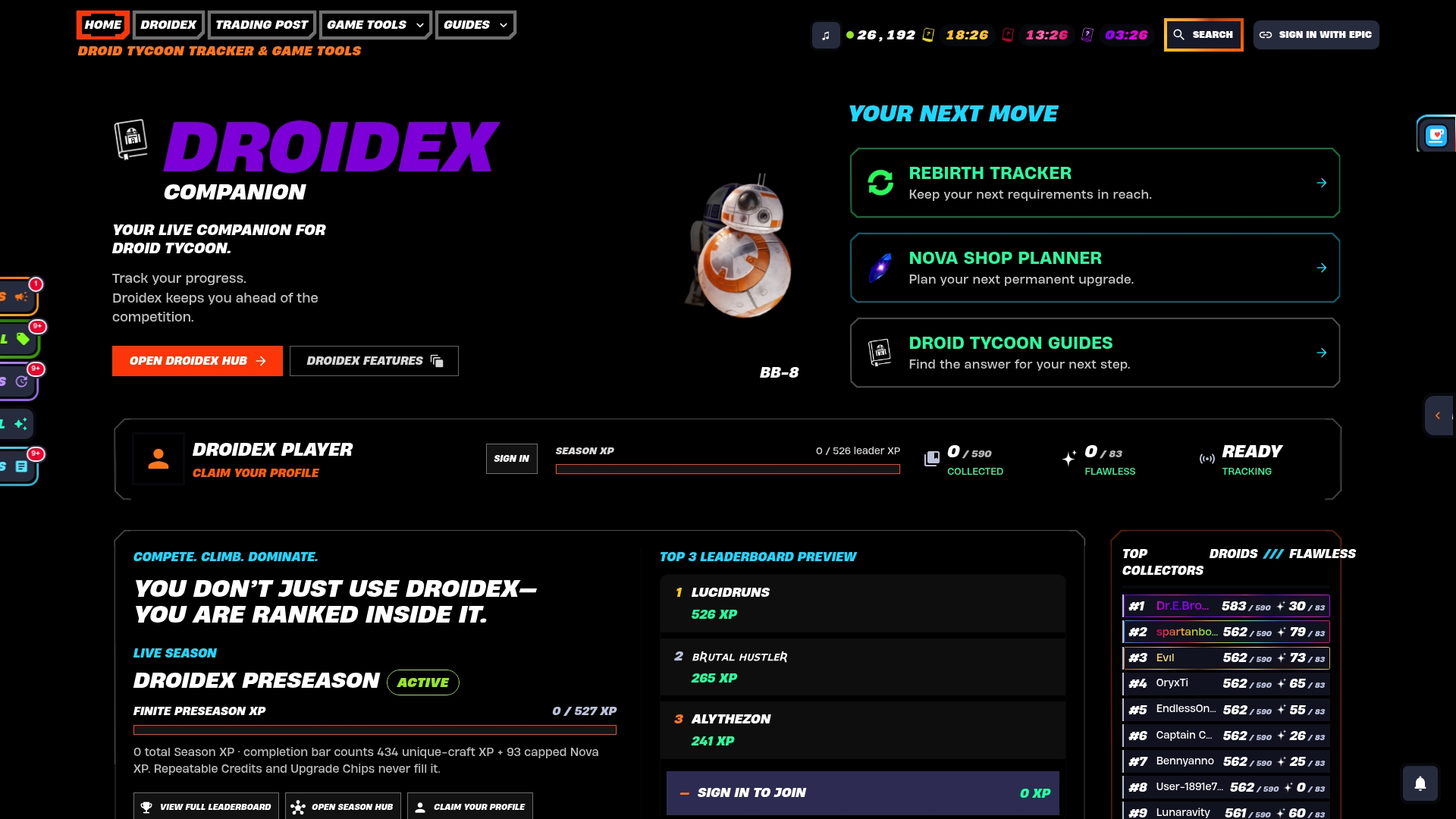
The app is often available as a free download, with many features including live tracking, leaderboards, calculators, and update guides accessible without required payment. If you want to see exactly what changed under the hood for performance and compatibility, the 1.2.9 release notes lay it out in detail. Download the Droidex Companion app, drop it into your setup, and check your rebirth planning and base income numbers against the Droid Tycoon tools page the next time you're deciding when to reset.
Sources
- Does the Nvidia App Hurt Performance? We Benchmarked It. | TechSpot
- Steam just got a new performance overlay — you can now view real FPS alongside DLSS/FRS-generated frames | Tom's Hardware
- Stutter/intense fps drops with Steam overlay
FAQ
How much does the Nvidia overlay affect performance?
Benchmark testing found the Nvidia Statistics Overlay produced no measurable FPS impact across multiple games, according to TechSpot's testing. Recording and filter features inside the same app caused small, measurable drops, so the impact depends entirely on which feature you're using.
Should I leave the Nvidia overlay enabled?
Leaving the passive stats display on is fine for almost every setup, since it carries no meaningful performance cost. Disable recording and filters specifically if you're chasing every possible frame in a competitive match.
How do I make a performance overlay go away?
Most overlay clients let you toggle the in-game overlay off entirely from their settings menu, or disable it per-game if the issue is limited to one title. On Steam, that's in the per-game properties under the in-game overlay setting, and Discord offers the same toggle in its overlay settings.
Does the Steam overlay affect performance?
For most games, the Steam overlay's passive elements carry negligible cost, but community reports document real stutter and FPS drops when the overlay is opened and closed rapidly in specific Proton and Vulkan titles, as tracked in Valve's own issue tracker. If you hit stutter in a specific game, test with the overlay disabled for that title before assuming it's a universal problem.