
Run Droid Tycoon in borderless windowed mode, since exclusive fullscreen frequently blocks overlays from rendering. Set your safe-area inset, scale, and opacity in Droidex Companion and you have solved most placement issues before they start.
TL;DR:
- Using borderless windowed mode stabilizes overlay rendering because it keeps the Windows compositor active.
- Safe zones should typically be set at 5% inset for standard elements and 7-8% for text-heavy panels, with extra margins for ultrawide and curved screens.
- Anchoring overlays to percentages within the safe zone prevents conflicts caused by resolution changes, monitor types, or UI shifts during gameplay.
- Reserving fixed regions for game menus and notifications ensures overlays do not occlude or overlap critical in-game elements.
- Testing overlays across various display modes, aspect ratios, and game states is essential to maintain stability after updates or hardware changes.
Table of Contents
- What Is an Overlay Safe Zone in Droid Tycoon?
- Recommended Safe-Zone Dimensions and Anchoring Rules
- Placement Rules to Avoid Occlusion and Collisions
- How Display Mode Changes Overlay Reliability
- Configuring Droidex Companion for Safe-Zone Placement
- Testing Checklist for Overlays Across Modes and Aspect Ratios
- A Practical Workflow for Getting This Right Fast
- Get Droidex Companion and Set Your Safe Zones Today
- Sources
- FAQ
What Is an Overlay Safe Zone in Droid Tycoon?
An overlay safe zone is the region of your screen where a HUD element can sit without getting clipped, covered by system UI, or crammed against a display edge. For Droid Tycoon players running Droidex Companion, that means keeping live stat panels, rebirth timers, and collection trackers away from corners and borders where monitors, capture software, and Windows itself tend to interfere.
The concept borrows directly from broadcast television, where engineers have used title-safe and action-safe zones for decades to keep graphics readable across different screens. PC gaming faces a similar problem: rounded monitor corners, notched laptop displays, taskbar overlap, and inconsistent UI scaling across resolutions. Droid Tycoon's own interface shifts footprint depending on menu state and screen density, so an overlay that fits cleanly during idle grinding can suddenly overlap a button during an active event. Safe-zone planning prevents that collision before it happens.
Recommended Safe-Zone Dimensions and Anchoring Rules
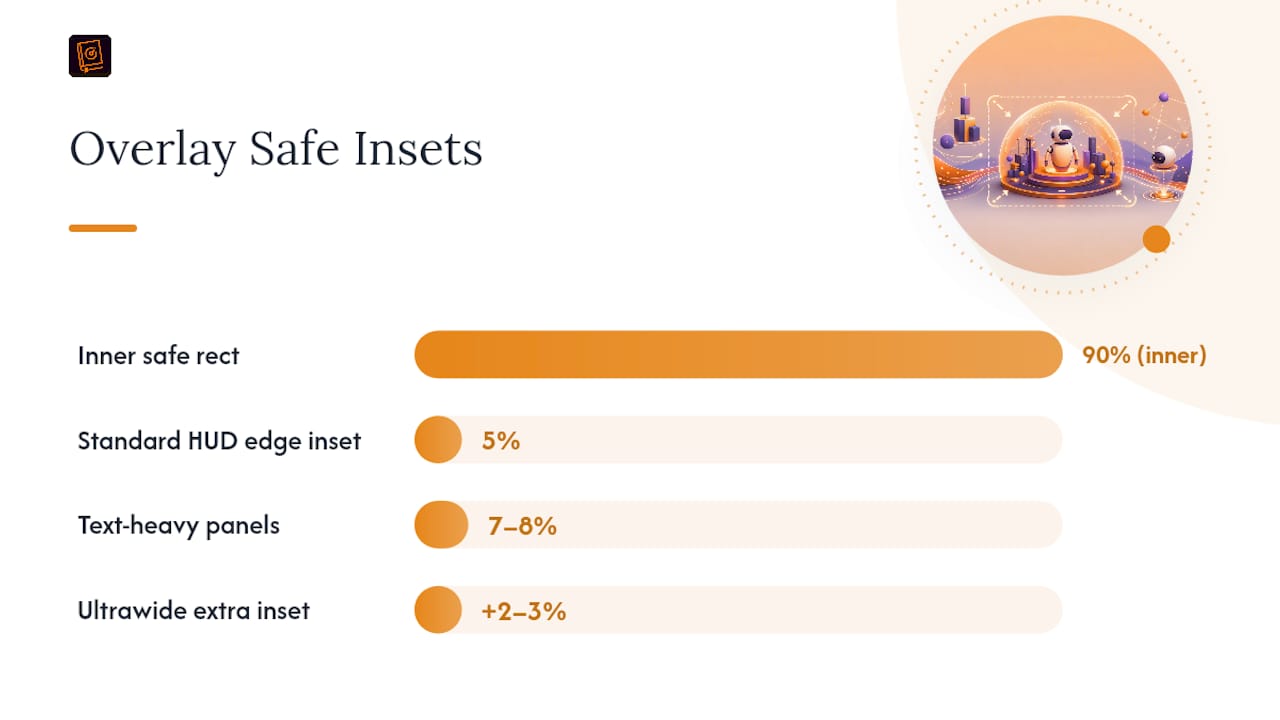
That guidance mirrors aspect ratio safe zone standards used across broadcast and digital display design, and it holds up well for gaming overlays because it scales proportionally instead of relying on fixed pixel counts.
Anchoring by percentage instead of pixels is what makes this work across different setups.
- Standard HUD elements: 5% inset per edge (inner 90% safe rect)
- Text-heavy panels like rebirth timers: 7 to 8% inset for tighter title-safe margins
- Ultrawide monitors (21:9 or wider): add 2 to 3% extra inset on left and right edges, since ultrawide displays stretch peripheral vision zones where players glance less often
- Curved or notched displays: increase corner inset slightly to avoid the physical curve distorting readability
Anchoring to a runtime-provided safe-area rect rather than the raw monitor edge also protects against overscan and rounded-corner issues that show up differently across hardware.
Placement Rules to Avoid Occlusion and Collisions
Every overlay element competes for a limited amount of visual attention. Treat that attention like a budget: only task-critical information stays on screen permanently, and everything else gets triggered contextually.
HUD design guidance built around priority, reserved regions, and collision resolution applies directly to Droid Tycoon overlays. Follow this sequence when laying out your panels:
- Reserve fixed regions for anything Droid Tycoon itself needs, including menus, collection popups, and system notifications.
- Keep persistent Droidex panels, such as income tracking or rebirth countdown, in corners the game rarely touches.
- Assign priority levels to competing alerts so a rebirth-ready notification does not fight a collection-complete popup for the same screen space.
- Collapse similar alerts into a single stacked notification instead of letting duplicates pile up.
- Build in a quick-hide control so any overlay can vanish instantly if it blocks something unexpected.
Pro Tip: Map Droid Tycoon's own UI first, before placing a single overlay panel. Screenshot the game at idle, during an active event, and inside the rebirth menu, then lay your Droidex modules over those three states to spot conflicts early.
How Display Mode Changes Overlay Reliability
Exclusive fullscreen mode often bypasses the Windows compositor entirely, which is exactly what most overlays rely on to render. That is why an overlay can work fine one session and vanish the next, depending on which display mode Droid Tycoon launched in.
Borderless windowed mode keeps the compositor active, letting Droidex Companion draw overlays on top consistently. This is the same reasoning How-To Geek's comparison of fullscreen and borderless windowed modes lays out for gaming performance generally.
To switch and verify:
- Open Droid Tycoon's display settings and select borderless or windowed mode instead of exclusive fullscreen.
- Launch Droidex Companion and confirm overlay panels appear immediately.
- If overlays flicker or fail to show, close other overlay software (Discord, chat clients, recording tools) one at a time to isolate the conflict.
- Watch for input lag after switching modes; borderless windowed occasionally costs a small amount of frame rate on older hardware.
Configuring Droidex Companion for Safe-Zone Placement
Droidex Companion gives you direct control over every variable that determines whether overlays sit safely on screen. The core settings worth knowing:
- Safe-area inset: sets the percentage buffer from each screen edge
- Master HUD scale: resizes all overlay elements proportionally
- Opacity: controls how solid or transparent each panel background appears
- Module toggles: switches individual trackers (rebirth planning, live stats, collection progress) on or off independently
- Anchor selection: pins each module to a specific corner or edge within the safe rect
- Reduced animation: limits motion effects that can distract during fast gameplay
That opacity range keeps text legible against Droid Tycoon's brighter backgrounds without turning panels into solid blocks. Streamer overlay guidance backs a similar range, recommending low-opacity backgrounds with outline or shadow text for contrast across variable scenes.
Pro Tip: Save your inset, scale, and opacity combination as a Scene Set once it looks right. Build a second Scene Set with tighter scale and lower opacity for high-density moments like active events, then switch between them instead of adjusting settings mid-session.
Testing Checklist for Overlays Across Modes and Aspect Ratios
Run through this sequence any time you change monitors, resolutions, or Droid Tycoon updates its interface:
- Switch between borderless windowed and exclusive fullscreen, confirming overlays stay visible and stable in each.
- Open Droid Tycoon's busiest screens, active events, the rebirth menu, and collection popups, and check for clipping or overlap with Droidex panels.
- If you use an ultrawide monitor, verify overlay anchors did not drift into the extended peripheral zones.
- Trigger a system notification (Windows update prompt, chat alert) and confirm it does not collide with a Droidex module.
- Adjust inset, scale, or opacity based on what you saw, then repeat the busiest-screen check once more.
Checking after every Droid Tycoon patch matters more than most players realize. The game's v1.24 update shifted UI footprint in several menus, and a safe zone that worked perfectly before an update can suddenly clip a panel afterward.
A Practical Workflow for Getting This Right Fast
The fastest setup path is building one Scene Set, testing it live, and adjusting on the fly rather than tweaking settings blind. If a rebirth panel clips during an event, hide it, note the moment, and adjust the anchor afterward instead of fumbling with settings mid-session.
That loop, preset, play, hide, adjust, is faster than trying to predict every UI state in advance.
— Daniel
Get Droidex Companion and Set Your Safe Zones Today
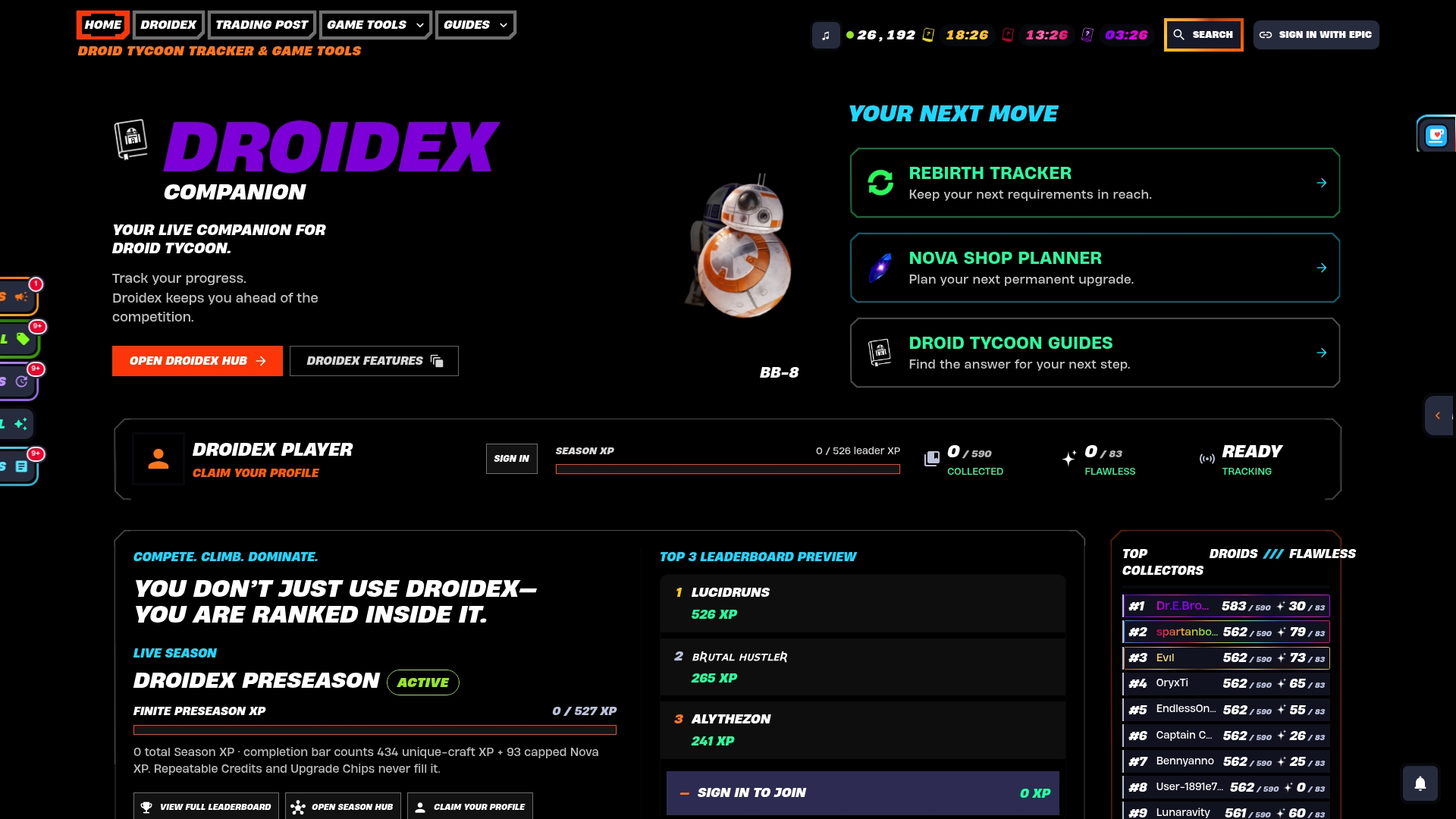
Droidex Companion gives players control over overlay placement, including safe-area insets, HUD scale, opacity, and module toggles, powered by local screen recognition technology. Every feature covered in this guide, the inset slider, the Scene Set presets, the quick-hide key, ships in the same free download with no paid tier required to unlock it.
If your overlays are already misbehaving, start with the release notes for version 1.2.9, which cover recent fixes to overlay focus and dismissal behavior. Pair your live stats setup with the rebirth cycle tracker to plan your next reset without leaving the safe zone you just configured. Download Droidex Companion from the official product page and have your first Scene Set running in the same session.
Sources
- Aspect ratio safe zones by platform (Marpipe)
- Fullscreen vs. borderless windowed: which is better for gaming? (How-To Geek)
FAQ
What Is an Overlay Safe Zone?
An overlay safe zone is the portion of your screen where a HUD element stays fully visible without clipping against edges, corners, or system UI. For Droid Tycoon overlays, that generally means the inner 90% of the screen, leaving roughly a 5% margin per edge,
Why Do My Overlays Disappear in Fullscreen Mode?
Exclusive fullscreen often bypasses the Windows compositor, which many overlays depend on to render on top of the game. Switching to borderless windowed mode keeps the compositor active and restores reliable overlay display.
What Safe-Area Inset Should I Use in Droidex Companion?
Increase to 7 or 8% for text-heavy panels, or add extra inset on ultrawide monitors where peripheral zones get less attention.
Does Droidex Companion Cost Anything to Use?
Droidex Companion is a free download with all main features, including overlay customization, live stats, and rebirth planning, available without payment. Development is supported through optional donations rather than mandatory fees, and current details are listed on the Droidex Companion page.
How Do I Stop Overlays From Blocking Rebirth Notifications?
Assign priority levels to your Droidex modules so critical alerts like rebirth readiness take precedence over lower-priority notifications during a collision. Collapsing duplicate alerts and keeping a quick-hide hotkey active during busy gameplay moments resolves most remaining conflicts.