

The best way to reduce overlay clutter is to combine contextual visibility, user-selectable density presets, and a protected central zone free of persistent elements. Clutter forces extra visual scanning and slows reaction time to unexpected events, according to human-factors research on visual clutter. Users already prioritize near-domain information over the far-domain scene, so every overlay element competes with the task the reader actually came to do.
TL;DR:
- Using native platform controls such as pinning and unpinning widgets provides the most immediate clutter reduction without requiring code changes.
- Keeping secondary overlays at the screen edges and only pinning essential elements in the center minimizes visual interference during critical tasks.
- Restricting overlay pixel count to below 18,576 active pixels on a 600x800 display prevents significant performance declines in visual search.
- Implementing focus trapping and accessibility standards ensures overlays remain usable for screen readers and keyboard navigation without increasing clutter.
- Offering customizable presets for different activity states and saving last-used configurations simplifies overlay management for both novice and experienced users.
Table of Contents
- Quick action checklist for decluttering overlays now
- Why clutter matters: cognitive load and measurable limits
- Platform-specific settings that actually reduce clutter
- Keeping overlays dismissible and accessible
- Measuring clutter instead of guessing at it
- Letting players customize presets without creating chaos
- How Droidex applies these patterns to Droid Tycoon overlays
- Where priorities should sit when trade-offs appear
- Getting Droidex Companion and what it handles
- Sources
- FAQ
Quick action checklist for decluttering overlays now
A handful of changes fix most clutter problems within minutes, without touching code or settings menus a user cannot find.
- Unpin or close any persistent widget that is not needed for the current task.
- Use system-level toggles, such as unpinning items in Windows Game Bar, instead of building custom overlays that stack on top of native ones.
- Set nonessential overlays to show on hover or temporarily hide during high-stakes moments.
- Switch to a minimal or low-density preset before a critical task begins.
- Learn the platform's dismissal shortcut (Esc or the equivalent quick toggle) so overlays close in one keystroke.
- Move secondary overlays to peripheral screen regions and keep the center clear.
- Lower notification frequency or turn off live updates on companion overlays during competitive play.
Pro Tip: Treat the center of the screen as a no-clutter zone and pin only the one or two elements you check every few seconds.
Why clutter matters: cognitive load and measurable limits
Clutter is not a cosmetic problem. Research on visual performance found that increased display clutter slows reaction time to unexpected hazards and adds extra scanning before a user can respond, a pattern documented in studies on clutter and visual performance. The effect compounds when overlay content competes with far-domain information, the scene or environment the user is actually trying to read.
A quantitative study of see-through display clutter set the recommended upper limit at 18,576 active pixels for a 600×800 display, a 3.87% pixel ratio, past which visual search performance declines. That threshold gives designers a concrete ceiling instead of a vague instinct about "too much."
Two mechanisms explain why overlays interfere even when they look organized. Near-domain and far-domain information draw on the same limited attention, so depth and spatial separation between overlay and scene reduce, but do not eliminate, that interference. Good overlay design rests on four principles: contextual visibility, spatial separation, limited density, and redundant cues (color plus shape, not color alone) so legibility survives at a glance.

Platform-specific settings that actually reduce clutter
Each platform has its own native controls, and using them beats stacking a custom layer on top.
- On the web, follow the ARIA dialog role guidance: trap focus inside modal dialogs, use the
::backdroppseudo-element for visual separation, and never hide content from assistive technology with opacity alone. - On PC and in games, rely on OS-native pin and unpin behavior, such as Windows Game Bar's widget controls, where unpinned widgets disappear automatically and pinned ones stay available without adding a separate rendering layer.
- In AR and head-mounted displays, prefer temporal layering and depth separation over permanent world-locked overlays that block far-domain targets; opacity modulation and wire-plus-fill encodings convey depth ordering without sacrificing speed.
- On radar and HUD systems, use the vendor's built-in noise-rejection and clutter controls, and adjust sensitivity or rain and clutter filters when target density rises.
A few cross-platform habits reinforce all four:
- Build separate presets for different activity states (combat versus exploration, editing versus reading).
- Resize or reposition secondary widgets toward screen edges, never the center.
- Avoid shrinking text past legible size just to fit more elements; cut the element instead.
Keeping overlays dismissible and accessible
A decluttered overlay that traps keyboard or screen-reader users has just traded one problem for another. The MDN dialog role documentation specifies that role="dialog" and aria-modal inform assistive technology, but developers still have to implement focus trapping and restoration themselves.
- Set initial focus on a logical control, typically the close button or the first input field.
- Trap focus inside the dialog until the user dismisses it, then return focus to the element that triggered it.
- Never rely on opacity or visibility tricks to hide background content from assistive technology; mark the background
inertinstead. - Test every overlay with keyboard-only navigation and a screen reader before shipping it.
Measuring clutter instead of guessing at it
Opinions about what looks cluttered vary, so a repeatable test beats a design review every time.
| Method | What it measures | Example threshold or use |
|---|---|---|
| Pixel-ratio analysis | Active overlay pixels versus total display pixels | 3.87% upper ratio for a 600×800 see-through display, per clutter measurement research |
| Feature congestion metrics | Local variation in color, contrast, and orientation across the image | Useful where image-analysis tools are already part of the design pipeline |
| Timed visual search task | How long a user takes to locate a target element | Compare against a baseline preset before and after a change |
| A/B preset testing | User-reported clutter and task accuracy across presets | Run with real sessions, not one-off impressions |
The decision rule is simple: if search time or error rate increases after a change, reduce density or change the layering before shipping it further.
Letting players customize presets without creating chaos
Experts want more options; novices need better defaults. Research on visualization choices in a citizen science game found that improper visualizations raise cognitive load, while customizable options paired with tooltips help newer users choose a view that fits their skill level.
- Offer named presets (minimal, standard, full) rather than a single slider with no context.
- Let the overlay auto-switch presets based on detected activity, such as combat versus exploration.
- Expose simple sliders for icon density and transparency, each with a one-line tooltip explaining its effect.
- Reserve a visible no-clutter zone at screen center and allow pinning only for the one or two elements a player checks constantly.
Pro Tip: Save a player's last preset per activity type so switching contexts does not mean rebuilding a layout from scratch.
How Droidex applies these patterns to Droid Tycoon overlays
Droidex Companion builds customizable overlays and live stat tracking directly into its Droid Tycoon tools, letting players choose what stays on screen during active play versus during planning. Presets reduce the need to manually resize or reposition widgets mid-session, and the app leans on native Windows pin and unpin behavior rather than stacking an extra rendering layer that would add lag or visual noise. The 1.2.9 release notes show ongoing tuning of overlay behavior, worth checking before assuming a feature works a particular way.

Where priorities should sit when trade-offs appear
Far-domain visibility comes first: if an overlay blocks the thing a player actually needs to see, it has already failed, no matter how organized it looks. Every overlay needs a fast escape hatch, a single keystroke or toggle, because forcing a user to hunt for a close button defeats the point of decluttering. Measure before changing defaults; a feature that looks clean in a screenshot can still slow a timed task. Presets and contextual visibility beat permanently shrunk, barely readable elements every time, because density without legibility just moves the clutter problem rather than solving it.
— Daniel
Getting Droidex Companion and what it handles
A companion app for a popular game offers customizable overlays, live stat tracking, and local screen recognition, enabling overlay density to adjust to session needs rather than using a fixed layout. 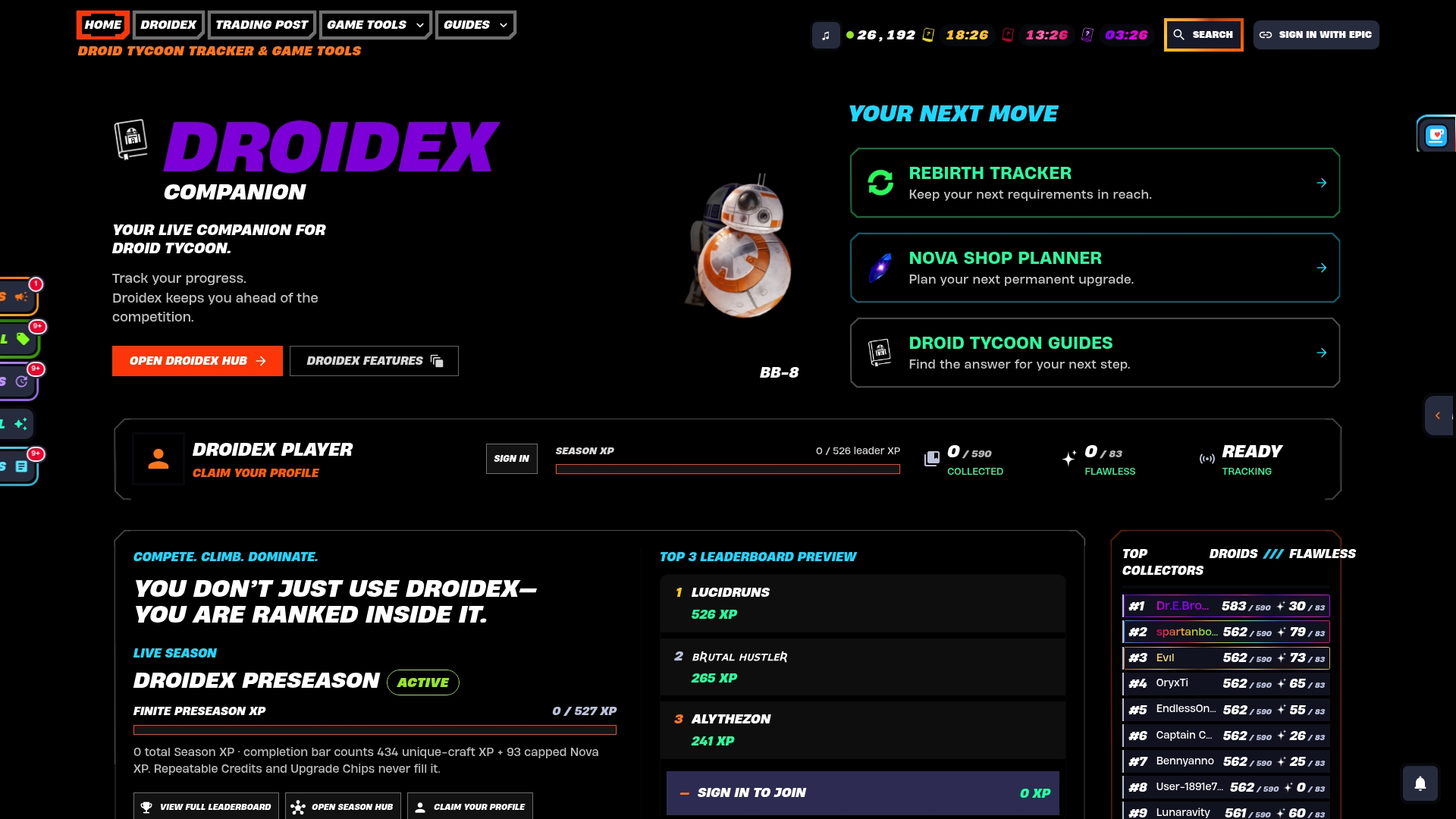
Players who want combat-ready presets or a cleaner tracking view can check the Droid Tycoon rebirth cycle tracker and the base profit and income planner alongside the overlay settings. The app is available as a free download, with optional donations supporting ongoing development. Download Droidex Companion from the official landing page and set up a preset that fits your usual session.
Sources
For deeper technical detail, see the PubMed clutter and reaction time study, the see-through display pixel-ratio research, the citizen science visualization study, and the MDN ARIA dialog guidance. Players exploring HUD presets by game mode may also find Archers Battlefield's mode breakdown a useful reference point.
FAQ
What is the fastest way to reduce overlay clutter right now?
Unpin or close any widget you are not actively using, then switch to a minimal preset for the task at hand. Using native system toggles, such as Windows Game Bar's pin and unpin controls, removes clutter instantly without redesigning anything.
How do I turn off an overlay I no longer want?
Most overlays close with a dedicated dismissal key, commonly Esc, or through the platform's own toggle, such as unpinning a Game Bar widget. If the overlay was added by a companion app, check that app's settings for a show or hide control tied to specific features.
How can I reduce clutter across my whole setup, not just one app?
Apply the same rule everywhere: keep the center of the screen reserved for the one or two elements you check constantly, and push everything else to the edges or hide it until needed. Research on visual clutter and reaction time supports this, since competing near-domain elements slow response to the far-domain scene regardless of the app.
Do accessibility fixes conflict with reducing clutter?
No, the two goals reinforce each other. Following ARIA dialog guidance, such as trapping focus and avoiding opacity-only hiding, keeps an overlay dismissible and screen-reader friendly while also keeping it simple to scan.