
A screen recognition overlay for Droid Tycoon reads your game window locally on your PC and displays live stats, rebirth timers, and planning data on top of it. Windows requires explicit consent through a system picker before any capture starts, and the yellow border stays visible the entire time. Epic Games has no official whitelist for these tools, so running one is a choice you make at your own risk, not a certified feature.
TL;DR:
- Screen recognition overlays read your Droid Tycoon's stats by processing local screen frames, which keeps latency low and data private.
- Windows displays a yellow border during active capture, and failure to see it often indicates privacy toggle issues or capture misconfiguration.
- Proper setup involves selecting the correct window through the Windows picker and ensuring privacy settings are enabled, especially after updates.
- Recognition zones should be fixed to known UI regions, and changes in the game’s UI can reduce accuracy until remapped by the companion app’s developer.
- Using passive, read-only overlay tools has minimal risk but relies on correct permission scope and maintenance to avoid potential anti-cheat flags or disconnection.
Table of Contents
- What Is a Screen Recognition Overlay in Droid Tycoon?
- How Does Screen Capture Actually Work on Windows?
- Setting Up Your Overlay: A Step-by-Step Checklist
- Designing an Overlay for Rebirth Planning
- How Does an Overlay Read Droid Tycoon's Specific UI?
- Configuring Your Overlay Software Step by Step
- Common Overlay Errors and How to Fix Them
- Could Overlay Software Get Flagged as Malware or Cheating?
- Managing Permissions Without Triggering Anti-Cheat Flags
- What Hardware Do You Need for Smooth Overlay Performance?
- An Editorial Take on Getting This Right
- Get Started With Droidex Companion
- Sources
- FAQ
What Is a Screen Recognition Overlay in Droid Tycoon?
A screen recognition overlay is software that reads pixels from your Droid Tycoon window and turns them into usable numbers, then draws that information back on your screen as a floating display. The "recognition" part happens through optical character recognition or pattern matching against known UI elements. The "overlay" part is a separate transparent window layered above the game showing whatever the recognition engine extracted.
This differs from a scraper that pulls data from a server or an API. Droid Tycoon doesn't expose its stats through any public interface, so the only way a companion app can track base income, droid counts, or rebirth progress in real time is by watching the screen itself. Windows makes this possible through the Windows.Graphics.Capture API, which lets an app request a video feed of a specific window rather than the whole desktop.
The distinction matters for players evaluating tools. Anything claiming to read your Droid Tycoon stats without asking for screen access permission either isn't doing real-time recognition or is doing something outside normal Windows behavior. A properly built overlay always triggers a visible system prompt first.
How Does Screen Capture Actually Work on Windows?
Windows handles this through a defined sequence, and understanding it helps you tell a well-built companion app from a sloppy one. When you launch a capture-based tool like a Droid Tycoon overlay, the app calls the GraphicsCapturePicker, which opens the native Windows window-selection dialog. You pick the Droid Tycoon window from that list yourself. Nothing captures without that manual selection.
Once you confirm, Windows draws a yellow border around the captured window for the entire session. That border isn't decorative. Microsoft built it as a visible, unspoofable signal that capture is active, confirmed in the official screen capture documentation. If you ever see stats updating in an overlay and no yellow border anywhere on your screen, something is off.
Underneath that visible layer, the technical flow runs through a few connected pieces. The app takes the GraphicsCaptureItem you selected and feeds it into a Direct3D11CaptureFramePool, which manages incoming video frames in GPU memory. A GraphicsCaptureSession then governs the actual capture behavior and starts pulling frames once StartCapture() is called.

Three session settings shape what you experience as a player. IncludeSecondaryWindows determines whether pop-up dialogs or secondary game windows get captured alongside the main one. IsCursorCaptureEnabled controls whether your mouse pointer shows up in the captured frames, which most overlay tools disable since cursor position is irrelevant to stat reading. MinUpdateInterval, documented in the GraphicsCaptureSession reference, throttles how often new frames arrive, directly affecting both update speed and how much CPU or GPU load the overlay adds.
Because all of this recognition and frame analysis happens locally, no captured frame needs to leave your machine. The overlay reads a frame, extracts text or numbers through local OCR, updates its display, and discards the frame. That local-only design keeps latency low, which matters when you're watching a rebirth timer count down in real time.
Setting Up Your Overlay: A Step-by-Step Checklist
Getting a screen recognition overlay running reliably takes four steps, and most persistent failures trace back to skipping one of them.
- Launch the picker and select the correct window. Open your companion app and trigger its capture function. Windows shows the
GraphicsCapturePickerdialog listing every open window. Choose Droid Tycoon specifically, not your browser or desktop, and confirm the yellow border appears around the game window immediately after. - Check your Windows privacy settings. Navigate to Settings > Privacy & Security > Screenshots and screen recording. If the toggle for your companion app sits off, capture will silently fail even after you pick the window. Turn it on and relaunch capture to confirm it holds.
- Handle managed or enterprise devices separately. If your PC is under corporate or school MDM policy, screen capture permissions may be centrally controlled. An admin can whitelist your companion app's Package Family Name using
LetAppsAccessGraphicsCaptureProgrammatic_ForceAllowTheseApps, which forces persistent access regardless of local toggle state, a fix documented in Microsoft's Q&A discussion on inconsistent capture permissions. - Tune capture options for your setup. Enable
IncludeSecondaryWindowsonly if your overlay data depends on pop-up panels inside Droid Tycoon. Leave cursor capture off unless your app specifically needs it.
The most common failure isn't a crash. It's a privacy toggle that silently reverts to off after a Windows update, a known behavior reported in the same Q&A thread above. If your overlay worked yesterday and shows blank data today, that toggle is the first thing to check, followed by confirming the yellow border still appears.
Pro Tip: Screenshot your Settings > Privacy > Screenshots and screen recording page once everything works. After Windows updates, compare it against that screenshot instead of guessing which toggle moved.
Designing an Overlay for Rebirth Planning
Not every stat deserves screen space. Cramming your display with every number Droid Tycoon tracks defeats the purpose of an overlay, which is faster decisions, not more data to parse mid-session.
Prioritize what actually drives rebirth timing decisions:
- Current base income rate, since it's the number that tells you whether grinding further is worth it
- Active droid timers and cooldowns, so you know what's about to finish without alt-tabbing
- Rebirth charge progress toward the next threshold
- A clear rebirth-ready trigger, ideally a color change or flash rather than another number to read
Placement matters as much as content. Corner positioning, usually top-right or bottom-left depending on where Droid Tycoon's own UI is lightest, keeps the overlay from blocking buttons you need mid-session. Use high-contrast text against a semi-transparent background rather than a solid box, and keep widgets compact. An overlay that covers a quarter of your screen creates more friction than it removes.
Update frequency is a real trade-off, not a "faster is always better" setting. A low MinUpdateInterval refreshes your stats almost instantly but pulls more GPU cycles per second, which can matter on lower-end hardware during long grinding sessions. A slightly longer interval, checking every second or two instead of continuously, is usually unnoticeable for rebirth planning since those numbers don't change fast enough to justify millisecond updates.
Display mode changes what's possible too. Transparent overlay windows generally need Droid Tycoon running in windowed or windowed fullscreen mode rather than exclusive fullscreen, since exclusive fullscreen can block other windows from rendering on top, a distinction worth checking against your display capture documentation if your overlay refuses to show.
Pro Tip: If you compete on a leaderboard, keep your overlay's stat labels consistent session to session. Renaming or repositioning widgets every time you tweak settings makes it harder to spot anomalies at a glance during a fast rebirth push.
How Does an Overlay Read Droid Tycoon's Specific UI?
Droid Tycoon presents most of its critical numbers, base income, droid counts, upgrade costs, in fixed screen regions that don't move relative to the game window frame. That consistency is what makes recognition reliable. A well-built companion app defines capture zones tied to those fixed regions rather than scanning the entire window every frame, which cuts processing load significantly.
Text-based stats like income figures and timer countdowns get read through OCR, matching pixel patterns against known digit and character shapes. Non-text elements, like a rebirth-ready glow or a cooldown progress bar, get read differently, through color or fill-percentage detection rather than character recognition.
This creates a dependency worth knowing about: if Droid Tycoon's developers move a UI element, resize a panel, or change a font in an update, recognition accuracy can drop until the companion app's capture zones get remapped. This is exactly why release notes matter for any tool you rely on. A well-maintained companion app publishes update logs showing when it adjusted for a game UI change, rather than leaving players wondering why their stats read wrong after a patch.
Menu transitions cause a second, more temporary issue. Opening a shop menu, an inventory screen, or a rebirth confirmation dialog over the main game view temporarily blocks the regions an overlay reads. That's expected behavior, not a bug. Stats should resume updating within a frame or two of returning to the main view, assuming your MinUpdateInterval isn't set unusually high.

Configuring Your Overlay Software Step by Step
Beyond the initial picker and permissions setup, getting consistently accurate readings takes a bit of calibration specific to your display and Droid Tycoon's window state.
Start by running Droid Tycoon at a fixed resolution rather than switching between windowed sizes. Recognition zones are typically calibrated against a known window size, and resizing the game window mid-session can shift where stats appear just enough to throw off text recognition.
Next, confirm your overlay's update interval matches your actual needs. For rebirth planning, checking every one to two seconds captures everything meaningful. Set it lower only if you're actively timing something down to the second, since more frequent captures add GPU load without adding useful precision for most decisions.
Test capture accuracy right after setup by comparing three or four stats shown in the overlay against what Droid Tycoon's own UI displays. Small OCR misreads, a droid count off by one digit, usually mean your capture zone needs realigning rather than anything being fundamentally broken.
Finally, decide on your window mode before fine-tuning anything else. Windowed or windowed fullscreen mode generally gives overlay software the most reliable rendering path, since exclusive fullscreen mode can prevent overlay windows from drawing at all in some configurations.
Common Overlay Errors and How to Fix Them
Most screen recognition overlay problems fall into a handful of repeatable patterns.
Capture denied immediately after selecting the window. This almost always traces back to the Settings > Privacy & Security > Screenshots and screen recording toggle sitting off for your specific app. Turning it on and relaunching the picker resolves it in most cases.
Yellow border never appears. If you selected a window through the picker but see no yellow outline, capture likely didn't actually start, often because the app crashed silently during StartCapture() or the frame pool failed to initialize. Restarting the companion app usually clears this.
Permissions revert after a Windows update. This is a documented pattern; feature updates can reset privacy toggles for individual apps back to their default state, per Microsoft's own Q&A guidance. On personal devices, re-enabling the toggle manually is the fix. On managed devices, this is where an MDM-level Force Allow policy prevents the problem from recurring at all.
Overlay shows stale or frozen numbers. Check whether Droid Tycoon's window lost focus or got minimized, since some capture configurations pause updates when the source window isn't active. Also confirm MinUpdateInterval wasn't accidentally set to an unusually long value during setup.
Overlay position drifts or renders behind the game. This typically points to a display mode conflict. Switching Droid Tycoon from exclusive fullscreen to windowed fullscreen usually resolves rendering order issues.
Could Overlay Software Get Flagged as Malware or Cheating?
Yes, and understanding why helps you choose tools more carefully. Screen capture and overlay rendering are the same technical building blocks used by legitimate accessibility software and by actual cheat tools that inject data or automate actions. Anti-cheat systems and antivirus heuristics can't always tell the difference from behavior alone, so overlay software occasionally trips false positives.
The distinction that matters is what the software actually does with the captured frame. A screen recognition overlay that reads pixels and displays information back to you is fundamentally passive. It never writes to Droid Tycoon's memory, never sends input on your behalf, and never modifies game files. Software that does any of those things crosses into a different, genuinely riskier category, and that's the behavior anti-cheat systems are actually built to catch.
Epic Games has been direct about where responsibility sits here. Its support documentation states plainly that Epic cannot confirm whether specific third-party software will cause a ban, and that using such tools is not officially supported. There is no certification process, no approved list, and no guarantee that today's safe tool stays safe after tomorrow's anti-cheat update.
Practical risk reduction comes down to a few habits: use code-signed applications from a known source, never modify Droid Tycoon's installation files, and keep overlay behavior strictly passive, reading and displaying, never writing or automating.
Managing Permissions Without Triggering Anti-Cheat Flags
The permission model itself is your best protection here, and using it correctly reduces both disruption and risk. Grant capture access only through the official Windows picker, and only for the specific session you're using. Avoid any tool that asks you to disable Windows security features, run as administrator without clear justification, or bypass the picker dialog entirely, since that behavior pattern looks identical to what actual cheat tools request.
Keep the scope narrow. If a companion app requests broader permissions than screen capture alone, microphone access, full disk access, background network activity with no stated purpose, that's worth questioning regardless of how good its overlay features look.
On managed or work devices, coordinate with whoever administers your MDM policy rather than trying to work around restrictions yourself. Requesting a proper Force Allow entry for the app's Package Family Name is both more reliable and less likely to look like suspicious permission-seeking behavior than repeatedly toggling settings.
Finally, treat consistency as a signal of legitimacy. A permission that works one day and silently fails the next, without any Windows update in between, deserves scrutiny. That pattern shows up both in genuinely buggy software and, less commonly, in tools behaving in ways their permission requests don't fully disclose.
What Hardware Do You Need for Smooth Overlay Performance?
Screen recognition overlays are lighter on hardware than most players expect, but a few components matter more than others. GPU capability affects capture performance more than raw CPU speed, since the Direct3D11CaptureFramePool handles frame capture in GPU memory. Any GPU from the last several years with basic DirectX 11 support handles Droid Tycoon overlay capture without strain.
RAM matters mostly for keeping both Droid Tycoon and the companion app running smoothly simultaneously. Eight gigabytes is a reasonable floor for running a browser-based or Electron-style game alongside an overlay tool without noticeable slowdown.
The setting with the biggest real impact on performance is MinUpdateInterval. Setting it too aggressively low forces continuous frame capture and OCR processing, which adds up over a long session even on capable hardware. For rebirth planning, where the numbers you care about change over seconds or minutes rather than milliseconds, a moderate interval delivers everything you need without unnecessary load.
Display resolution and scaling also play a role players often overlook. Running Droid Tycoon at a non-standard scaling percentage can shift where recognition zones expect to find text, and it adds a small overhead as the capture pipeline processes a larger or oddly scaled frame.
An Editorial Take on Getting This Right
The conventional advice on overlay tools treats setup as an afterthought, a quick download and you're done. That undersells how much the permission model actually matters here. Windows built the picker and the yellow border specifically so users retain control over what gets captured, and treating that system as a hurdle to click past misses the point of why it exists.
What gets underestimated just as often is maintenance. A companion app is only as good as its ability to keep up with game UI changes, which is why release notes deserve more attention than most players give them. A tool with a documented update history and a stated verification methodology is telling you something concrete: that someone is checking accuracy against the actual game rather than assuming last month's capture zones still work.
The Epic Games risk question doesn't have a clean answer, and any guide claiming otherwise is overselling certainty it doesn't have. What you can control is behavior: keep tools passive, keep permissions scoped, and prioritize apps that publish their update history over ones that don't. Read those two signals before you read a feature list.
— Daniel
Get Started With Droidex Companion
A screen recognition overlay tool provides the setup this guide walks through, ready to configure without assembly from raw Windows APIs. It reads Droid Tycoon locally through the same picker-based capture process described above, then displays live base income, droid timers, and rebirth charge progress in a customizable overlay you position where it fits your screen.
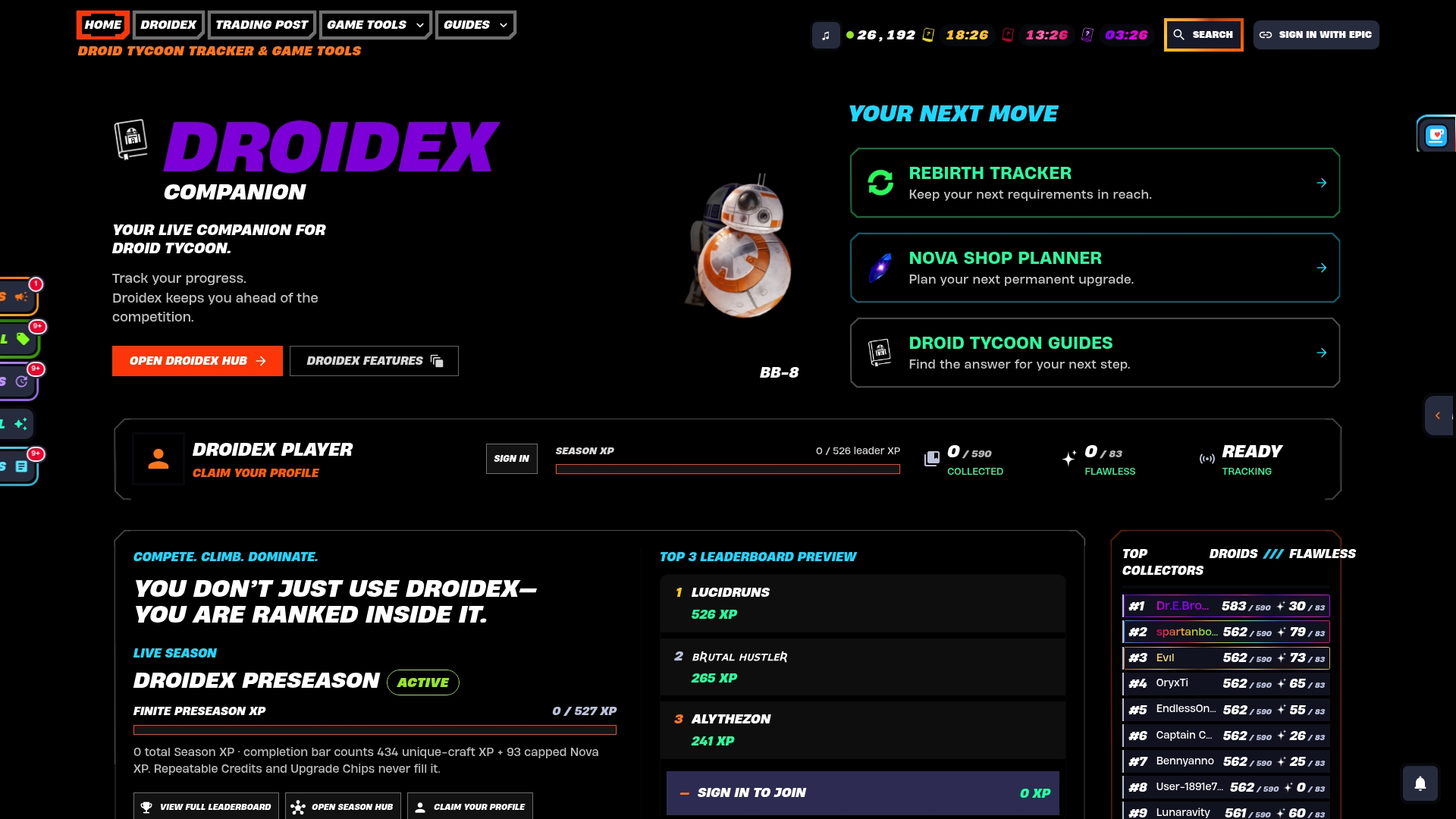
The app pairs that live tracking with a full droid catalog, a dedicated rebirth cycle tracker for planning your next reset, and a competitive leaderboard for players who want to measure progress against others. Every stat it surfaces runs through a documented verification process, and the current 1.2.9 release notes show exactly what got fixed and adjusted for recent game changes, so you're not guessing whether the tool still matches Droid Tycoon's current UI.
This type of companion app is typically free to download, with all core features accessible without mandatory payment. Development may be supported by optional donations.
Head to the Droidex Companion download page, invoke the picker, select your Droid Tycoon window, and enable your first overlay. Confirm the yellow border, check your stats against the in-game display, and adjust placement from there.
Sources
- Screen capture - Windows apps | Microsoft Learn
- Will I be banned if I use third-party software with Fortnite? - Epic Games Support
FAQ
What Is a Screen Recognition Overlay for Droid Tycoon?
It's a local process that reads your Droid Tycoon window through Windows screen capture, extracts stats like income and timers, and displays them in a transparent window layered over the game. It requires you to select the game window through a system picker, and Windows shows a yellow border the entire time capture is active, per Microsoft's documentation.
Is Using an Overlay Tool Against Epic Games' Rules?
Epic Games has no official whitelist or certification for third-party tools, and its support page states it cannot confirm whether any specific software will trigger a ban. Passive, read-only overlays carry less risk than tools that modify game files or automate input, but the decision to use any third-party tool is ultimately yours.
Why Does My Overlay Stop Working After a Windows Update?
Windows privacy toggles for screen capture can silently revert to off after certain updates, a pattern documented in Microsoft's Q&A forums. Check Settings > Privacy & Security > Screenshots and screen recording first, and on managed devices, ask an administrator about a persistent Force Allow policy.
Does Screen Recognition Send My Data to the Cloud?
No, well-built recognition tools process frames locally on your PC rather than uploading them anywhere. This mirrors how Microsoft's own Recall feature handles local snapshots, keeping analysis on-device by default.
What Does Droidex Companion Cost?
Droidex Companion is free to download from its official page, and all core features, including overlays, rebirth planning, and the leaderboard, work without payment. Development is supported through optional donations rather than any required fee.