
If your Droidex Companion overlay disappears mid-match, start with the fastest fixes: run Droidex Companion as administrator, confirm Graphics Capture permission is enabled in Windows, and temporarily disable competing overlays like Game Bar, your GPU overlay, or Discord, then restart Droid Tycoon. These steps can help resolve overlay failures. If the overlay still will not show, the step-by-step workflow below walks through deeper causes.
TL;DR:
- Windows can reset Graphics Capture to Off; check Settings > Privacy & security > Screenshots and screen recording, then toggle permission off and on if needed.
- Xbox Game Bar, NVIDIA or AMD overlays, Discord, OBS, and recording tools can compete for capture resources; close or disable them before relaunching Droid Tycoon.
- If the overlay works in windowed mode but fails full screen, test borderless mode and single monitor use to isolate capture or display scaling problems.
- Repair or reinstall Droidex Companion only after other tests, because a fresh installation resets custom overlay positions and safe zone settings.
Table of Contents
- One-Minute Checklist: Restart, Permissions, and Overlay Toggles
- Ordered Troubleshooting Workflow: Reproduce, Isolate, Fix, Verify
- How Windows Capture Permissions Can Block the Overlay
- Common Apps That Conflict With the Droid Tycoon Overlay
- How to Test and Verify Your Fix
- What to Include When Contacting Droidex Support
- Why Overlays Fail and How We Design Around It
- Get the Overlay Set Up Right With Droidex Companion
- FAQ
- Sources
One-Minute Checklist: Restart, Permissions, and Overlay Toggles
Before digging into settings menus, work through these quick actions in order. Each one targets a common cause of overlay failure, and players may find a fix by working through these actions.
- Close and restart both Droidex Companion and Droid Tycoon, since a stale session is the most common cause of a missing overlay.
- Right-click the Droidex Companion shortcut and select "Run as administrator" to rule out permission conflicts.
- Temporarily disable Xbox Game Bar and any GPU overlay (NVIDIA or AMD) and reboot if the overlay still does not appear.
- Open Settings > Privacy & security > Screenshots and screen recording and confirm the toggle for Graphics Capture is on.
- Switch to single-monitor mode or set your main display as primary to rule out off-screen rendering; our gaming monitor buying guide offers helpful tips for managing multi-monitor setups and display settings.
- Temporarily disable hardware acceleration in Discord and your browser, since both can compete for the same capture resources.
Pro Tip: Keep a note of which toggle you changed last. If the overlay comes back, you'll know exactly which setting caused the problem without retracing every step.
Ordered Troubleshooting Workflow: Reproduce, Isolate, Fix, Verify
A methodical sequence saves time compared to changing several settings at once. Work through these stages, testing after each change.
- Reproduce the issue reliably. Note whether the overlay disappears only during matches, only in full screen, or every time you launch Droid Tycoon. This narrows the cause before you touch any settings.
- Isolate the variable. Close other overlays and recording apps, test windowed and borderless modes, and temporarily reduce to a single monitor. If the overlay returns in windowed mode but not full screen, the issue likely involves capture permissions or display scaling.
- Check drivers and recent updates. An outdated or newly installed GPU driver can break screen capture. If the overlay stopped working right after a driver update, rolling back to the previous version often restores capture behavior, a pattern confirmed in community reports of full screen capture breaking after Windows updates.
- Review Droidex Companion settings. Confirm the overlay toggle is enabled inside the app, that the correct Droid Tycoon window is selected as the capture target, and that Droidex Companion is running with administrator rights.
- Repair or reinstall as a last resort. Only repair or reinstall Droidex Companion after testing the steps above, since a fresh install resets custom overlay positions and safe-zone settings you may have already configured.
Test after each change rather than applying several fixes at once. This keeps the cause clear and avoids undoing a fix that was already working.
| Stage | What to check | Typical result |
|---|---|---|
| Reproduce | Full screen vs. windowed, in-match vs. menu | Confirms when overlay fails |
| Isolate | Other overlays, single vs. dual monitor | Narrows the conflicting app |
| Fix | Driver version, app permissions, admin rights | Restores overlay rendering |
| Verify | Repeat test after each change | Confirms the fix held |
Microsoft's own troubleshooting guidance for app display issues backs up this sequence: background overlay functions from programs like Steam Overlay or NVIDIA Overlay can conflict with other app windows, and disabling those overlays and checking display settings is the recommended first move before assuming a deeper fault.
How Windows Capture Permissions Can Block the Overlay
Windows controls screen capture through a dedicated privacy setting, and that setting is often the real reason an overlay stops rendering even when Droidex Companion itself is working correctly.
- Open Settings > Privacy & security > Screenshots and screen recording and confirm Graphics Capture is set to On for all apps, since this toggle can revert after a Windows update.
- If the toggle looks correct but the overlay still fails, turn it off and back on, since a stuck permission state sometimes needs a manual reset rather than a simple check.
- On managed or work devices, IT administrators can restrict or whitelist which apps are allowed to use Graphics Capture through a Package Family Name policy, so contact IT if you suspect a managed device is blocking the overlay.
- If you see memory-related errors during capture, increasing virtual memory or testing the app in compatibility mode can resolve the conflict.
Microsoft Q&A documentation confirms this is a known pattern, noting that "Screenshots and screen recording" permissions can revert to Off after updates, with enterprise administrators able to force-allow specific apps by Package Family Name through the LetAppsAccessGraphicsCaptureProgrammatic policy.
Common Apps That Conflict With the Droid Tycoon Overlay
Several background programs compete for the same screen-capture resources Droidex Companion needs, and leaving them active is one of the most frequent causes of a missing overlay.
- Xbox Game Bar: often intercepts capture hooks even when closed; disable it under Settings > Gaming > Xbox Game Bar.
- NVIDIA GeForce Experience overlay or AMD Radeon overlay: turn off the in-game overlay toggle inside each app's settings panel.
- Discord overlay: disable it under User Settings > Game Overlay before launching Droid Tycoon.
- OBS or other recording tools: close them fully rather than minimizing, since background capture hooks can remain active.
- Epic Games Launcher: forum reports describe conflicts between the launcher and overlay apps including GeForce Experience, Radeon Software, and Xbox Game Bar, and turning those overlays off resolves many display issues.
If your overlay appears off-screen rather than missing entirely, check your main display setting. Dual-monitor setups sometimes render overlays on a display that is not active in-game.
How to Test and Verify Your Fix
Once you've made a change, confirm it actually solved the problem rather than assuming it worked.
- Test the overlay in windowed, borderless, and full screen modes, then toggle your main display setting to rule out off-screen rendering.
- Open Task Manager or Resource Monitor while Droid Tycoon runs and watch GPU and memory usage for spikes or anomalies during the moments the overlay fails.
- If the overlay only disappears mid-match, record a short phone video or take a photo of the issue as it happens, since this is far easier to diagnose than a description after the fact.
Pro Tip: Run your test for at least one full mission rather than just the loading screen. Some overlay failures only appear once gameplay actually starts rendering.
What to Include When Contacting Droidex Support
A support ticket with the right details gets resolved faster than one that just says "overlay isn't working."
- List your Windows build number, GPU model and driver version, and whether you're running single or dual monitors.
- Note any recent updates, including Windows updates, GPU driver updates, or new apps installed around the time the issue started.
- Describe every step you already tried and the result of each one, rather than a general summary.
- Attach a short video or photo of the issue along with any Droidex Companion logs you can find.
- State clearly whether the problem is constant or intermittent, and whether it began right after a specific change.
Why Overlays Fail and How We Design Around It
Overlay failures can involve a Windows permission that reverted, a competing overlay claiming the same capture hooks, or an OS update that changed default behavior. We built Droidex Companion's local screen recognition specifically to help reduce overlay conflicts.
— Daniel
Get the Overlay Set Up Right With Droidex Companion
We built Droidex Companion's overlay around local screen recognition, so you can track live stats, plan rebirths, and use leaderboards.
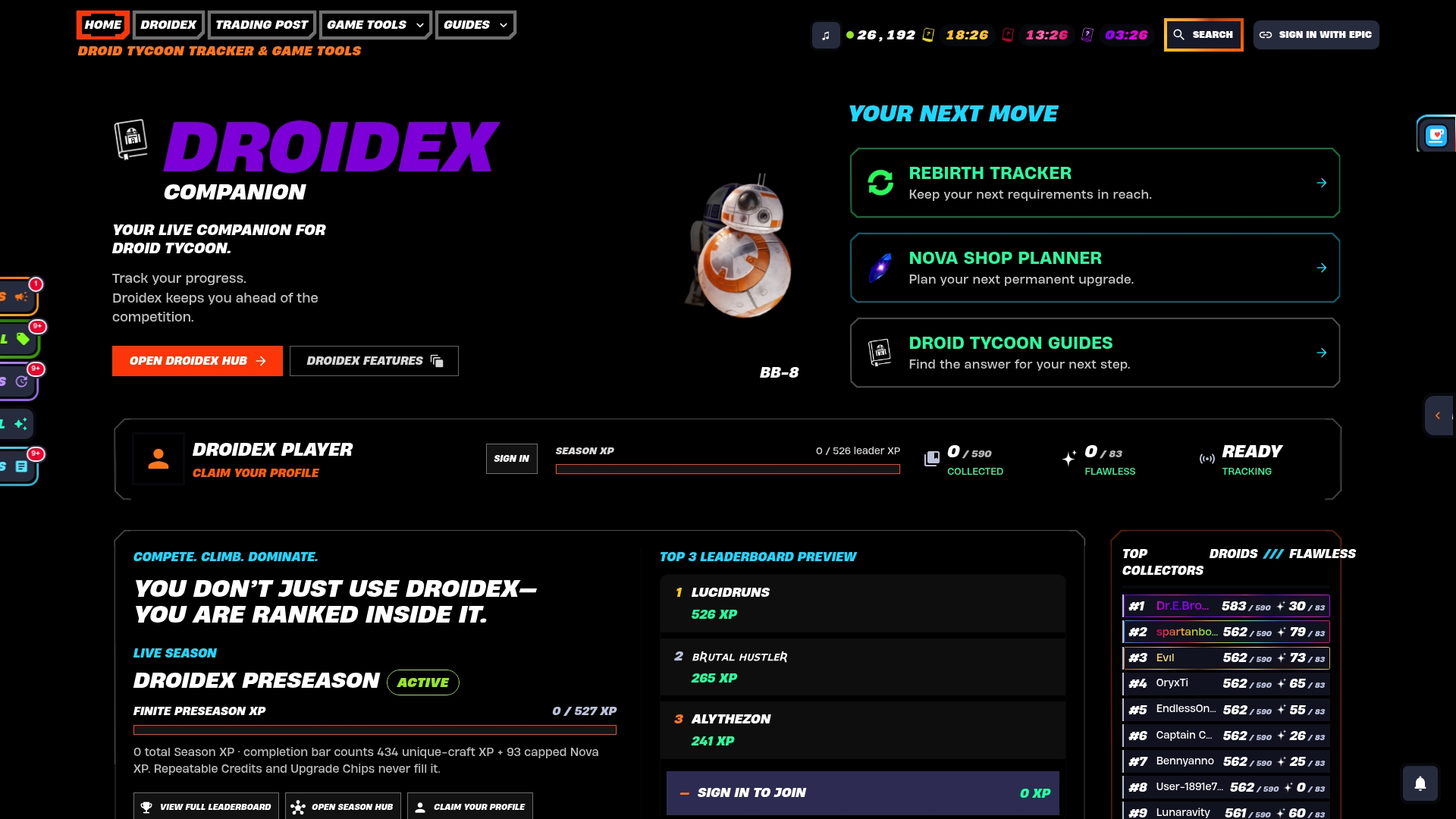
If you haven't set up your overlay yet, our overlay setup walkthrough covers configuration from scratch, and our safe-zone guide shows how 5% insets keep overlay elements from clipping during matches. Download Droidex Companion from our product page and report any persistent overlay issue through our support channel so we can help you resolve it directly.
FAQ
Why does my Droidex overlay disappear only during matches?
This usually points to a competing overlay or capture hook claiming priority once full screen rendering starts. Disable Xbox Game Bar, your GPU overlay, and Discord's game overlay, then relaunch, since this sequence may help with in-match disappearances.
Does running Droidex Companion as administrator actually help?
Yes, running as administrator prevents permission conflicts that can block the overlay from rendering over Droid Tycoon's window. It's one of the fastest fixes to try before changing any Windows settings.
Why did my overlay stop working after a Windows update?
Windows can reset the Screenshots and screen recording permission to Off after certain updates, which blocks Graphics Capture access for apps that rely on it. Toggle the permission back on under Settings > Privacy & security and restart the app.
Can a dual-monitor setup cause the overlay to go missing?
Yes, if Droid Tycoon runs on a display that isn't set as your main monitor, the overlay can render off-screen instead of disappearing entirely. Setting the correct display as primary and testing single-monitor mode usually confirms this.
What should I send to Droidex support if nothing fixes the overlay?
Include your Windows build, GPU model and driver version, monitor setup, and a short video showing the issue in-match. List every troubleshooting step you've already tried so our support team doesn't ask you to repeat them.
Sources
- Full screen applications capture, and screen share not working properly- as it used to. - Microsoft Q&A
- Epic Game Launcher conflicting with overlay apps?