
Open your overlay app's hotkey settings right now and assign a multi-modifier combo involving three keys, such as Ctrl+Shift+Alt plus a letter, since combos with fewer modifiers tend to collide with Windows shortcuts. Test the binding during a short, non-ranked match. If the overlay still ignores your change, turn off the app's master overlay toggle and rebuild the hotkey from there. When conflicts keep coming back, reassign to an uncommon key or move the action to a hardware button.
TL;DR:
- NVIDIA’s default is Alt+Z, while OBS hotkeys sit under File, Settings, and Hotkeys; some preview actions work only when OBS has focus.
- Windows reserves Win+G, Win+I, Alt+Tab, and Win+D for system functions, so close background overlays one at a time to identify competing bindings.
- For browser based alerts, add the URL as an OBS Browser source and assign scene or source visibility hotkeys; unloading hidden sources can delay reopening.
- Test new bindings in borderless mode or a casual match, then compare frame rates before and after enabling the overlay.
- Use a hardware button when a binding must survive updates, and avoid key injection through AutoHotkey in games with active anti cheat protection.
Table of Contents
- A one-minute checklist to configure overlay hotkeys
- How to assign or remap hotkeys in NVIDIA, OBS, Xbox Game Bar, and Overwolf
- How to find and fix hotkey conflicts with system shortcuts or other apps
- Why browser-based overlays are best controlled via OBS scene and source hotkeys
- A short protocol to test hotkeys safely in-game
- Profiles, automation, and reliability tips for power users
- Droidex Companion: product-specific hotkey and overlay setup notes
- Author perspective: when software hotkeys beat hardware and vice versa
- Droidex Companion download and setup resources
- FAQ
- Sources
A one-minute checklist to configure overlay hotkeys
Before touching any single app's settings menu, run through this sequence. It keeps you from assigning a key that two different programs are already fighting over.
- Open the hotkey settings for whichever overlay app you use: NVIDIA, OBS Studio, Xbox Game Bar, or Overwolf.
- Pick a binding with multiple modifiers, such as Ctrl+Shift+Alt plus a letter key, instead of a single modifier plus a letter.
- Save the change and name the profile, then export it if the app supports saved profiles.
- Launch a quick match or practice session and confirm the overlay toggles on and off as expected.
This sequence takes less time than most games' loading screens, and it catches the majority of conflicts before they become a mid-match distraction.
How to assign or remap hotkeys in NVIDIA, OBS, Xbox Game Bar, and Overwolf
Each overlay tool stores its hotkeys in a different menu, and the default bindings are not always safe choices once you have more than one overlay running.
- NVIDIA GeForce Experience: press Alt+Z to open the overlay, then go to Settings and select Keyboard Shortcuts to remap any action. The GeForce Experience broadcasting guide confirms Alt+Z as the default and documents the same Settings path for disabling the in-game overlay entirely under General, if you would rather skip it than remap it.
- OBS Studio: open File, then Settings, then Hotkeys. This single page lists every assignable action, including scene switching and source visibility, and most of these work globally even when OBS is not the focused window. The OBS Studio keyboard shortcuts documentation notes that a handful of hotkeys, mostly preview-related ones, only respond while the OBS window itself has focus.
- Xbox Game Bar: press Win+G to open it, then go to Settings and Shortcuts to review or change the default triggers. Because Game Bar's own shortcut uses the Windows key, it is worth checking this menu first if another overlay seems to misfire when you expect Game Bar instead.
- Overwolf: the overlay apps built on Overwolf expose their hotkey registration inside each app's own in-overlay settings panel rather than a single central menu, so check the specific app's settings icon for a shortcuts or hotkeys section.
Working through these four in order, starting with whichever one you actually use daily, takes less time than hunting through forum threads for the right submenu.
How to find and fix hotkey conflicts with system shortcuts or other apps
Windows reserves a long list of combinations for its own use, and overlay apps that pick a default near one of these are the most common source of a "nothing happened" moment mid-game.
- Avoid Win+G, Win+I, Alt+Tab, and Win+D, since these are tied to Game Bar, Settings, the task switcher, and the desktop view. The Keyboard shortcuts in Windows reference from Microsoft lists these among the system-level combinations that take priority over app bindings.
- To find which app owns a key, test a simple two-key combo first, then close any background overlay apps one at a time and retest.
- Fix a confirmed conflict by reassigning to a less common modifier stack, disabling a competing app's master overlay toggle, or uninstalling the helper app you no longer need.
- Reach for a hardware button, such as a spare mouse side button or macro pad key, when you need a binding that never gets reassigned by a future update.
Pro Tip: Keep a plain text note of every hotkey you have set across apps so you can spot a collision before it happens again.
Why browser-based overlays are best controlled via OBS scene and source hotkeys
Alert widgets and other browser-based overlay graphics are usually built to run inside a web page, and their internal key handling often cannot see keypresses once a full-screen game has input focus.
- Add the overlay's URL as a Browser source inside OBS, then assign a scene or source visibility hotkey to control it from the Hotkeys settings page.
- The Stream tutorial 2: Alerts & chat box guide from OBS recommends this exact approach for alert providers, since OBS-level hotkeys bypass the browser widget's own key listener.
- Watch for the "Unload when not visible" option on a browser source. It reduces CPU use while hidden but can add a brief delay the next time you toggle it on.
Controlling the widget at the OBS layer rather than inside the browser page itself removes an entire category of "why didn't that work" moments during a live session.
A short protocol to test hotkeys safely in-game
A hotkey that works on the desktop does not always work the same way once a game grabs exclusive input, so run a short test before trusting any new binding.
- Switch the game to borderless windowed mode, or test during a casual match rather than a ranked one.
- Trigger a visible overlay action, such as a toggle, and watch for the on-screen change.
- If the hotkey fails in exclusive full-screen mode, switch to borderless or check the game's capture compatibility settings.
- Run a quick frames-per-second check before and after enabling the overlay to catch any unexpected performance drop.
This four-step pass takes about as long as one loading screen and saves you from discovering a broken binding in the middle of a match that matters.
Profiles, automation, and reliability tips for power users
Once the basics work, a few habits keep your setup stable across game updates and driver changes.
- Create a named, exported profile for each game or overlay layout, and keep a backup copy somewhere outside the app's own folder.
- Use AutoHotkey for multi-step key sequences, but avoid injecting keystrokes into games with active anti-cheat protection, and prefer OBS websocket commands for stream control where that option exists.
- Switch to a dedicated hardware device, such as a Stream Deck or macro pad, when a binding absolutely cannot fail during a broadcast.
- Keep a short changelog of your keymap changes so a post-update regression is easy to trace back to the exact setting that moved.
Pro Tip: Re-export your hotkey profile right after any major app update, since some tools silently reset bindings to default during an upgrade.
Droidex Companion: product-specific hotkey and overlay setup notes
Our app relies on local screen recognition to track game stats in real time, and its overlay toggle deserves the same careful binding as any other overlay tool on your system.
- Map the Droidex Companion overlay toggle to a safe, multi-modifier combo rather than leaving a single-key default in place.
- Follow our Windows setup guide for a compliant leaderboard overlay to keep the leaderboard overlay stable through permission and display changes.
- If Game Bar is already claiming a key you want to use, our guide to fixing Game Bar overlay conflicts covers the Shift+F2 workaround step by step.
- For readers tracking frame rate alongside overlay use, our notes on keeping FPS stable during overlay setup walk through the same Windows configuration we use internally.
Author perspective: when software hotkeys beat hardware and vice versa
Software hotkeys win on flexibility. You can reassign one in seconds, carry a profile between machines, and adjust it the moment a game patch changes something. Hardware buttons win on reliability. A macro pad key does not get silently reset by an update, and it works the same way whether you are in borderless mode or exclusive full-screen. Before automating any keypress sequence, weigh how much maintenance you are willing to do against how strict the game's anti-cheat policy is about input injection.
— Daniel
Droidex Companion download and setup resources
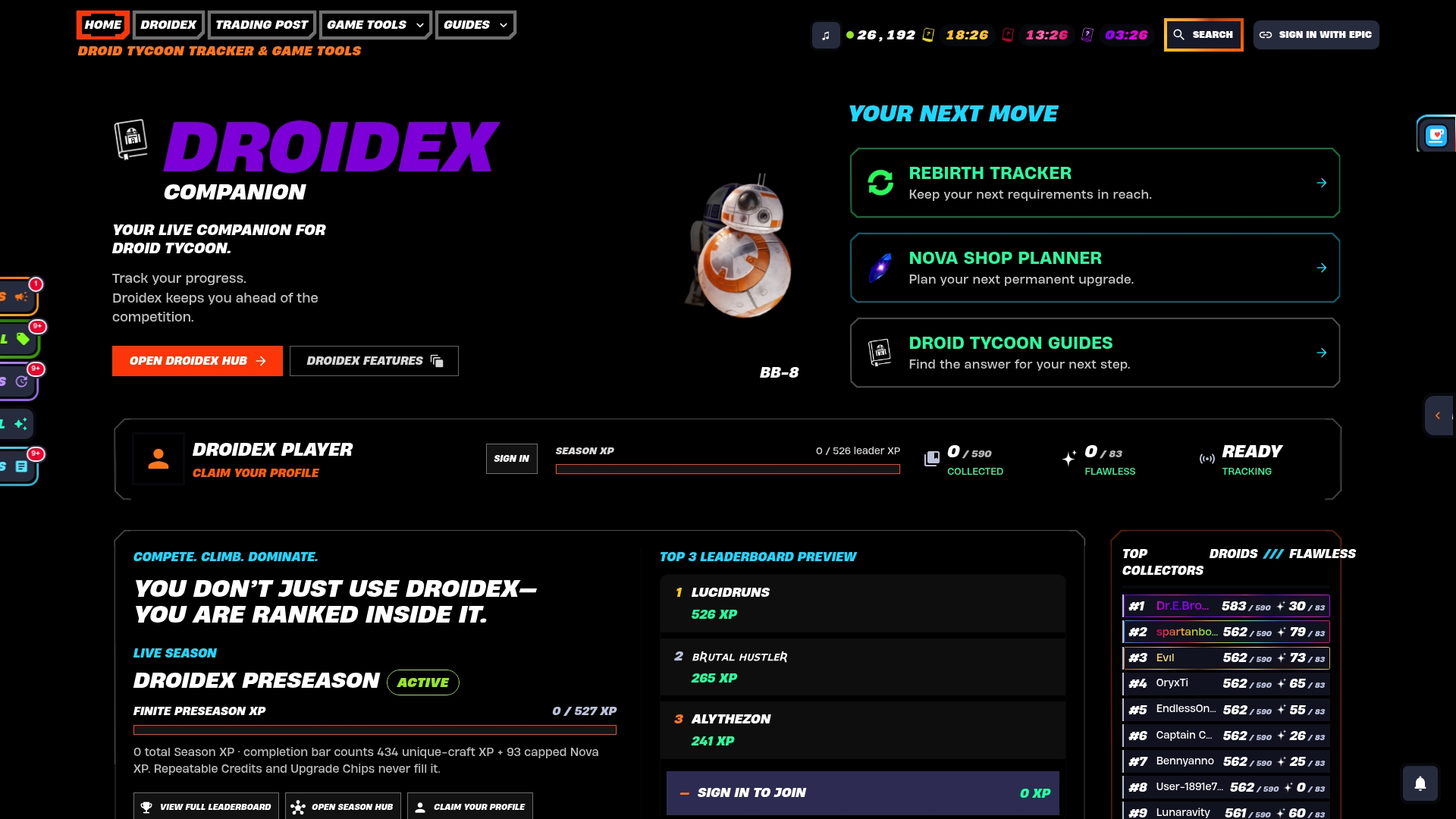
A stable overlay setup starts with picking a tool that does not fight you over hotkeys in the first place. Our app uses local screen recognition to track live stats, plan rebirths, and manage collections, and its overlay elements are customizable, so the toggle you assign stays exactly where you put it.
- Download the free Droidex Companion app and set your overlay hotkey during the first-run setup.
- Read the detailed Windows setup posts linked throughout this guide for permission and compatibility steps specific to Droid Tycoon overlays.
- Check the Droidex Companion 1.2.9 release notes for any recent hotkey-related fixes before reporting a binding issue.
FAQ
How do I configure hotkeys for an overlay app?
Open the overlay app's own settings menu, find the Hotkeys or Keyboard Shortcuts section, and assign a multi-modifier combo that does not match a Windows system shortcut. Save the change, then test it in a short game session before relying on it in a real match.
How do I turn an overlay on or off?
Most overlay apps use a dedicated toggle hotkey, such as Alt+Z for the GeForce Experience overlay, or a Settings menu switch for fully disabling it. If the toggle key stops responding, check the app's settings for a master overlay switch rather than assuming the hotkey itself is broken.
What is the hotkey for the NVIDIA overlay?
The default hotkey for the NVIDIA GeForce Experience overlay is Alt+Z, and it can be remapped from inside the overlay's own Settings under Keyboard Shortcuts, according to the GeForce Experience broadcasting guide.
What is the Windows overlay key?
Windows itself does not have a single dedicated "overlay key." Xbox Game Bar, which many games use for recording and widgets, opens with Win+G, as listed in Microsoft's keyboard shortcuts reference.
Sources
- GeForce Experience broadcasting guide
- OBS Studio keyboard shortcuts
- Keyboard shortcuts in Windows - Microsoft Support
- Stream tutorial 2: Alerts & chat box (OBS)