
In-game overlays can reveal what you play and may send device telemetry and analytics. Turn off activity sharing and decline nonessential consent prompts now. The settings to check are Activity or Status, Registered Games, overlay hotkeys, and any cookie or consent banner tied to your overlay dashboard.
TL;DR:
- Discord’s Activity Sharing and Profile Privacy are separate controls, and its Registered Games list determines which titles can appear; verify each after signing back in.
- Steam lets you hide profile and game status while disabling its overlay per title; third party overlays need separate toggles and hotkey checks.
- A dashboard cookie choice usually affects website tracking, not desktop telemetry; check the app’s data controls separately and expect deletion requests to take time.
- Avoid portable overlay builds from unfamiliar sites, verify digital signatures, and keep antivirus protection enabled; spoofed gaming utilities have distributed malware that steals credentials.
- Local screen recognition avoids sending gameplay for processing, but still accesses your screen; review local logs and any leaderboard data that syncs.
Table of Contents
- What Overlays Can Actually See About You
- Hiding Your Activity: Discord, Steam, and Overlay Settings
- Cookies, SDKs, and Requesting Your Data Back
- Security Risks: Fake Overlays and Fingerprinting
- How Our Overlay Checklist Keeps Droid Tycoon Players Safer
- Adjusting Overlay Settings to Match Your Comfort Level
- Comparing Privacy Approaches Across Popular Overlays
- What Overlay Developers Should Build In From the Start
- Why Local Screen Recognition Changes the Privacy Equation
- Balancing Privacy With What Overlays Are Actually For
- Try Droidex Companion: Local Tracking Without the Guesswork
- FAQ
- Sources
What Overlays Can Actually See About You
An overlay sits between you and your game, which means it can read more than most players assume. Understanding the categories of data in play helps explain why specific settings matter more than others.
Activity data, sometimes called rich presence, is the surface layer: it tells a platform or friend list what game you're running and sometimes what you're doing inside it (a mission name, a lobby, a match type). Telemetry runs deeper. It can include frame rates, hardware specs, driver versions, and crash logs, information that overlay and peripheral software often collects to "improve performance."
The risk comes from combining the two. Hardware descriptors paired with performance telemetry can create a fingerprint accurate enough to identify a specific machine across sessions, according to a device fingerprinting brief from Transmit Security. That's a meaningful privacy concern even when no single data point looks sensitive on its own.
Virtual reality overlays raise the stakes further. Research known as OVRSEEN examined Oculus VR apps and found that a large share of observed network data flows were not properly disclosed in the apps' own privacy policies. The same research flagged sensor data, device identifiers, and personal information being transmitted in ways the stated policies didn't cover.
Many VR app data flows went undisclosed in privacy policies, per OVRSEEN's network analysis. That gap between what's collected and what's disclosed is the core privacy problem with overlays generally, not just VR.
Flat-screen overlays and their web dashboards add a separate layer: cookies and browser-based tracking. Many overlay tools ship with a companion website for stats or leaderboards, and that site often runs its own analytics, separate from anything the desktop app does.
Data types worth tracking as you review settings:
- Activity and rich presence: what game and mode you're in, visible to friends or servers.
- Device telemetry: hardware specs, driver versions, and performance logs.
- Fingerprinting identifiers: combined hardware and usage data that can tag a specific device.
- Sensor data: camera, motion, or spatial data from VR or AR overlays.
- Web cookies: tracking tied to a dashboard or companion site rather than the game itself.
Hiding Your Activity: Discord, Steam, and Overlay Settings
Most privacy leaks from overlays trace back to a handful of toggles that are on by default. Checking them takes a few minutes per platform.
On Discord, Activity Sharing and Profile Privacy work as related but separate controls, a concept detailed in the Discord Group Card: Get Members Signing Without a Login article. Turning off Activity Sharing stops your current game from showing as a status, but Discord may prompt you to also adjust Profile Privacy, since the two settings interact. You can also manage visibility per server and maintain a Registered Games list that controls which titles are even eligible to broadcast status.
Steam separates activity visibility from the in-game overlay itself. You can set your overall profile and game status to private, and independently disable the Steam overlay for individual games where you don't want it running at all, rather than toggling it globally.
A short checklist to confirm your activity is actually hidden:
- Open Discord settings and set Activity Status to off, then confirm Profile Privacy didn't revert.
- Check your Discord Registered Games list and remove titles you don't want detected.
- In Steam, set your profile status to private and disable the in-game overlay per title under game properties.
- Launch the game and check your friends list or status bar to confirm nothing is showing.
- Test any third-party overlay's hotkey (commonly Shift+Tab or a custom bind) to confirm it opens and closes without auto-launching a web dashboard.
Generic overlays, including performance trackers and companion tools, usually have their own hotkey and an in-app toggle separate from Steam or Windows Game Bar. Running two overlays at once (say, Steam's and a third-party tool's) can cause one to silently fail or double-capture input, which is worth testing in an offline match before you rely on either one.
Pro Tip: After changing any activity setting, log out and back into the platform before testing. Some privacy toggles don't apply retroactively to an active session.
Cookies, SDKs, and Requesting Your Data Back
The overlay itself is only part of the picture. Many overlay and companion tools connect to analytics software development kits, and those run on their own rules.
Unity Analytics, used by a large share of mobile and PC titles, gives developers explicit calls to start and stop data collection and to request deletion of a player's data, as documented in Unity's privacy and consent guide. Whether you see a consent prompt, and whether declining it actually stops collection, depends on how the developer implemented those calls, not on the SDK alone.
Cookie banners on overlay dashboards or companion websites typically cover a narrower scope than the game itself: session tracking, ad personalization, and basic usage analytics for the website. They rarely affect what the desktop overlay sends, so declining a cookie banner won't necessarily stop device telemetry from the app.
Practical steps for finding and using your privacy options:
- Look for a "Privacy" or "Data" link in the overlay's settings menu or its companion website footer.
- Use the in-app toggle if one exists, since many tools expose Start/Stop Data Collection as a visible switch rather than burying it in code.
- Submit a deletion request through the developer's listed contact or privacy page when no toggle is visible.
- Check platform-level data pages, since services like Play Games on Android list visibility settings and routes to delete stored data.
Expect a short delay after any deletion request. Developers who implement the standard consent APIs correctly process these requests on the back end, but propagation across logs and backups isn't usually instant.
Security Risks: Fake Overlays and Fingerprinting
Not every privacy risk from overlays is about disclosure. Some comes from software pretending to be an overlay in order to steal data outright.
The U.S. Cybersecurity and Infrastructure Security Agency documented campaigns distributing LummaC2 malware through spoofed utilities, including tools disguised as common gaming or performance software, in a recent advisory. The agency notes that stolen credentials and browser data from these campaigns have shown up for sale in large volumes on criminal marketplaces, and recommends allowlisting trusted applications and monitoring for unexpected process activity as practical defenses.
Separately, Kaspersky has reported on malware campaigns that disguise credential-stealing tools as popular gaming software, often distributed as portable, unofficial builds rather than signed installers. Avoiding portable executables from unfamiliar sites and checking digital signatures before running anything that touches your game client cuts a large share of this risk.
Device fingerprinting from combined hardware and telemetry data can reach high accuracy in identifying a specific machine, per Transmit Security's fingerprinting brief. An overlay that bundles hardware serials with performance stats is handing out more than a frame counter.
Mitigations worth adopting as routine habits:
- Download overlays only from the developer's official domain or a verified storefront.
- Allowlist the overlay executable in your antivirus rather than disabling protection to run it.
- Use multifactor authentication on your gaming and platform accounts, prioritizing phishing-resistant methods where offered.
- Keep a separate account for testing unfamiliar tools instead of your main competitive profile.
- Watch for unexpected processes or network connections right after installing a new overlay, and stop it if something doesn't match the stated feature set.
If you suspect an overlay behaved badly, collect the installer source, a process list from Task Manager, and any firewall or antivirus alerts before uninstalling. That evidence makes it far easier to report the issue or confirm whether it was a false alarm.
How Our Overlay Checklist Keeps Droid Tycoon Players Safer
We built Droidex Companion around a simple rule: your screen is yours. The app reads your game state through local screen recognition on your own machine, rather than routing your activity through an external server to generate stats.
That approach shapes how we handle the rest of the companion experience for Droid Tycoon players. Live stat tracking, rebirth planning, and collection management all run from what the app sees locally, and the overlay itself is customizable so you control what's visible during a match.
A short checklist we recommend before your first competitive session:
- Confirm local recognition is active in settings rather than relying on a cloud lookup.
- Set your overlay layout using our guide to overlay safe zones so stat panels stay clear of core gameplay and chat.
- Review which overlay elements are visible before joining a leaderboard match, since customization applies per session.
- Test the overlay in an offline or practice match first to confirm hotkeys don't conflict with Steam or Windows Game Bar.
The same local-first design extends to competitive tracking: the leaderboard system compares stats without needing broader telemetry about your device or habits.
Adjusting Overlay Settings to Match Your Comfort Level
A well-built overlay treats privacy as a setting, not a fixed default. Most popular tools now separate what the overlay displays from what it sends anywhere, and the two controls deserve separate attention.
Display controls typically cover which panels show (stats, chat, a minimap) and where they sit on screen. Data controls cover whether the tool phones home at all: crash reporting, usage analytics, or account syncing for leaderboard features. Treat these as two different menus even when a tool bundles them into one settings screen.

The most useful overlays let you toggle optional data sharing independently of the overlay's core function, so turning off analytics doesn't also disable the stat tracking you actually want. Look for a dedicated "Privacy" or "Data" tab rather than a single master switch, since a single switch often forces an all-or-nothing choice you don't need to make.
Session-based controls matter too. An overlay that remembers your last privacy choice across restarts saves you from re-checking settings every time you launch the game, but it's worth a periodic recheck after updates, since a new version can reset preferences to defaults.
Comparing Privacy Approaches Across Popular Overlays
Overlay tools vary widely in how much they disclose and how granular their controls are, and that variance matters more than brand reputation alone.
Platform-native overlays, Steam's and Windows Game Bar among them, tend to have the most documented privacy settings because they're tied to a larger account system with its own privacy pages. Third-party performance overlays vary more: some expose a clear data toggle, others bundle telemetry into the installer with no visible opt-out. Companion apps built around a single game, rather than a general overlay for any title, often have a narrower data footprint simply because they don't need broad system access to function.
The clearest differentiator across tools is whether stat tracking happens locally or through a remote server. A remote-dependent overlay needs to transmit something to function, even if it's just your current game state. A locally processed overlay, the model we use for Droid Tycoon tracking through local screen recognition, can generate the same live stats without that transmission step.
When comparing overlays, check for a visible privacy or data settings menu before installing, not after. Tools that bury data controls inside a general settings catch-all are harder to audit than ones with a dedicated privacy tab, regardless of what the tool actually collects.
What Overlay Developers Should Build In From the Start
Good privacy design in an overlay isn't an add-on feature. It shapes the architecture from the first build.
Developers using Unity Analytics or similar SDKs have access to explicit StartDataCollection, StopDataCollection, and RequestDataDeletion calls, documented in Unity's consent management docs. Implementing these as visible, functioning toggles, not just backend code, is what separates a trustworthy overlay from one that technically complies but hides the option.
A few practices stand out as baseline expectations:
- Default to minimal data collection and let players opt in to anything beyond core function.
- Separate the consent prompt for analytics from the consent prompt for account or leaderboard syncing.
- Document in plain language what local processing means versus what gets transmitted, since the OVRSEEN research found this is exactly where VR app policies fell short.
- Provide a working deletion request path, not just a contact email that goes unanswered.
- Avoid bundling telemetry with performance features so players can decline one without losing the other.
Local-only recognition, where the overlay reads the screen rather than querying a remote service, removes an entire category of disclosure risk by design. It's not a feature that needs a consent prompt because there's no transmission to consent to in the first place.
Why Local Screen Recognition Changes the Privacy Equation
Local screen recognition works by reading what's already rendered on your screen and interpreting it on your own machine, rather than sending gameplay data to an external server for processing.
The privacy implication is straightforward: there's no network transmission of your activity to monitor, log, or potentially mishandle, because the recognition step never leaves your device. That sidesteps the exact problem OVRSEEN documented in VR apps, where sensor and usage data traveled to servers in ways the privacy policy didn't fully disclose.
It's not a flawless model. Local recognition still requires the app to have some access to what's on screen, which is a meaningful permission in its own right, and players should still confirm what, if anything, the app logs locally or syncs for features like leaderboards. The distinction is between processing happening on your machine versus a third party's, not between zero access and some access.
For a companion tool built around a single game like Droid Tycoon, local recognition also means stat tracking keeps working without depending on an external server's uptime or policy changes. That's a practical benefit alongside the privacy one, and it's the core design choice behind how we built Droidex Companion.
Balancing Privacy With What Overlays Are Actually For
Overlays exist because competitive players need information mid-match: stats, timers, leaderboard position. Turning off every data flow in the name of privacy can cost you the exact tool you installed the overlay for.
The practical balance is specific, not absolute: disable activity sharing and analytics you don't need, but accept the minimal telemetry a locally processed overlay requires to function. Test settings after every major update, since defaults can reset, and favor tools that document what they collect over ones that don't.
— Daniel
Try Droidex Companion: Local Tracking Without the Guesswork
The app is built around the idea that tracking your Droid Tycoon progress shouldn't mean handing your activity to a server you can't see. Local screen recognition drives the live stats, rebirth planning, and collection management, and the overlay itself is customizable for each session.
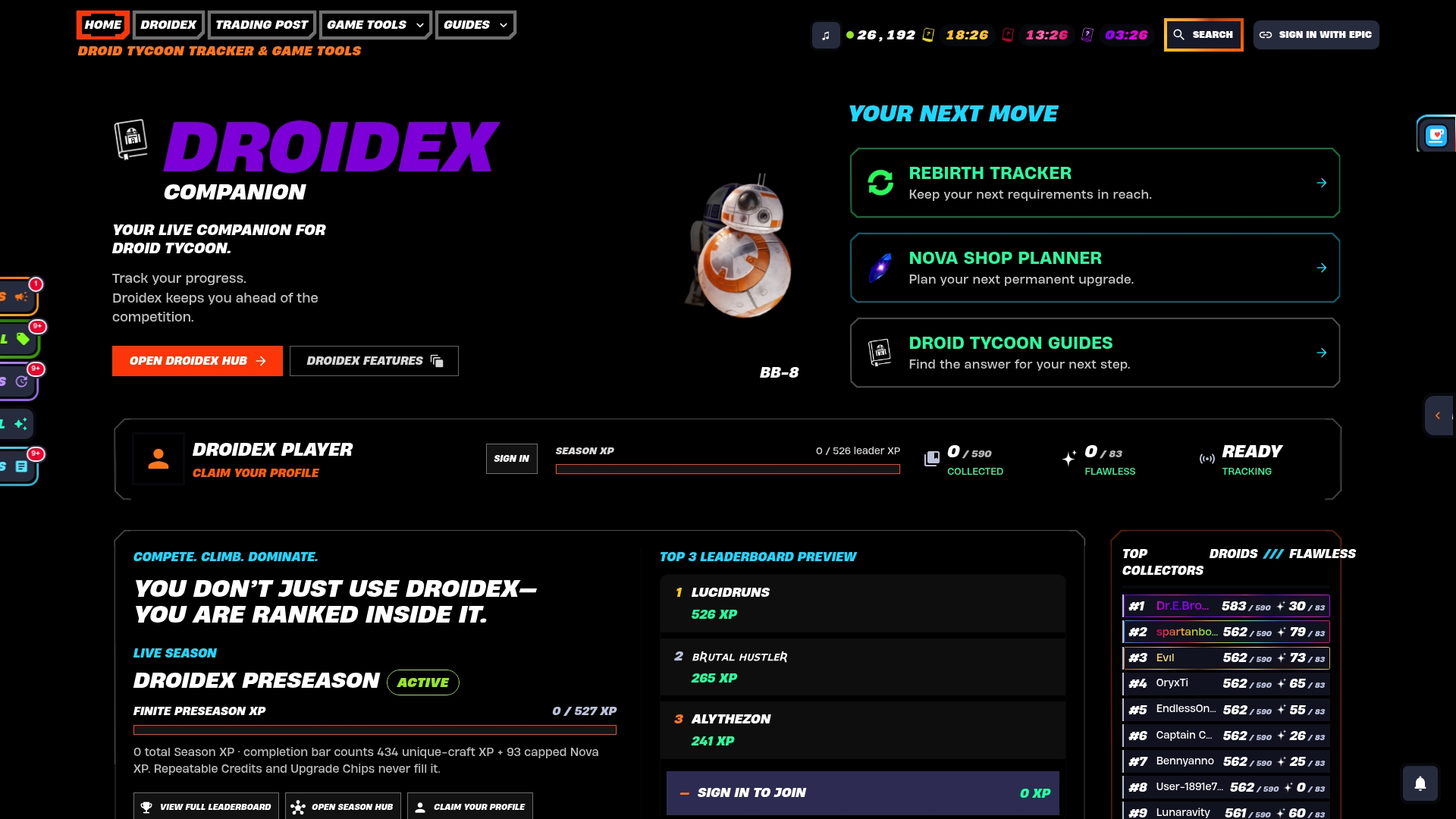
If you've been running a third-party overlay that bundles unclear telemetry, switching to a tool built around local processing is a direct way to cut that exposure without giving up the stat tracking competitive play depends on.
A few steps to get started:
- Download Droidex Companion and run it alongside Droid Tycoon.
- Follow our overlay safe zone setup guide to position stat panels away from core gameplay.
- Test the overlay in a private match first and confirm your activity visibility matches what you expect.
- Check the rebirth cycle tracker once you're set up to plan your next reset with real numbers.
FAQ
What does it mean to access game overlays?
Accessing a game overlay means opening its on-screen display, usually through a hotkey like Shift+Tab or a custom bind set by the tool, while the underlying game keeps running. The overlay layers information such as stats, chat, or friend activity on top of your gameplay without pausing it.
What is the purpose of an overlay in games?
An overlay's purpose is to surface information you'd otherwise have to alt-tab out to check, including performance stats, chat, voice status, or progress tracking. Companion overlays for specific games, like stat and rebirth tracking for Droid Tycoon, extend this to data the base game doesn't display on its own.
How do I disable in-game overlays?
Most platforms let you disable their overlay per game: Steam has a per-title overlay toggle in game properties, and Discord's Activity Sharing can be switched off in settings, as described in Discord's Activity Sharing FAQ. Third-party overlays typically include their own in-app toggle or uninstall option separate from the platform's.
What is in-game overlay Discord?
Discord's in-game overlay lets you see chat, voice status, and friend activity on top of a running game without switching windows. It operates separately from Discord's Activity Sharing setting, which controls whether your current game shows as a status to others, so disabling one doesn't automatically disable the other.
Sources
- Activity Sharing on Discord FAQ — Discord Support
- OVRSEEN: Auditing network traffic and privacy policies in Oculus VR — FTC / research paper
- Threat actors deploy LummaC2 malware to exfiltrate sensitive data — CISA
- Manage data privacy with the SDK — Unity Docs
- Device fingerprinting service brief — Transmit Security