
Draw one tight region for every value you track, use image matching for stable icons and OCR for changing numbers, and capture every template at the exact scale you play at. Test each region against a confidence threshold before you trust it. Follow the steps below and a working setup takes minutes, not an evening of guessing.
TL;DR:
- Collect match scores from clean and messy screenshots, then set a threshold between true and false results; OpenCV’s 0.8 is only an example.
- Install the matching Windows OCR language pack before adjusting a box; then proofread each result, since missing language support can mimic poor region placement.
- Recapture templates after changes to window mode, resolution, display scaling, or rendering mode; after a patch, recalibrate only regions that moved.
- Read totals that change slowly every second or two, gate OCR behind an anchor match, and retry when repeated reads disagree or fall below threshold.
Table of Contents
- Five-minute checklist to get a region working
- How do you choose between template matching and OCR?
- How do you capture templates and calibrate coordinates, masks and thresholds?
- How do you set up OCR regions and language packs?
- How do you test and maintain recognition over time?
- What fixes numbers that will not read, false matches and clipping?
- What is the step-by-step calibration process for initial setup?
- How do you minimize performance impact while recognition runs continuously?
- How do you handle dynamic or animated elements in recognition regions?
- What are the best practices for updating regions after UI updates or patches?
- Our setup choices after repeated calibration runs
- Get overlays and templates handled for you
- FAQ
- Sources
Five-minute checklist to get a region working
Run these steps in order. Each one removes a common cause of failed reads.
- Set the game to the display mode you will actually use. A foreground window works best, and the target must stay clearly visible, because image searches miss content that is hidden.
- Draw a tight rectangle around a stable anchor next to the value, such as a label or icon, not around the number itself.
- Capture templates, or mark an OCR subregion, at the same resolution and UI state you play in.
- Pick image matching for icons and OCR for text. If OCR returns garbage, install the matching Windows OCR language pack first.
- Run a short test, then set a confidence threshold or retry rule so a weak match never writes bad data.
If you want an overlay-focused walkthrough after this, our screen recognition overlay guide covers it.
How do you choose between template matching and OCR?
Match the method to the element. A stable icon, panel edge or badge never changes its pixels, so template matching finds it reliably by searching for a visual patch inside a larger image. A rebirth count or collection number changes constantly, so a template cannot read it. That job belongs to OCR.
The strongest setups combine both:
- Find the anchor with template matching.
- Run OCR on a small box placed next to that anchor.
- Treat the anchor as a gate: if it is missing, skip the read.
Microsoft's practical workflow points the same way: image recognition for dependable visual markers, OCR when the value itself must be extracted. Asking OCR to interpret every element wastes effort and invites errors.
Know the tradeoffs. Templates break when scale or appearance shifts. OCR can misread digits and needs proofreading during setup.
Pro Tip: Never build a template around a moving number. Anchor on the static label beside it and let OCR handle the digits.

How do you capture templates and calibrate coordinates, masks and thresholds?
Capture every template from the same display scale, resolution, theme and game state you will monitor. OpenCV compares a patch against the input image, so a template captured at another size or in another UI state loses reliability.
- Use a mask when only part of the template matters. A mask isolates the relevant pixels of a rectangular template, though only some OpenCV matching methods accept one.
- Score matches from real screenshots. The matcher returns a result matrix, and minMaxLoc picks the strongest position. Collect scores from clean and messy screenshots, then place your threshold between the two groups.
- Save explicit coordinates. Store x, y, width and height as numbers. OpenCV's output grid is W-w+1 by H-h+1 and the detected rectangle uses the template's own size, so numeric regions stay reproducible while visual descriptions drift.
- Keep one template set per resolution. A capture made at one resolution may not serve a session at another resolution.
Worth knowing: the OpenCV tutorial's sample uses 0.8 as a threshold, but it is only an example and not a universal value for game tracking. Derive yours from your own screenshots.
How do you set up OCR regions and language packs?
Install the right Windows OCR language pack before you judge any numeric or label region. Windows OCR recognizes only installed languages, so a missing pack looks exactly like a badly drawn box. Check the language first, then diagnose the region.
Then size the region carefully:
- Scan a tight subregion, not the whole screen. Microsoft's OCR actions support the entire screen, the foreground window or a subregion, and a small box strips out unrelated text.
- Proofread output during setup. OCR output may not be perfect, so compare each read against what you see on screen.
- If results are poor, adjust the region size, the language or the image preprocessing, one change at a time.
- Anchor each OCR box to a nearby template so it always covers the same pixel area.
Field-level validation becomes simple when each box holds exactly one value.
How do you test and maintain recognition over time?
Treat testing as a repeatable routine, not a one-time check. Build a short script or manual checklist that includes loading screens and menu transitions, because Microsoft advises against assuming the screen is ready.
- Use wait-for-image or wait-for-text checks before each read, so brief UI updates do not produce false values.
- Retest every template after a change to window mode, resolution or display scaling. Any of these can break matches.
- Pick a confidence threshold from sample results, not from a guess.
- Add retry logic, or a clear alert, when a match falls under the threshold.
- Log failed reads for a day and review them for patterns.
If your window mode keeps changing, our guide to windowed fullscreen in Fortnite helps you lock it down before you capture templates.
Pro Tip: Save a dated screenshot of a known-good run. When reads break later, compare it with the current screen to see what moved.
What fixes numbers that will not read, false matches and clipping?
Work through the symptom, then change one thing.
- Numbers not read: confirm the OCR language pack, tighten the box, and test on a saved screenshot so you can proofread the output.
- Frequent false matches: shrink the template to a stable anchor, add or adjust a mask, or raise the threshold.
- Clipped or hidden panels: capture the foreground window and avoid covered or minimized windows. Re-capture templates whenever you switch rendering modes.
- Breaks after a mode change: recapture at the new mode and revalidate every coordinate.
Clipping at screen edges is a separate issue from recognition. Our overlay safe-zone guide explains the 5% insets that keep panels fully visible.
What is the step-by-step calibration process for initial setup?
Calibrate one value at a time. Rushing several regions at once hides which one fails.
- Stage the screen. Open Droid Tycoon in your final display mode, bring the panel you track to the front, and wait until animations settle.
- Take a clean screenshot. Capture it with nothing overlapping the panel. This is your reference for every later test.
- Mark the anchor. Crop a small stable element beside the value, and save its x, y, width and height.
- Mark the value box. Draw a tight rectangle around the number only, leaving a few pixels of margin on each side.
- Run the read. Match the anchor first, then run OCR on the value box. Compare the result with the screen.
- Record scores. Note the match score for the anchor on three or four different screenshots.
- Set the threshold. Place it above your worst false match and below your weakest true match.
- Retest live. Play for a few minutes and watch for dropped or wrong reads.
Repeat this loop for every tracked value, then run the full set together. For a fast verification run afterward, our 5-minute performance dashboard setup fits well.
How do you minimize performance impact while recognition runs continuously?
Recognition costs processing time, and the game needs that time more than your tracker does. Most savings come from doing less work, not from faster code.
- Shrink the search area. A template matched across a full screen costs far more than the same template matched inside a small box. Tight regions help accuracy and speed together.
- Lower the read rate. Rebirth counts and collection totals change slowly. Reading them every second or two is plenty, and values that rarely change can be read even less often.
- Gate OCR behind a cheap check. Run the fast template match on the anchor first. Skip the heavier OCR step unless the anchor is present.
- Skip unchanged frames. If the pixels inside a region match the last read, reuse the previous result instead of recomputing.
- Prefer templates for icons. Matching a small patch is cheaper than OCR on the same area.
- Keep the template set small. Every extra template adds comparison time on each cycle.
Measure before and after each change by watching your frame rate during play. Keep the changes that help and revert the ones that do not. A setup that reads reliably at a modest rate beats a fast one that drops frames in the middle of a run.
How do you handle dynamic or animated elements in recognition regions?
Animated content is the main source of false matches. OpenCV's model explains why: a static icon or panel edge gives a consistent signal, while moving numbers or pulsing effects change the pixels the matcher compares.
- Anchor on static pixels. Place templates on borders, labels and icons that never animate, and keep animated content out of the template.
- Mask the moving parts. If an animated glow overlaps part of a stable icon, mask those pixels out where the matching method supports it.
- Wait for the animation to finish. Use a wait-for-image or wait-for-text check, so you read the value after a transition and not during one.
- Confirm with repeats. Read the same box on two consecutive cycles and accept the value only when both reads agree. This filters out half-rendered digits.
- Reject impossible jumps. If a stat that only rises suddenly drops, treat the read as an error and retry.
- Keep OCR boxes clear of effects. Particle effects and flashing highlights behind digits cause misreads, so frame the box tightly around the number.
These checks cost little and remove most of the bad data that animation creates.
What are the best practices for updating regions after UI updates or patches?
A game patch can shift a panel by a few pixels, and a few pixels is enough to break a tight region. Plan for it instead of reacting to it.
- Retest after every update. Open the game after each patch and run your standard test routine before you rely on any reading.
- Compare against your reference. Hold the dated known-good screenshot next to the new screen. Moved elements show up immediately.
- Recapture only what changed. If one panel moved, recalibrate that region and leave the others alone.
- Version your regions. Store coordinates and templates with a patch label, so you can roll back if a change was a mistake.
- Recheck the OCR language. A patch that changes fonts or text styling can alter read quality even when positions stay put.
- Watch for scaling changes. If a new UI option changes element sizes, treat it like a resolution change and recapture templates.
Our release notes for Droidex Companion show how we track changes between versions, a habit worth copying for your own region files.
Our setup choices after repeated calibration runs
We hold to a few habits. One region per tracked value. A small template library keyed by resolution, so switching displays means loading a different set, not redrawing everything. A quick re-capture routine that we run whenever the display mode changes. The deeper lesson is that most recognition failures come from the setup, not the software. Players blame the engine when the real culprit is a missing language pack, a template captured at the wrong scale or a box that is too loose. Fix those three and the rest becomes routine. A threshold you chose from your own screenshots will outperform any default, however popular.
— Daniel
Get overlays and templates handled for you
If you would rather skip manual calibration, we built Droidex Companion around local screen recognition for Droid Tycoon. It runs on your own machine.
-
Live overlays with stat tracking and rebirth planning
-
Customizable overlay layouts you can adjust to your screen
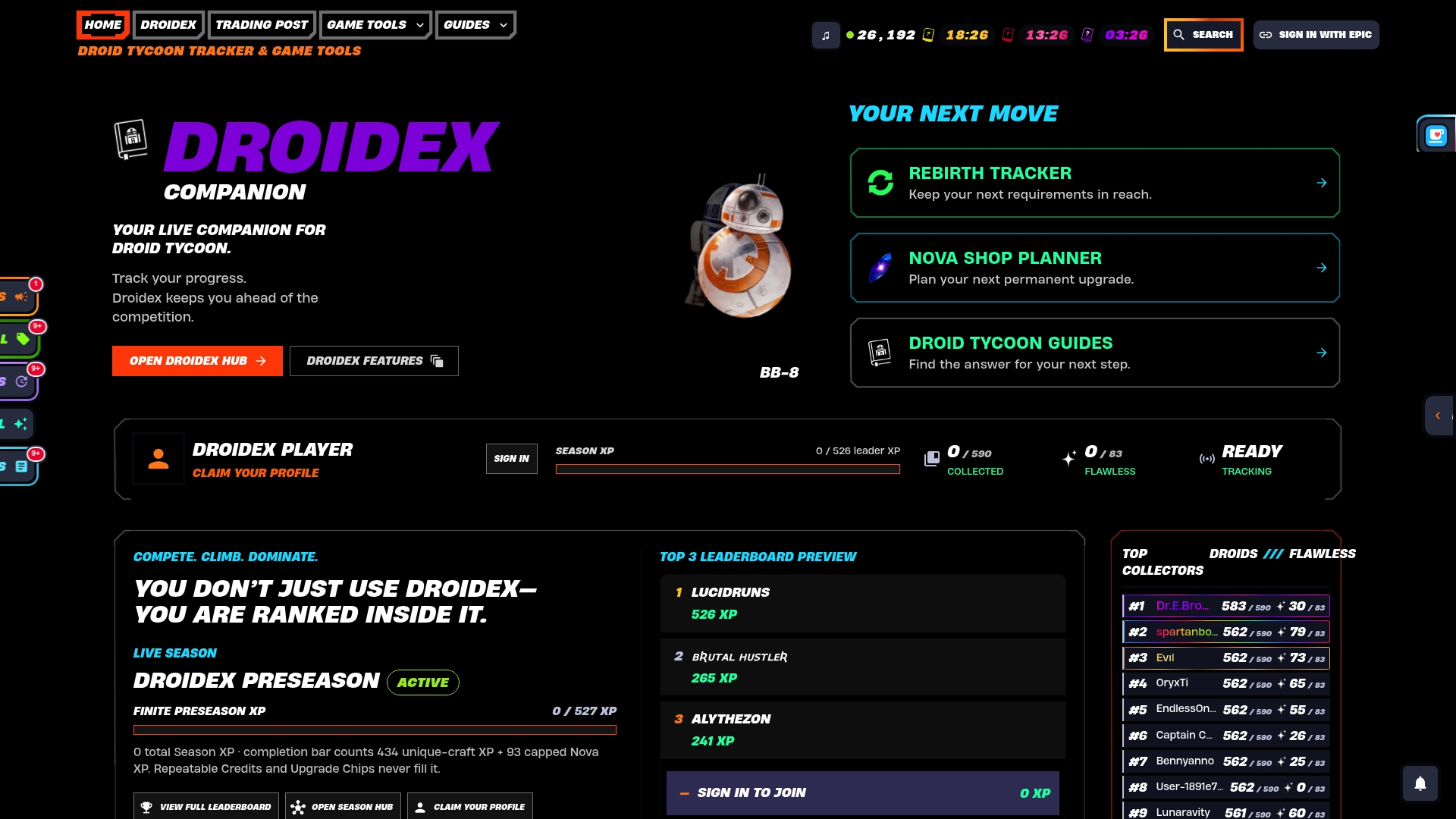
Download it from the Droidex Companion page and follow the setup guides on our blog to reach a working overlay quickly.
FAQ
How big should a recognition region be?
Make it as small as possible while still holding the whole value. A tight box strips out unrelated text and makes validation simple. Leave only a few pixels of margin around the number.
Why does OCR return wrong characters?
The most common cause is a missing Windows OCR language pack, since OCR only reads installed languages. After that, check box size and proofread the output, because OCR is not always perfect.
What confidence threshold should I use?
There is no universal value. Collect match scores from clean and messy screenshots, then set the threshold between the two groups. The OpenCV tutorial's sample value is an example only.
When do I need to recapture templates?
Recapture after any change to window mode, resolution, display scaling or rendering mode. These changes alter the pixels a template compares against. Recapture after major game patches as well.
Can the game window be covered while recognition runs?
No. Searches do not find content that is not clearly visible, so keep the target in the foreground and uncovered. Microsoft's reference says the same for both whole-screen and foreground-window searches.