
For most competitive players, Exclusive Fullscreen remains the setting that delivers the lowest input latency, since it bypasses the Windows desktop compositor entirely. If your Window Mode options are missing or stuck, the fastest fix is opening Settings, then Video, then Window Mode, or simply pressing Alt + Enter while Fortnite has focus to toggle between windowed and fullscreen states.
TL;DR:
- Choose Windowed Fullscreen for streaming or second monitor access, but enable variable refresh support for both windowed and full screen modes in NVIDIA Control Panel.
- After changing modes, click Apply and restart Fortnite; use 1920x1080 at a 16:9 ratio as a troubleshooting baseline when display options fail.
- If your cursor jumps between monitors, switch specifically to Fullscreen to reset cursor capture before changing other display settings again.
- Test overlays separately: disable Xbox Game Bar first, then restore overlays individually and watch for stutter or tearing to identify the source.
- If display controls remain missing or unresponsive, disable Fullscreen Optimization on Fortnite’s executable and check GPU scaling overrides or streaming platform limits.
Table of Contents
- What the three display modes do and how they affect gameplay
- How to change the window mode in Fortnite
- Fixes when Window Mode or fullscreen options are missing or misbehaving
- How overlays interact with windowed modes and frame stability
- Latency and performance trade-offs for competitive players
- Overlay setup checklist and tests
- Choosing the right mode for your play style
- Droidex Companion: an alternative overlay approach
- FAQ
- Sources
What the three display modes do and how they affect gameplay
Fortnite offers three display modes: Fullscreen (exclusive), Windowed Fullscreen (borderless), and Windowed. Exclusive Fullscreen hands full control of the display to the game, which skips the Windows desktop compositor and keeps input latency as low as possible. Windowed Fullscreen runs the game as a borderless window stretched to your screen size, letting you alt-tab instantly and run overlays or capture software without the brief freeze that exclusive mode can cause. Regular Windowed mode shrinks the game into a resizable frame, useful for setup work but rarely used during actual matches.
Each mode fits a different situation. Ranked grinding or tournament play favors exclusive fullscreen for responsiveness. Streaming, chatting, or checking a second monitor favors windowed fullscreen for convenience. Standard windowed mode mostly serves configuration tasks before you queue into a match.

How to change the window mode in Fortnite
Switching modes takes under a minute once you know the path. Epic Games documents the settings menu as accessible from the profile icon in the top right of the lobby.
- From the Fortnite lobby, click your profile icon in the top right corner.
- Open Settings, then select the Video tab.
- Find Window Mode and choose Fullscreen, Windowed Fullscreen, or Windowed.
- Click Apply to confirm the change before leaving the menu.
If you need a faster toggle mid-session, Alt + Enter switches between windowed and fullscreen states on most Windows applications, Fortnite included, as long as the game window currently has focus, according to Microsoft's shortcut documentation. When cursor capture feels broken after switching monitors, cycling to a different mode and back often resets it.
Fixes when Window Mode or fullscreen options are missing or misbehaving
When the Window Mode dropdown disappears, grays out, or refuses to apply, work through these steps in order rather than jumping to a reinstall.
- Restart Fortnite after any video change and confirm you clicked Apply before closing the menu.
- Set your display resolution to 1920x1080 at a 16:9 aspect ratio as a stable baseline for troubleshooting, a step Epic Games recommends for cursor and display problems.
- Disable Fullscreen Optimization on the Fortnite executable through Properties, then Compatibility, a fix Epic Games support lists for low frame rate issues.
- Check your GPU control panel for forced scaling overrides or hotkeys that can hide display options.
- If you play through a streaming platform like GeForce NOW, confirm that platform's own display limitations before assuming the bug is on your end.
Pro Tip: If cursor jumping persists after switching modes, toggle to Fullscreen specifically, since Epic's own support steps point to that mode for resetting multi-monitor cursor capture.
For a structured way to work through these checks, this independent diagnostic flow walks through fullscreen versus windowed decisions step by step.
How overlays interact with windowed modes and frame stability
Overlays can quietly break G-SYNC or VRR without any obvious error message. Forum and developer discussions around rendering behavior indicate that overlays creating unfocused, always-on-top windows can disable G-SYNC for the underlying game, since the display driver stops treating the game as the active fullscreen surface, based on developer forum findings on VRR and overlays.
To isolate the cause, disable overlays one at a time rather than all at once.
- Turn off Xbox Game Bar first, since it is enabled by default on most Windows installs.
- Disable the GeForce Experience or NVIDIA app overlay next and retest.
- Re-enable each overlay individually, watching for stutter or tearing as the signal that one specific tool is the culprit.
If you run Windowed Fullscreen and want tear-free output, enable G-SYNC for windowed and full screen mode inside the NVIDIA Control Panel, a setting that NVIDIA's own support documentation notes must be turned on explicitly, since it is not automatic for borderless windows.
Latency and performance trade-offs for competitive players
NVIDIA's system latency guide recommends Exclusive Fullscreen as the setting that bypasses the Windows compositor and keeps system latency lowest, though it notes borderless windowed latency has narrowed in recent years. If shaving every millisecond off your reaction time is the priority, exclusive fullscreen stays the stronger default.
If you stream, record, or need to tab out between rounds without a loading delay, borderless windowed fullscreen is the more practical choice, provided you confirm your VRR or G-SYNC settings are correctly applied for windowed mode.
A quick way to decide: rank latency, multitasking, and overlay use in order of personal priority. Whichever sits at the top of that list should decide your mode, since trying to satisfy all three at once usually means compromising on the one that matters most to your results.
Overlay setup checklist and tests
Getting an overlay to behave correctly in windowed fullscreen takes a short diagnostic pass rather than guesswork.
- Disable every overlay, play a short session, then run a capture tool like PresentMon to establish a clean frame-time baseline.
- Re-enable overlays one at a time, checking for the same stutter or VRR drop described earlier.
- Confirm Fullscreen Optimization is disabled on Fortnite's executable and that in-game VSYNC is set correctly before layering overlays on top.
- Turn on windowed G-SYNC in the NVIDIA Control Panel if you rely on borderless mode and need tear-free output.
For a deeper walkthrough of this testing process, our guide on keeping FPS stable during overlay setup covers the same tests in more detail, and our PresentMon testing guide breaks down exactly how to read the capture results.
Choosing the right mode for your play style
Default to Exclusive Fullscreen if competitive performance is your main goal. Switch to Windowed Fullscreen only when streaming or multitasking genuinely outweighs the latency cost for your session. Test both settings yourself and trust what you measure over what simply feels faster.
— Daniel
Droidex Companion: an alternative overlay approach
![CTA image placeholder]
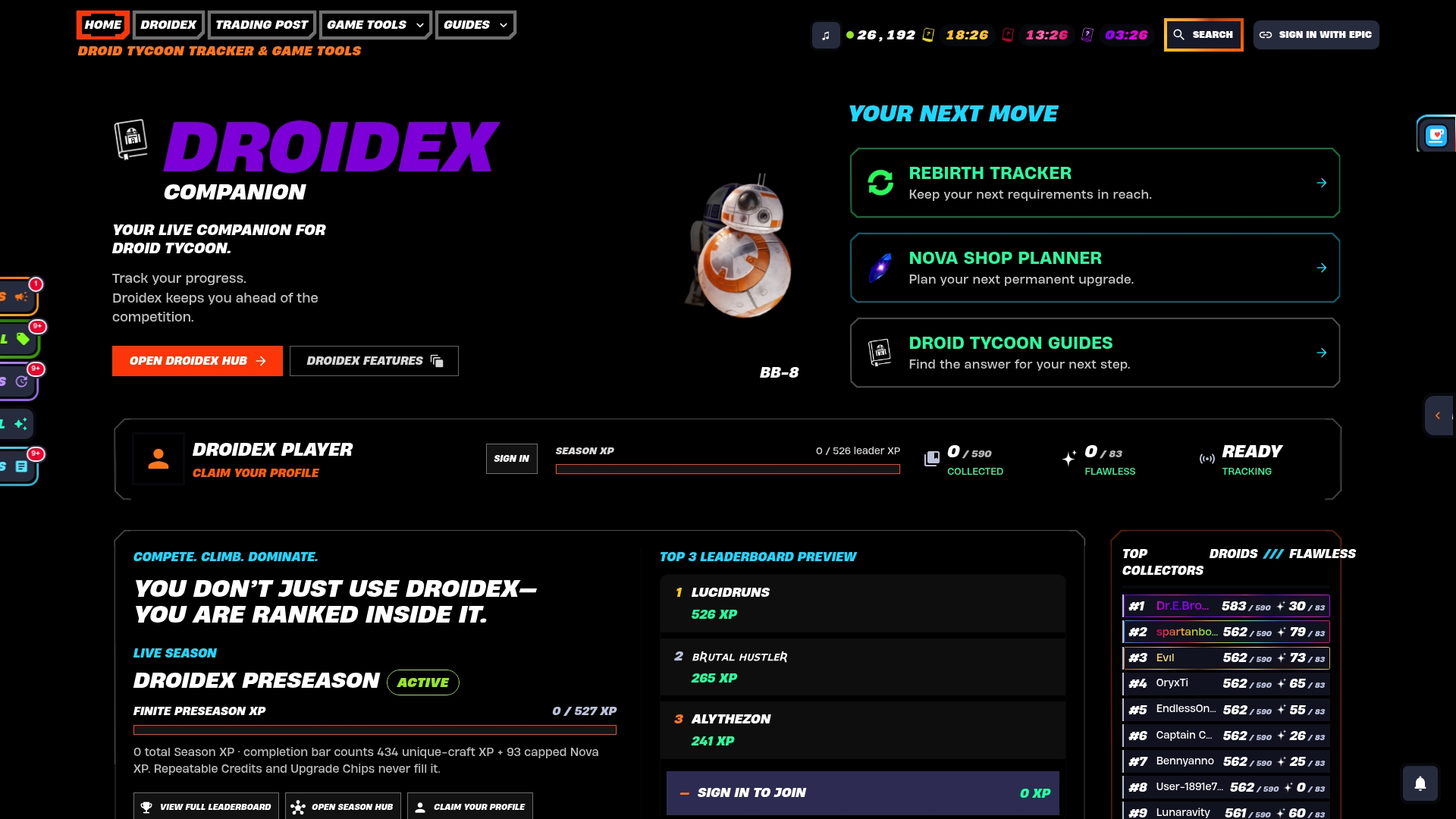
If overlay conflicts with G-SYNC or VRR have been part of your troubleshooting, the underlying issue is usually how the overlay renders rather than your display settings. Droidex Companion tracks Droid Tycoon progress through local screen recognition rather than a separate top-level window, which is the rendering pattern most likely to interfere with G-SYNC in the first place.
- Live stat tracking and rebirth planning run through local screen recognition instead of a floating overlay window.
- Overlay elements are customizable, so you can position and size them to avoid blocking your view during gameplay.
- A leaderboard tracks progress against other players.
Check our overlay setup guides and the Droid Tycoon tools page to see how the overlay fits into your current windowed fullscreen setup.
FAQ
How do I minimize the screen in Fortnite?
Press Alt + Tab to switch away from Fortnite without closing it, or use the Windows key to return to your desktop. If you are in Windowed or Windowed Fullscreen mode, clicking outside the game window has the same effect.
Is Fortnite good for ADHD?
Fast-paced games like Fortnite can hold attention through constant feedback and short-term goals, but no source in this guide evaluates its effects on ADHD specifically. Anyone with concerns about screen time or focus should check with a healthcare provider rather than relying on general gaming guides.
Is Fortnite better on windowed or fullscreen?
Exclusive Fullscreen generally delivers the lowest input latency because it skips the Windows desktop compositor entirely. Windowed Fullscreen trades a small amount of that responsiveness for easier multitasking and streaming support.
How do I make a game go from windowed to fullscreen?
Press Alt + Enter while the game window has focus to toggle between windowed and fullscreen states, a shortcut documented by Microsoft for most Windows applications. In Fortnite specifically, you can also change this through Settings, then Video, then Window Mode.
Sources
- Fortnite on PC — best settings for competitive play (Epic Games)
- Why does my mouse cursor keep jumping between two monitors when I'm in a match in Fortnite? (Epic Games Support)