
A Steam Overlay conflict happens when Steam's overlay and another program both try to hook into the same game window, or both claim the same hotkey. The fix is to isolate the conflict: switch off every other overlay, confirm the game and the Steam Overlay work alone, then bring the other tools back one at a time. If you run a tracking overlay such as Droidex Companion next to Steam while playing Droid Tycoon, this method lets you keep both.
TL;DR
- A conflict shows up as a dead Shift+Tab, a blank or frozen overlay, or a crash the moment the overlay opens.
- Two overlays injected into one game, or two programs sharing one hotkey, cause most cases.
- Test with one change at a time: turn overlays off, restart Steam, then re-enable each tool separately and note which one breaks the overlay.
- Check the Steam settings first, then permissions, then drivers, because each is quick and each rules out a whole class of cause.
Table of Contents
- What a Steam Overlay conflict looks like
- Why overlays collide
- Find the conflicting program step by step
- Hotkey clashes
- Permission mismatches on Windows
- Error 126 and missing files
- Updates worth installing
- When to turn the Steam Overlay off
- When the conflict is intermittent or comes back
- Keeping a tracking overlay running next to Steam
- Droidex Companion for Droid Tycoon players
- Our view on overlay conflicts
- FAQ
- Sources
What a Steam Overlay conflict looks like
The Steam Overlay is a layer Steam draws over a running game. It gives you chat, the in-game browser, screenshots and purchases without leaving the game. Steam injects the overlay into supported games at runtime so it can render its interface and handle hotkeys. That makes it sensitive to graphics API changes (DirectX, Vulkan, OpenGL), anti-cheat restrictions and any other overlay hooking into the same rendering pipeline.
The symptoms vary, and the symptom points at the likely cause:
| Symptom | Likely area |
|---|---|
| Shift+Tab does nothing | Overlay switched off, shortcut changed, or another program owns the hotkey |
| Overlay opens and closes at once | Another overlay or controller software |
| Works in other games, not this one | Per-game setting, external launcher, anti-cheat or the game's rendering mode |
| Keyboard works, controller does not | Steam Input or controller mapping |
| Blank or frozen overlay | Steam client, display mode or overlay software |
| Game crashes when the overlay opens | Hook or rendering conflict |
The table follows the symptom breakdown in RottenWiFi's troubleshooting guide. Craftane lists the same everyday signs: an unresponsive Shift+Tab, an in-game browser that never appears, and chat or screenshots missing inside a game.
Why overlays collide
Every overlay has to attach to the game while it starts. Gamlio explains that overlays connect to the game during launch, and that some conflict with older games, graphics APIs or anti-cheat systems. When two or more attach to one game, BugFreeGG reports crashes to desktop, loading-screen hangs and random stutter as common results.
The usual overlay-type suspects:
- Chat overlays such as Discord's
- The Xbox Game Bar
- Graphics card overlays from NVIDIA or AMD
- Frame counters and monitoring tools such as MSI Afterburner and RivaTuner Statistics Server
- Screen recorders
- RGB and peripheral software
- Controller remappers and virtual controller tools
A vendor example shows how seriously publishers treat this. The Roberts Space Industries support site lists RivaTuner Statistics Server, MSI Afterburner, Steam, Nvidia overlays, Xbox Game Bar and GeForce Replay as applications to disable completely, followed by a system restart, when Vulkan conflicts appear.
Steam's own documentation makes a related point. Launchers such as Uplay and Origin can carry their own overlays that take priority over Steam's. Valve's advice there is to start the game from Steam and turn off the external launcher's overlay.
Find the conflicting program step by step
The goal is a controlled test, so change one thing per round and write each change down. Notes let you undo the last change if a fix makes things worse.

1. Confirm the Steam settings
Open Steam, go to Steam > Settings > In-game and confirm that Enable the Steam Overlay while in-game is on. Then right-click the affected game in your Library, open Properties > General and confirm the same box is ticked there. Technobezz points out that Shift+Tab opens the overlay only in a game where the overlay is both supported and enabled.
Launch the game from Steam, not from a desktop shortcut or another launcher, and fully exit and restart the Steam client first. A closed window is not enough: use Steam > Exit.
2. Close everything that could hook the game
Shut down the overlay-type programs listed above, including anything sitting in the system tray. HowToGeek advises turning off other software that runs next to Steam and restarting the device, so leftover background processes close too. Then launch the game and try Shift+Tab.
If the overlay now works, one of the programs you closed is the cause. If it still fails, the problem sits in Steam, the game or the system, and you can skip the next step.
3. Re-enable one program at a time
Start one tool, restart the game, test the overlay, and note the result. Repeat for each tool. RottenWiFi recommends this exact sequence: disable the likely overlays, restart Steam, test, then bring programs back singly. It finds the offender without forcing you to give up recording, monitoring or chat for good.
Craftane makes the same recommendation: restart the game after every change and leave Steam enabled while testing.
When the culprit appears, you have options short of uninstalling it. Turn off only its in-game overlay feature, change its hotkey, or set its launch order so Steam starts first. Our guide to overlay launch order and startup settings covers the order side, and the guides to NVIDIA overlay conflicts and Game Bar overlay conflicts cover the two most common offenders.
4. Restart the overlay process only
If the overlay hangs mid-session, you can restart its process without closing the game. While the game runs, open Task Manager, go to the Details tab, find GameOverlayUI.exe, right-click it and choose End Task. Steam restarts the process on its own once you close it.
5. Clear the game's overlay data
When the overlay fails in one game and works in others, delete that game's stored overlay data. In the Library, right-click the game, open Properties > General and click Delete next to In-Game Overlay Data, as HowToGeek describes.
Hotkey clashes
A hotkey conflict is the cheapest cause to check and the easiest to miss. Steam's default is Shift+Tab. If another application uses the same combination for something inside its own window, it can stop the overlay from opening. HowToGeek notes that key-mapping software that assigns the overlay hotkey to an in-game action can make Steam yield to that action.
To reset it, open Steam > Settings > In-game, select Steam Overlay Shortcut Keys and set it back to Shift+Tab. You can also pick a combination no other tool uses, as Technobezz describes. Then launch the game and test.
If you run a second overlay for tracking, give it a combination with several modifier keys, so it never overlaps a two-key shortcut like Shift+Tab. The Droidex Companion hotkey setup guide uses Ctrl+Shift+Alt for this reason, and the manual for hotkeys and calibration lists the full set.
Permission mismatches on Windows
Overlay injection fails when one program runs as administrator and the other does not. Craftane explains that this mismatch can interfere with injection, and that a game forced to run as administrator through compatibility settings may leave Steam at a lower privilege level.
The fix is consistency. Either run both at the same level or remove the forced administrator flag from the game. If you want to test the elevated route, close Steam, right-click it and choose Run as administrator, which is the step HowToGeek recommends once the overlay setting, the hotkey and third-party software are ruled out.
Security software is a related cause. TechBloat advises keeping antivirus active and adding the Steam folder and the game folder to its allow list, which is safer than switching protection off.

Error 126 and missing files
A message such as Failed to Load Overlay DLL points to a file problem rather than a clash between overlays. Driver Talent lists the usual causes: a missing DLL, driver conflicts, permission limits, security software blocking Steam files, a missing Visual C++ Redistributable, outdated graphics drivers and corrupted DirectX components. Update the graphics driver, reinstall the Visual C++ Redistributable, and then allow-list the Steam folders in your security software.
Updates worth installing
Outdated drivers and operating systems account for many freezes. Technobezz recommends updating Windows and the major hardware drivers when the overlay freezes or stops responding. Steam notes that the overlay may close or stop responding under heavy system load, so limit background programs during play and verify the game's local files.
When to turn the Steam Overlay off
Disabling the overlay for one game is a legitimate fix when everything else fails, and it takes seconds: Properties > General > untick Enable the Steam Overlay while in-game. A per-game change is better than the global switch when only one title misbehaves, as WinResolve advises.
Know what you give up. Technobezz reports that Valve lists in-game purchases, invites, screenshots, trading and market features among the functions that depend on the overlay. If one of them stops working, return to Steam > Settings > In-game and turn the overlay back on.
A clean run with the overlay off proves less than it seems. iTechGuides cautions that it shows an injected layer takes part in the failure, but not whether the overlay, the driver or the game's rendering path is to blame. Update the implicated software and retest before you decide the overlay is permanently off the table.
Anti-cheat is a special case. If a game refuses to launch after you re-enable an overlay, BugFreeGG advises leaving that overlay off for that title.
When the conflict is intermittent or comes back
Random failures are the hardest to pin down, because the cause may need a specific sequence: a long session, a sleep and resume, or a game update. Work through these in order:
- Undo your last change using your notes and retest.
- Switch the game from exclusive fullscreen to Borderless Windowed or Windowed mode.
- Restart Steam completely, then end stuck Steam processes in Task Manager, such as Steam Client WebHelper and Steam Client Service, as TechBloat describes.
- Verify the game's files from its Properties window.
- Update the graphics driver and Windows.
- In Steam > Settings > Interface, turn off GPU accelerated rendering in web views, which iTechGuides includes in its recurring-issue list.
If the problem stays limited to one title after all of that, compare display modes and contact that game's support channel, since the fault may sit in the game's own rendering code.
Keeping a tracking overlay running next to Steam
Players who want live stats while they play have a practical reason to solve conflicts instead of dropping overlays. Each extra overlay adds a competing hook or a competing hotkey, so the fewer you run, the fewer collisions you test. Keep only the ones that give you data you use during a run: Steam for chat and screenshots, and one tracker for numbers.
Performance is a separate question from conflict. A stable overlay can still cost frames, and the guide to finding which overlay feature costs FPS walks through six tests for that. Blurry text, input lag and startup order each have their own page: blurry overlay text and overlay input lag.
Droidex Companion for Droid Tycoon players
Droidex Companion is a free Windows app for Droid Tycoon. It tracks live stats through local screen recognition, plans rebirths, manages your collection and offers customizable overlays, along with calculators for base income, Nova and chip costs. Overlay layout and hotkeys are yours to set, so you can place it where the Steam Overlay does not and give it a key combination that stays clear of Shift+Tab. Start at the Droidex Companion page, or open the Droid Tycoon tools to try the calculators directly.
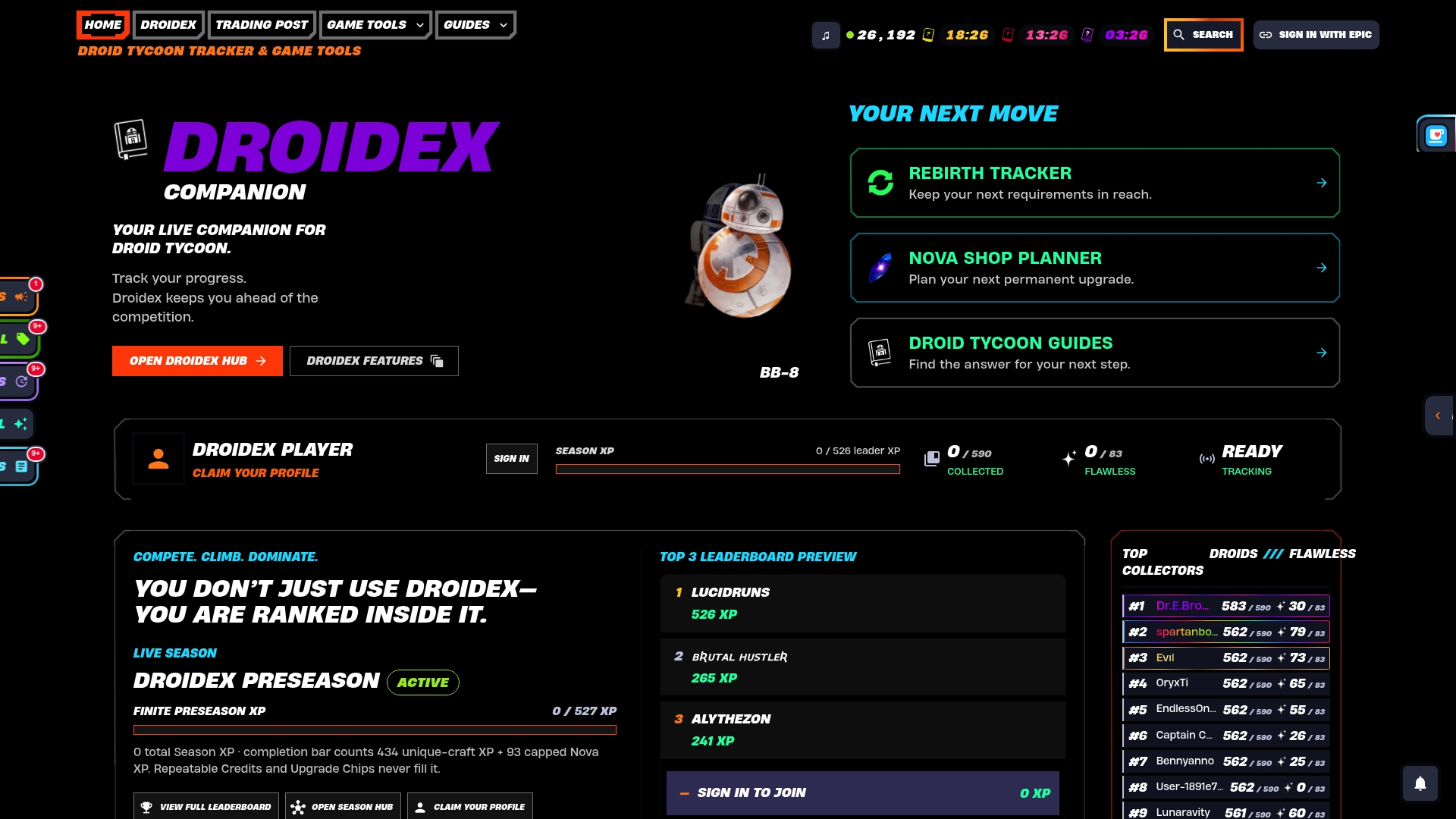
If the Droid Tycoon overlay itself fails to appear, the one-minute overlay checks cover that case, and the overlay setup guide shows how to keep FPS stable. The rebirth cycles tracker works for planning once your overlays behave.
Our view on overlay conflicts
Most conflict advice tells players to turn everything off and leave it off. That solves the crash and removes the reason you wanted overlays at all.
A competitive Droid Tycoon run depends on numbers you can read mid-session: income, chip costs, rebirth timing. We built Droidex Companion around live, local screen recognition and overlays you can customize, so the data stays on screen without you alt-tabbing to a spreadsheet. All main features are free, and a Ko-fi donation is optional.
Our practical rule is to pick one tracker and one chat layer, give each its own hotkey, and test any addition alone. That keeps your leaderboard runs stable and keeps the Steam Overlay available for the things only it does.
Daniel
FAQ
Why does Shift+Tab do nothing in my game?
The overlay may be off globally or for that game, the shortcut may have changed, or another program may hold the same key combination. Check Steam > Settings > In-game and the game's Properties > General, then reset the shortcut. If the key still fails, close other overlays and test again.
Is it safe to disable the Steam Overlay?
Yes. It only removes features that depend on the overlay, such as in-game purchases, invites, screenshots and trading. Turn it off for the one affected game first, and re-enable it from Steam > Settings > In-game if a function you need stops working.
Can two overlays run at the same time?
Often they can, but each added overlay raises the chance of a hook or hotkey clash. If crashes or freezes begin after you add one, disable the overlays, then re-enable them one at a time to find the pair that fails.
Should I run Steam as administrator?
Only if the settings, hotkey and third-party software checks have not fixed it. The aim is that Steam and the game run at the same privilege level, since a mismatch can stop the overlay from attaching.
Sources
- TechBloat: How to Resolve Issues with Steam Overlay Not Working
- RottenWiFi: Steam Overlay Not Working? Fix It on Windows, Linux, and More
- Craftane: Steam Overlay Not Working, Fix Shift+Tab and In-Game UI
- Gamlio: Steam Game Says Running but Nothing Opens
- BugFreeGG: How to Disable Overlays That Cause Crashes
- Roberts Space Industries Support: Unsupported Applications, Peripherals, and Overlays
- Steam Support: Overlay and external launcher guidance
- HowToGeek: Steam Overlay Not Working? Try These Fixes
- Technobezz: How to Fix Shift Tab Not Working in Steam
- Technobezz: How to Turn Off Steam Overlay
- Driver Talent: Solutions for Steam Error Code 126
- TechBloat: How To Fix Steam Games Crashing on Windows PC
- iTechGuides: Steam Alt-Tab Freezing Fix
- WinResolve: Windows Freezes With a Game Overlay