
An NVIDIA overlay conflict almost always comes from one of two causes: two programs answering the same hotkey, or two programs hooking into the game's graphics at once. Fix the hotkey first, because it takes a minute. If the problem stays, turn off every other overlay, then bring them back one at a time until the problem returns. The program you just re-enabled is the one in conflict.
TL;DR
- Check hotkeys first: NVIDIA's own fix for its App versus GeForce NOW clash is to reassign one shortcut.
- Stutter, freezes and crashes usually appear when two overlays or capture tools hook the same game.
- Test by disabling all overlays, then re-enabling them one at a time and changing one variable per launch.
- Droidex Companion is free and reads the screen locally, so you can run a Droid Tycoon overlay setup and still isolate conflicts cleanly.
Table of Contents
- What an overlay conflict actually is
- Fix the hotkey conflict first
- Which programs commonly clash with the NVIDIA overlay
- Does the NVIDIA overlay cause performance problems or crashes?
- The isolation method: find the conflicting program in four rounds
- Special cases worth checking
- Perspective
- Setting up a stable Droid Tycoon overlay stack
- Droidex Companion for Droid Tycoon players
- Quick reference: symptom to likely cause
- FAQ
- Sources
What an overlay conflict actually is
An overlay is a layer drawn on top of the game. The NVIDIA overlay draws performance metrics, capture controls and sharing tools. Other programs do the same: voice chat, hardware monitors, capture software, and companion tools. Each one either hooks into the game's graphics calls or reads the screen from outside.
The word "conflict" covers two different failures:
- Input conflict. Two programs react to the same shortcut. Nothing is wrong with rendering, but the wrong panel opens or two panels open together.
- Hook conflict. Two programs try to attach to the same graphics functions. This is where stutter, freezing and crashes come from.
Treating them as one problem wastes time. An input conflict is solved in a settings menu. A hook conflict needs isolation testing.
Fix the hotkey conflict first
NVIDIA documents a clean example. When NVIDIA App and GeForce NOW are both installed, their overlays can activate at the same time. NVIDIA's support answer says to reassign the default overlay hotkey of one application, for example changing NVIDIA App to Ctrl+Alt+Z.
The lesson applies beyond those two products. An apparent overlay conflict can be two products responding to one shortcut, not a rendering incompatibility. Before you uninstall anything:
- Note the shortcut that misbehaves.
- Open the settings of each overlay-capable program and look for the same key combination.
- Change one of them to a combination no other program uses.
- Launch the game and test.
If the shortcut itself seems dead, the cause may be simpler. NVIDIA's troubleshooting article says that when Alt+Z does not open the NVIDIA App overlay, you should first verify that In-Game Overlay is enabled in NVIDIA App Settings. The same article notes that Windows 10 N and Windows 11 N systems need the Microsoft Windows Media Feature Pack. After installing it, reboot and reinstall NVIDIA App.
For a general walkthrough of choosing combinations that do not collide, see our guide to fixing overlay hotkeys on Windows.
Which programs commonly clash with the NVIDIA overlay
Game publishers keep lists of overlay software that causes trouble. They agree on the main suspects, and the lists come from support teams that handle the crash reports.
| Source | What it names |
|---|---|
| Forza Support | Discord's communication overlay, the NVIDIA GeForce overlay for capture and sharing, and Fraps for hardware monitoring and capture |
| Last Epoch Support | NVIDIA ShadowPlay, AMD Radeon ReLive, Discord, MSI Afterburner, Steam, Razer software and other overlay-capable applications |
| Nixxes Support | OBS, ReShade, RTSS, MSI Afterburner, and the NVIDIA filters in NVIDIA App or GeForce Experience |
| OBS knowledge base | MSI Afterburner, RivaTuner, EVGA Precision, Discord, FRAPS, TeamSpeak and Mumble |
Note the pattern. The NVIDIA overlay appears on other companies' lists, and other overlays appear on NVIDIA's. The conflict runs in both directions, so the fix is rarely "the NVIDIA overlay is bad." It is "two things are hooked into one game."
Why hooks collide
OBS explains the mechanism. On-screen displays and overlays can cause issues because they hook graphics functions that OBS also needs to hook, which produces crashes or other abnormal behavior, according to its known-conflicts page. The same page says running several game-capture or recording applications at once is likely to cause trouble for the same reason, and it recommends closing the extra capture programs.
In practice that means a stack like the following is risky: the NVIDIA overlay recording, a hardware monitor drawing frame rate, and a streaming tool capturing the game. Each one wants the same entry point.
Does the NVIDIA overlay cause performance problems or crashes?
Not by itself, in every case. The evidence is narrower than the forum threads suggest.
Forza Support says similar overlay software may interfere with expected in-game performance. It does not claim a universal penalty. It also says overlay software may cause crashes or other technical issues, and it recommends disabling or uninstalling overlay features before launching Forza Horizon. Nixxes reports that its investigation of player reports found that overlay and visual-enhancement software hooking into a game can sometimes cause performance issues or unexpected crashes.
Read those statements carefully. They say "may" and "sometimes." The result depends on the game, the driver, and what else is running. That is why testing beats guessing. If one game crashes with the overlay on and another does not, both observations are valid.
If you want to measure the cost of individual overlay features instead of assuming it, our article on finding which overlay feature costs FPS describes six tests you can run on your own PC.

The isolation method: find the conflicting program in four rounds
Nixxes recommends that players who see stuttering, freezing or crashes disable or detach overlay and enhancement software from the game to test whether it is responsible. Turn that into a repeatable procedure.
Round 1: strip everything
Close or disable every overlay-capable program. That includes the NVIDIA overlay, voice chat overlays, hardware monitors, capture tools and any companion app. In NVIDIA App, turn off In-Game Overlay in Settings. Launch the game and play long enough to reproduce the original symptom.
- If the symptom is gone, an overlay is responsible. Go to round 2.
- If the symptom remains, the cause is elsewhere: drivers, game files, or hardware. Overlays are cleared.
Round 2: add back the NVIDIA overlay alone
Enable only the NVIDIA overlay. Test again. If the symptom returns with just this one active, check the game's support page for a known conflict and consider which NVIDIA features you use. The overlay can display frame rate, clock speeds and GPU temperatures, and NVIDIA's performance-overlay article lists Alt+R as the default statistics toggle, with Alt+Shift+R cycling metrics. Turning off only the features you do not need reduces what the overlay does while the game runs.
Round 3: add the others one at a time
Re-enable a single other overlay per launch. Keep a short log:
| Launch | Enabled | Symptom |
|---|---|---|
| 1 | NVIDIA overlay only | None |
| 2 | NVIDIA overlay and voice chat overlay | None |
| 3 | NVIDIA overlay and hardware monitor | Stutter after 10 minutes |
The example log shows a conflict between the NVIDIA overlay and the hardware monitor. One variable changed per launch, so the culprit is clear.
Round 4: decide what stays
You now know which pair conflicts. Pick one of three fixes: change a hotkey, disable one program's on-screen display while keeping its other functions, or stop running one of the two during play. OBS advises closing conflicting tools or disabling their OSD functions, which keeps the program available without its drawing layer.
Special cases worth checking
Windows Game Bar. The built-in Game Bar is another overlay and can answer shortcuts that other tools want. Our guide to Game Bar overlay conflicts in Droidex Companion walks through resolving it with a Shift+F2 shortcut.
Launch order. Some overlays behave differently depending on whether they start before or after the game. If a conflict appears only on certain launches, read about overlay startup with the game and fix the order.
Display mode. Exclusive fullscreen can hide overlays that work fine in windowed fullscreen. If your overlay vanishes instead of crashing, the display mode is the likelier cause than a conflict. Our article on windowed fullscreen and overlay setup in Fortnite covers the missing-option problem, and the PresentMon tests for fullscreen optimizations show how to compare modes with data.
Blurry text. Blur is a scaling problem, not a conflict. Use the overlay text blur guide to find the cause.

Rules for the game. Before adding any overlay to an online game, confirm what the publisher permits. We summarize which Fortnite overlays are allowed.
Perspective
Most overlay advice online says to switch everything off. That solves the crash and removes the information a competitive player needs. We think the better approach is a small, deliberate stack.
Droid Tycoon rewards planning: rebirth timing, collection progress, and live stats all matter. Droidex Companion is built around local screen recognition, which means it reads what is on your screen instead of depending on a hook into the game's graphics. We designed it that way so that tracking and planning stay available while you keep the other tools you rely on under control.
Our rule is simple. Give each overlay one job. Let the NVIDIA overlay handle capture or metrics, and let Droidex Companion handle stats, rebirth planning and the layout of what you see. Assign every shortcut once. Test after each change.
Players who follow this method spend a few minutes on setup and then stop thinking about overlays.
Daniel
Setting up a stable Droid Tycoon overlay stack
A Droid Tycoon session can run with one capture or metrics layer and one companion layer. Here is a sequence that keeps conflicts out from the start.
- Choose one metrics source. If you use the NVIDIA overlay for frame rate, do not also run a separate hardware monitor that draws the same numbers.
- Choose one capture tool. Running more than one game-capture application at once invites hook conflicts, as OBS's guidance states.
- Assign unique hotkeys. Write down every shortcut in use. No two programs share one.
- Start the game, then test the overlays. Confirm each responds only to its own key.
- Run a 20-minute session. Watch for the stutter or freezing that appeared earlier.
The full layout is covered in our Droid Tycoon overlay setup for stable FPS. If the companion overlay does not appear at all, go through the one-minute checks for a failing Droid Tycoon overlay.
Droidex Companion for Droid Tycoon players
Droidex Companion is a free Windows app for Droid Tycoon. It tracks live stats, plans rebirths, manages your collection, and offers customizable overlays, calculators and update guides. It uses local screen recognition, and every main feature is available without payment. Optional support goes through Ko-fi.
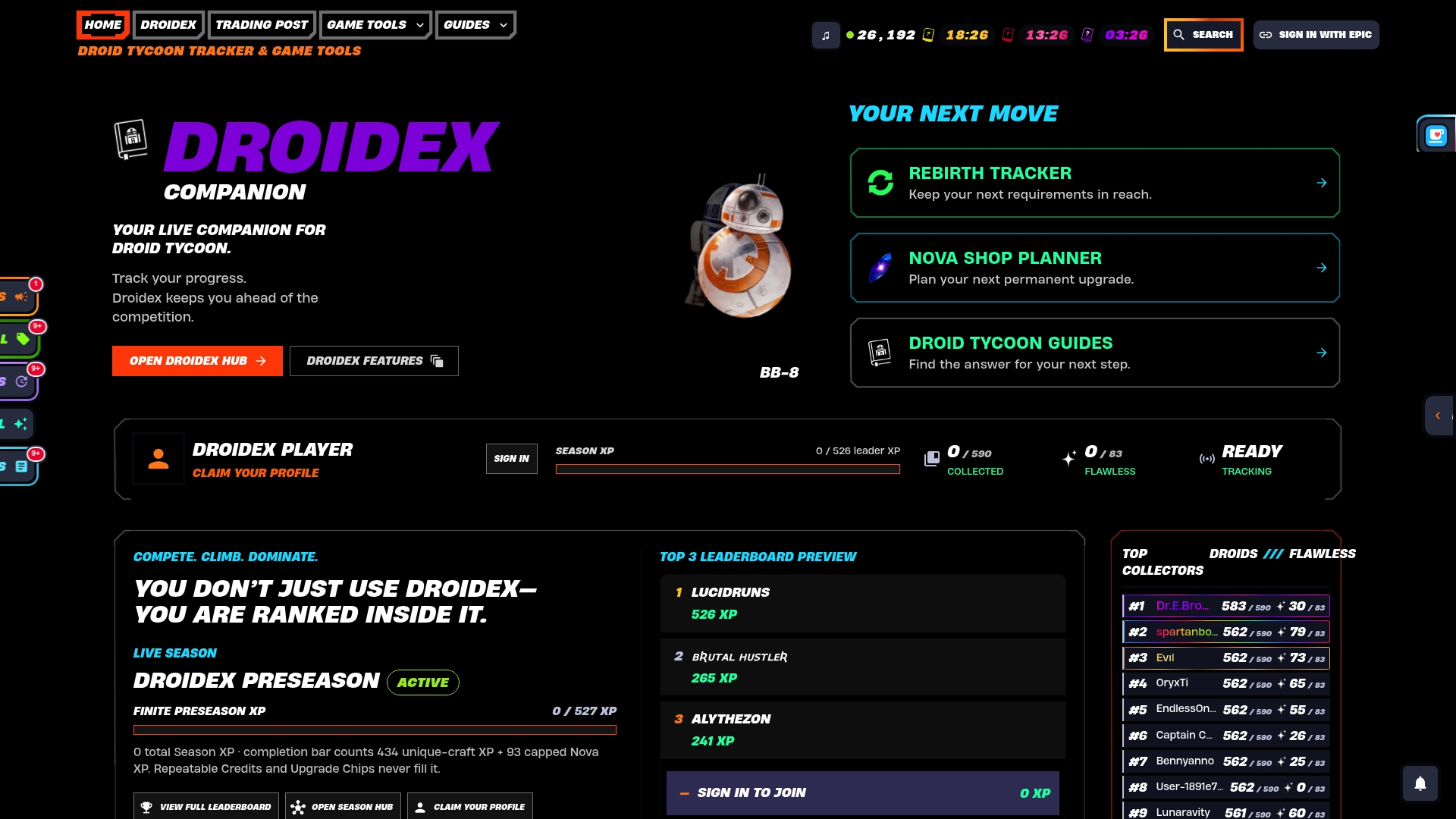
If you are cleaning up your overlay stack, download Droidex Companion and build the layout around it. Players planning their next reset can open the rebirth cycles tracker and requirements, and those who want to compare progress can check the community statistics page.
Quick reference: symptom to likely cause
| Symptom | Likely cause | First action |
|---|---|---|
| Wrong panel opens, or two panels open | Shared hotkey | Reassign one shortcut |
| Overlay does not open with Alt+Z | In-Game Overlay disabled, or missing Windows component on N editions | Enable it in NVIDIA App Settings; install the Media Feature Pack if needed |
| Stutter or freezing after minutes | Two programs hooking the game | Run the isolation rounds |
| Crash at launch | Overlay or capture tool attached to the game | Disable overlays, then re-add one by one |
| Overlay missing, no crash | Display mode | Try windowed fullscreen |
FAQ
How do I fix an NVIDIA overlay glitch?
Start with the hotkey. Change one program's shortcut so that no two share it, as NVIDIA advises for NVIDIA App and GeForce NOW. If the glitch continues, confirm In-Game Overlay is enabled in NVIDIA App Settings, then run the isolation rounds above.
Does the NVIDIA overlay hurt performance?
Not as a rule. Game support teams say overlay software may interfere with performance in some games, and they do not claim a universal penalty. Test your own game with the overlay on and off, and compare the results.
Should I disable the NVIDIA overlay?
Disable it while troubleshooting, because that is the fastest way to learn whether it is involved. Publishers such as Forza Support recommend this before launching their game. You lose the in-game metrics and capture controls while it is off, and you can turn them back on once the conflict is solved.
Can the NVIDIA overlay cause crashes?
It can, when it hooks a game at the same time as another overlay or capture tool. Forza Support and Nixxes both report crashes tied to overlay software. Closing the other overlay or disabling its on-screen display usually removes the crash.
Sources
- NVIDIA: NVIDIA App and GeForce NOW overlay hotkeys
- NVIDIA: Unable to bring up the NVIDIA app In-Game Overlay
- NVIDIA: NVIDIA App In-Game Performance and Latency Overlay
- Forza Support: Third-Party Overlay Incompatibility
- Last Epoch Support: Disabling Overlay Software
- Nixxes Support: Issues can be related to overlay and enhancing software
- OBS: Known Application Conflicts