
Overlay transparency in Fortnite is not one setting. It depends on which overlay you mean: the game's own HUD, a Discord or GPU-vendor overlay, or a companion overlay drawn on top of the game by a separate Windows app. Each one is adjusted in a different place, and the built-in Epic overlay cannot be removed at all. This guide separates the cases, shows where each is controlled, and lists the fixes for an overlay that is too opaque, invisible, or in the way.
TL;DR
- Transparency is controlled by the alpha channel of a color: the lower the alpha, the more of the game shows through.
- The Epic Online Services overlay is built into the game and cannot be disabled. HUD elements can be changed under Game UI in the settings.
- Discord's in-game overlay is switched off with the Enable In-Game Overlay checkbox in Discord.
- A companion overlay needs a windowed fullscreen display mode to appear above Fortnite. Exclusive fullscreen is the most common reason an overlay is missing.
- Test one change at a time, and keep overlay elements inside a safe margin so nothing clips.
Table of Contents
- Which overlay are you trying to change?
- How transparency works: the alpha channel
- Fortnite's own HUD: what you can change
- The Epic overlay cannot be turned off
- Removing the Discord overlay in Fortnite
- Why a companion overlay is opaque, missing, or blocking
- Choosing a transparency level
- Perspective
- Droidex Companion for Droid Tycoon overlays
- Privacy and your overlay
- A short troubleshooting order
- FAQ
- Sources
Which overlay are you trying to change?
Players search for "overlay transparency" and mean at least four different things. Sorting yours first saves time, because the fix for one does nothing for another.
| Overlay type | Who draws it | Can you make it transparent? | Where to change it |
|---|---|---|---|
| Fortnite HUD (health, minimap, reticle) | The game | Visibility and layout can be changed | Settings, Game UI |
| Epic Online Services overlay | The game | No, it cannot be removed or disabled | Not adjustable |
| Discord overlay | Discord | Can be switched off | Discord, Game Overlay settings |
| Companion overlay (stats, planners) | A separate Windows app | Depends on the app's own overlay options | The app's overlay settings |
| GPU-vendor overlays (performance, capture notifications) | Driver software | Usually switched off or reconfigured | The vendor's own app |
The rest of this guide follows that table from top to bottom.
How transparency works: the alpha channel
Every overlay color has a red, green, and blue value plus a fourth value called alpha. Epic's developer documentation explains that the alpha channel controls the transparency or opacity of a color. An alpha of 1.0 (or 100%) is fully solid. An alpha of 0 is invisible. Anything between lets the game scene show through.
Three practical consequences follow from this, and they apply to any overlay tool:
- A semi-transparent panel is only readable if its text has enough contrast against the scene behind it. Bright maps with white text fail even at moderate transparency.
- Opacity applies to the whole color, so a panel at 60% alpha also dims any element drawn in it unless the app handles text separately.
- Low alpha does not cost you screen space. The panel still covers the same area, so it still hides whatever sits under it for click or aim purposes in the game scene.
That last point matters in practice. A transparent overlay is easier to look through, but a companion overlay does not pass your mouse clicks to the game unless the app is built to do so. Place panels away from the crosshair area and from the parts of the screen where you read game information.
Fortnite's own HUD: what you can change
The in-game HUD is the part Epic lets you adjust. According to Epic's support page, HUD elements can be customized under Game UI in the settings, including general options such as health and the minimap, and Reticle & Damage Feedback. The same menu is where you reduce clutter if the screen feels crowded.
If you want to see more detail rather than less, advanced connection readouts can also be switched on. Dot Esports reported in 2019 that Net Debug Stats can be toggled in the settings menu so it appears as an on-screen overlay during a match. Menu names and layout have changed since then, so treat the article as a pointer and confirm the current option names in the game's settings.
The same Dot Esports piece makes the case for turning off HUD elements you do not find useful, which gives a cleaner view of the match. That principle carries over to any overlay you add yourself: show only what you read during play.
The Epic overlay cannot be turned off
Some players try to hide the overlay that appears with Epic account features, friend notifications, or purchase prompts. Epic's help center is direct about it: the Epic Online Services overlay is built into the game and cannot be removed or disabled. There is no transparency slider for it either.
If that overlay is what bothers you, the realistic options are to avoid triggering it (it appears when you use the features it supports) and to keep your own overlays away from the screen areas it uses for notifications.

Removing the Discord overlay in Fortnite
The most common overlay complaint tied to Fortnite is Discord's. Epic's support page covers the case where Fortnite reports you are blocked from Discord: the fix is to turn off Discord Game Overlays by unchecking Enable In-Game Overlay.
Steps:
- Open Discord and go to User Settings.
- Open the Game Overlay section.
- Uncheck Enable In-Game Overlay.
- Close Fortnite and the Epic launcher fully, then start them again.
The same logic applies to other overlays that run on Windows. If you want a broader walkthrough, this guide on how to disable overlays on Windows covers the GPU-vendor overlay as well. Turn off only what you do not use, because each active overlay is one more program drawing on top of the game.
Why a companion overlay is opaque, missing, or blocking
A companion overlay is a separate window drawn above the game. Its transparency, position, and visibility depend on the display mode and on the app's own settings. These are the failures players report most, with the cause and the fix for each.
The overlay does not appear at all
The usual cause is exclusive fullscreen. In that mode the game owns the display, and a separate window cannot be placed above it. Switch Fortnite to windowed fullscreen. If the option is missing from your video settings, the guide on windowed fullscreen in Fortnite walks through the fix and the overlay setup that follows.
The overlay appears solid when you expected see-through
Check these in order:
- The overlay's own opacity setting. If the app exposes background opacity or alpha, a value of 100% gives a solid panel.
- A theme or skin reset after an update. An overlay that was transparent before an update and solid after often has a reset configuration or a corrupted skin file in its settings folder.
- Windows color and transparency effects. Confirm that no accessibility or contrast mode is forcing solid backgrounds.
- A second overlay layered underneath. Two panels at 50% each look far more solid than one.
Change one item, restart the app, and look again. Changing several at once hides which one worked.
The overlay is transparent but the text is unreadable
Lower the panel's alpha only on the background and keep the text at full opacity if the app lets you. If it does not, raise the background alpha until the text holds contrast against a bright scene. For text that looks soft rather than faint, the cause is different: scaling and display settings produce that, and the page on fixing blurry overlay text covers how to find the source.
Parts of the overlay are cut off
Panels placed at the very edge of the screen can clip on some monitors and scaling settings. Keep elements inside a margin. The article on 5% insets for overlay safe zones explains the margin and how to apply it.
The overlay lags or costs frames
An overlay that updates every frame competes with the game for resources. Compare your frame rate with each overlay feature on and off. The overlay performance tests show how to isolate the feature that costs frames, and the page on stable FPS with a Droid Tycoon overlay setup applies the same approach to this game. If the problem is delayed response rather than frame rate, see the guide to overlay input lag on PC.
The overlay starts before the game and covers it
Launch order changes how the windows stack. The page on overlay startup with the game lists the order and settings that keep the overlay behind menus and above the match.
Choosing a transparency level
There is no universal value. These ranges are working starting points for a panel behind text, not rules from Epic or any tool, so adjust them against your own map and monitor.
| Use case | Starting background opacity | Reason |
|---|---|---|
| Numbers you read during combat | 70% to 85% | Contrast stays high on bright maps |
| Reference panels you check between rounds | 85% to 100% | Readability matters more than scene visibility |
| Small status indicators at a screen corner | 40% to 60% | Small area, little to hide |
| Panels you only glance at once per match | 30% to 50% | Least distraction while visible |
Test at the brightest and darkest places you play. A setting that reads well in a dark interior often fails over open sand or snow. Fewer panels also help more than lower opacity does: the checklist to reduce overlay clutter covers which elements to cut first.
Perspective
Overlay problems rarely come from transparency itself. They come from showing too much, placing it badly, or running it in a display mode that does not allow it.
We built Droidex Companion around live, local screen recognition, so the app reads the game on your own PC and displays stats, rebirth plans, and collection data in overlays you can customize. Because the recognition runs locally, the overlay does not depend on an outside service to know what is on screen. Our overlay customization is meant to let a player decide what appears and where, which is the real control over how much an overlay interferes with the game.
Our advice is to start with one panel, set it to a readable opacity, and add the next only after you confirm it stays readable and does not cost frames. A tracker that you can read at a glance in a match is worth more than five that you ignore.
Daniel
Droidex Companion for Droid Tycoon overlays
Droidex Companion is a free Windows app for Droid Tycoon players. It tracks live in-game stats with local screen recognition, plans rebirths, manages collections, and offers customizable overlays, plus calculators and update guides. Leaderboards let competitive players compare progress. All main features are available without payment, and support through Ko-fi is optional.
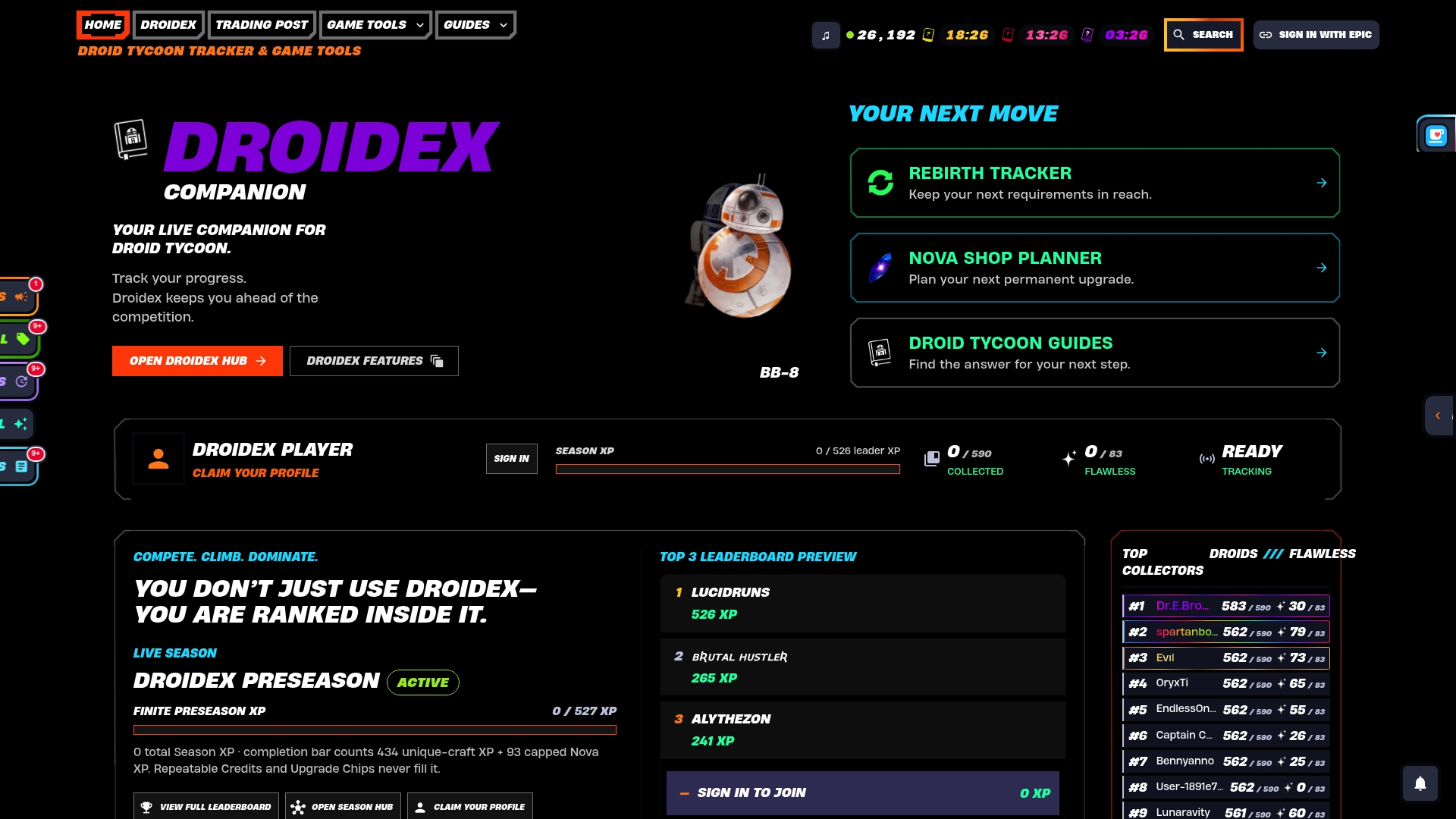
If you want an overlay you control, start at the Droidex Companion page. For the planning side, the rebirth cycles tracker lists requirements, and the community statistics page shows how other players are progressing. Players who want to compete can follow the Windows setup for a leaderboard overlay.
Privacy and your overlay
An overlay that reads your screen raises a fair question: what leaves your PC? With local recognition, the reading happens on your machine. The guide to privacy in game overlays explains how to hide activity from viewers and others while keeping local tracking. If you stream or share your screen, check that the overlay is not captured along with the game window unless you want it to be.
A short troubleshooting order
When an overlay misbehaves, work through this order and stop at the first fix that works:
- Confirm the display mode is windowed fullscreen.
- Close other overlays, including Discord and driver overlays, and retest.
- Restart the overlay app, then the game, in that order or the order your overlay guide recommends.
- Reset the overlay's opacity and layout to defaults, then change one value.
- Check frame rate with the overlay on and off.
- Move panels inside a margin from the screen edge.
The order puts the most frequent and least invasive causes first. Most missing-overlay reports end at step 1 or step 2.
FAQ
Can I change the transparency of the Fortnite HUD?
Fortnite lets you customize HUD elements under Game UI in the settings, including health, the minimap, and Reticle & Damage Feedback. The options mainly control which elements appear and how they are laid out. For a see-through panel with adjustable opacity, use an overlay app that offers its own opacity setting.
Can I disable the Epic Games overlay in Fortnite?
No. Epic states that the Epic Online Services overlay is built into the game and cannot be removed or disabled. You can avoid the features that trigger it and keep your own overlays away from the areas it uses.
How do I get the Discord overlay off Fortnite?
Open Discord, go to User Settings, then Game Overlay, and uncheck Enable In-Game Overlay. Restart Fortnite and the Epic launcher afterward. Epic recommends this step when Fortnite says you are blocked from Discord.
Why does my overlay not show over Fortnite?
The most common cause is exclusive fullscreen, which stops a separate window from drawing above the game. Switch to windowed fullscreen, then restart the overlay. If it still fails, close other overlays that may be competing for the same layer.
Sources
- Alpha channel, Fortnite Documentation, Epic Developer
- Can I disable the Epic Online Services overlay?
- How do I customize my HUD in Fortnite?
- How to remove HUD and UI information from your screen in Fortnite Battle Royale, Dot Esports
- Why do I get a message that I am blocked from Discord when playing Fortnite?