
Screen recognition calibration means matching a tracker's reading regions to what your game actually draws, so each number it reads is the number on your screen. For Droid Tycoon, that comes down to a clean display setup, correctly placed recognition regions and a short test against live values. Done once and checked after changes, it keeps live stats, rebirth planning and leaderboard data accurate.
TL;DR
- Reset the game UI to its defaults and set UI scale to 100% before you calibrate.
- Turn off color filters, night light and accessibility filters that alter the image the tracker reads.
- Place recognition regions around each value, then compare the tracker's output with the game for several values at once.
- Recalibrate after any change to resolution, display mode, UI scale or game layout.
Table of Contents
- What calibration means for a game tracker
- Prepare the display and the interface first
- Calibrate recognition in six steps
- Test recognition against live values
- Troubleshoot misreads and failures
- When to recalibrate
- Balance accuracy, update speed and performance
- Privacy when a tool reads your screen
- Our perspective
- Put it to work with Droidex Companion
- FAQ
- Sources
What calibration means for a game tracker
A tracker like Droidex Companion reads the game window locally on your PC. It does not hook into the game's data. It looks at pixels, finds the areas that hold numbers and converts them to values. Calibration tells the tool where those areas are and what they should look like.
Research on interactive systems points the same way: calibration ensures input and output are optimally configured, and without it errors can increase or some interactions may not be possible. In a tracker, the "input" is your screen image and the "output" is the stat panel, rebirth plan or leaderboard entry built from it.
Three things can go wrong in a misaligned setup:
- A region sits partly outside a number, so digits are cut off.
- A region includes an icon or border, so the reader returns extra characters.
- The image is scaled or tinted, so digits look different from what the reader expects.
A small error here spreads. A misread currency value skews your rebirth timing estimate, and a misread count can push a wrong figure to your overlay or leaderboard.
Prepare the display and the interface first
Most recognition failures start before any calibration step. They start with a display that does not match the defaults a reader expects.
SignalRGB's troubleshooting documentation covers screen-based game integrations, which face the same problem as any tool reading a game window. It says custom UI scaling, repositioned elements and UI mods can cause misreads. Its fix is to reset the UI to defaults and disable unsupported modifications. The same page advises setting UI scale to 100% or the game's default, confirming a supported resolution, and turning off colorblind modes, night light, Windows color filters and in-game visual accessibility filters, because they change the image used for recognition.
Applied to Droid Tycoon, work through this list before you touch the tool:
- Pick one display mode. Choose windowed, borderless or fullscreen and keep it. Calibration done in one mode rarely carries over to another.
- Pick one resolution. Use a standard resolution your monitor supports natively. Resolution changes the pixel size of every digit.
- Set UI scale to 100%. Any other scale changes digit height and spacing.
- Remove color filters. Disable Windows night light, Windows color filters and any in-game filter that shifts contrast or hue.
- Move UI elements back to default. Repositioned panels land outside regions set for the standard layout.
- Close other overlays. Recording and chat overlays can cover the values you want to read. Overlays can also affect in-game input: Guild Wars 2 Support recommends disabling overlay functionality to test whether it resolves an interaction issue, a useful isolation step here too.
Resolution deserves extra attention, since it sets how many pixels each digit occupies. A guide on the role of resolution in games explains how resolution settings shape what a game draws, which helps when you choose the one you will calibrate against.
If blurry text is your issue, anti-aliasing is a frequent cause. Our post on anti-aliasing and OCR text explains why smoothed edges hurt digit reading and why grayscale should be kept until binarization. If the overlay text itself looks soft, this blurry-text diagnosis walks through the causes.
Calibrate recognition in six steps
The sequence below fits any region-based reader. Droidex Companion follows the same logic: regions are defined on the game image and labeled by box, not by typed numbers. Our guide to recognition region setup in Droid Tycoon covers that labeling in detail.
- Open the game in its final configuration. Use the display mode, resolution and UI scale you settled on. Changing any of them later means starting again.
- Bring the stat screen into view. Pick a screen where every value you track is visible at once, so one capture covers all regions.
- Start the companion app and confirm it sees the game window. If the preview is black or shows another window, fix capture before anything else.
- Draw each region tightly. Frame the digits with a small margin. Leave out icons, borders and neighboring labels. A region that is too wide invites stray characters. One that is too narrow clips digits.
- Label each box by its meaning. Assign the right stat to each box so a value is never read into the wrong field.
- Save the layout and run a live read. Compare each output with what the game shows at that moment.
Region size matters more than most players expect. Aim for a margin of a few pixels around the digits at your resolution. The goal is stable output across frames, not one correct read.
Test recognition against live values
A single matching read proves little. A number can match by chance, and a value like 1,000 can survive a misread that would wreck 1,008. Test in a way that exposes weak spots.
Check values that change
Watch a value that updates often, such as a currency count. The tracker's output should follow it without gaps or flicker. Brief wrong reads between correct ones point to region edges touching a moving element.
Check values with similar digits
Digits such as 3 and 8, or 1 and 7, are the first to fail when the image is blurred or scaled. If your stats include these, compare several readings rather than one.
Check long numbers
Large values with separators and suffixes push a region to its limit. Confirm that the full number fits inside the box when it grows. A region sized for a six-digit value will clip a nine-digit one later in your run.
Check overlay position
If you use an overlay, confirm that it does not sit over a recognition region. Overlay start order and hotkeys can also affect behavior, so see overlay startup with the game and the overlay hotkeys setup guide.

Troubleshoot misreads and failures
SignalRGB's guidance for screen-based integrations is to check display mode, resolution, default UI settings, color filters and overlays, and to send in-game screenshots to support if the problem persists. That order works as a general triage. The table maps common symptoms to causes.
| Symptom | Likely cause | Fix |
|---|---|---|
| Output is blank or constant | Capture not seeing the game window | Confirm display mode, restart the tool after the game |
| Digits read with errors | UI scale not 100% or filter active | Reset scale, disable filters, recalibrate |
| Right values in wrong fields | Mislabeled boxes | Relabel each region by meaning |
| Reads fail after a game update | Layout shifted | Redraw regions on the new layout |
| Overlay does not show | Game Bar or another overlay conflict | See the Game Bar conflict fix |
| Overlay missing in general | Launch order or settings | Run the one-minute overlay checks |
| Large numbers cut off | Region too narrow | Widen the region on the long side |
When you send screenshots to any support channel, capture the full game window with the stat panel visible. Add your resolution, display mode and UI scale. That information lets the other side reproduce the problem.
When to recalibrate
Treat calibration as tied to a specific setup. Anything that changes the pixels on screen can invalidate it. Recalibrate after these events:
- You change resolution or monitor.
- You switch between windowed, borderless and fullscreen modes.
- You change UI scale or reposition interface panels.
- The game updates and moves or restyles a stat panel.
- You enable or disable a Windows color feature.
- Readings start to drift, or errors appear on values that were stable.
A quick spot check is cheaper than full recalibration. At the start of a session, compare two or three live values with the tool's output. If they match, continue. If they differ, redraw only the regions that fail before touching the rest.
There is a human factor as well. Researchers studying calibration in interactive systems found that calibration can be tedious and unenjoyable, which leads users to avoid it. The practical lesson: keep your routine short. One saved layout per display setup and a ten-second spot check beat a long procedure you skip.
Balance accuracy, update speed and performance
Recognition runs on your machine, so it competes with the game for resources. Three settings trade against each other: how often the tool reads, how many regions it reads and how much image processing it applies.
- Fewer regions, faster reads. Track only the values you act on. Every extra region adds work per cycle.
- Tighter regions, cheaper reads. Small regions mean fewer pixels to process, which helps both speed and accuracy.
- Slower refresh for slow values. A value that changes once a minute does not need many reads per second.
If frame rate drops when the tool runs, reduce the number of regions before anything else. If values lag behind the game, check that nothing else is consuming the machine, such as screen recorders or browser tabs with video.
For rebirth planning, accuracy outweighs speed. A plan built on a stale or wrong value misleads you for the whole cycle. For a live overlay, a short delay is acceptable, while repeated wrong values are not. Our post on rebirth planning with a screen recognition overlay shows how the readings feed into planning, and the rebirth cycles tool lays out cycle requirements.
Privacy when a tool reads your screen
Any tool that reads the screen needs permission to capture it. On some systems that permission is explicit: the screen recorder Cap, for example, asks for Screen and System Audio Recording permission on macOS, and you enable it in System Settings under Privacy and Security if it was denied. Droidex Companion is a Windows app and reads the game image locally, on your own PC.
Two habits keep you in control:
- Grant capture only to tools you chose to install, and review which apps hold it.
- Keep unrelated windows closed while calibrating, so only the game appears in the capture preview.
If you stream or share your screen, see our guide on hiding activity in game overlays without giving up local tracking.
Our perspective
Calibration is the step players skip and then blame the tool for. In our experience of building a companion for Droid Tycoon, nearly every wrong reading traces back to a display setting, not to the idea of reading the screen.
That is why we built Droidex Companion around local recognition. Your game image stays on your PC, regions are labeled by what they mean, and you can see the tool's output next to the game while you adjust. All main features stay free, so tuning the setup costs you only a few minutes.
Our advice is simple: settle your display first, calibrate once, save the layout and spot check at the start of each session. Players who do this get stable stats, and stable stats make rebirth planning and leaderboard comparisons worth trusting.
Daniel
Put it to work with Droidex Companion
Droidex Companion is a free Windows app for Droid Tycoon players. It offers live stat tracking, rebirth planning, collection management and customizable overlays, all driven by local screen recognition. Calibrating it takes the steps above, and the result is a tracker you can rely on.
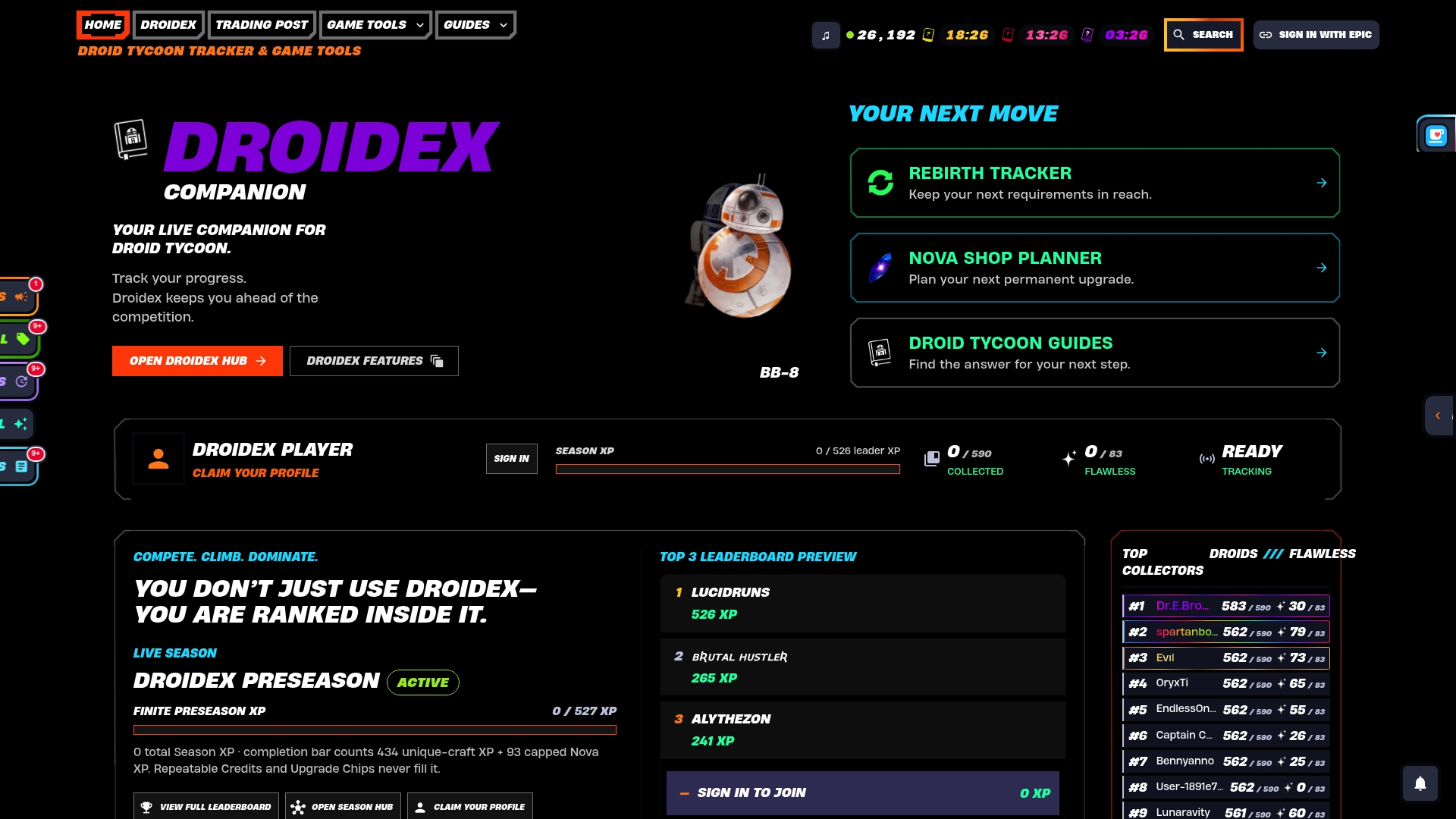
Download it from the Droidex Companion page, then compare your numbers with the community stats. If you want to compete, follow the leaderboard overlay setup for Windows.
FAQ
How long does screen recognition calibration take?
Most of the time goes to preparing the display, not drawing regions. With resolution, UI scale and filters already set, drawing and labeling regions and running a live check is a short session. A saved layout lets you skip the process on later days.
Do I need to recalibrate after every game update?
Not every time. Recalibrate when an update moves or restyles a stat panel, or when readings drift. A quick comparison of two or three live values at the start of a session tells you whether anything shifted.
Why are some digits misread while others are correct?
Similar-shaped digits, such as 3 and 8, fail first when the image is scaled, blurred or tinted. Reset UI scale to 100%, turn off color filters and tighten the affected region. Anti-aliasing settings can also soften digit edges.
Can I change resolution after calibrating?
You can, but expect to recalibrate. Resolution changes the pixel size and position of every digit, so regions drawn for one setting will not fit another. Keep one saved layout for each resolution you use.
Sources
- Calibration games, Proceedings of the 24th annual ACM symposium on User interface software and technology
- Game Integrations Not Working As Expected, SignalRGB
- Troubleshooting Mouse and Keyboard Issues, Guild Wars 2 Support
- Installation, Cap Docs
- Rol van resolutie in games: gids voor gamers 2026